How the QR code security scanner checks a link
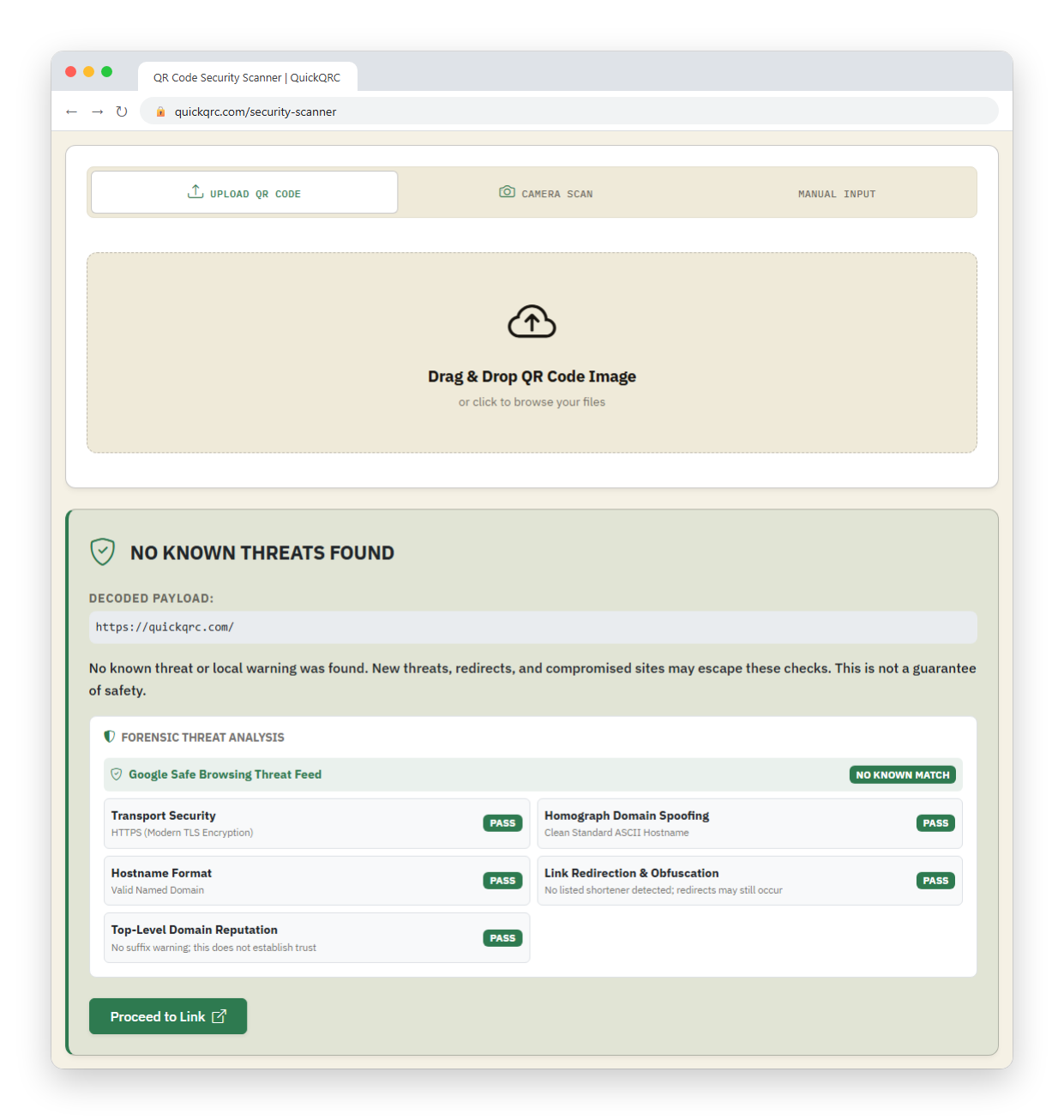
The QR code security scanner decodes a code in your browser, shows you the exact destination URL, and checks it against Google Safe Browsing plus five quick structural tests, so you see where a code points before your phone opens it.
The QR image is decoded on your device. The resulting URL is sent to the QuickQRC server and Google Safe Browsing for the threat lookup. Do not submit private invitation, password-reset, authentication, or other secret-bearing URLs.
The three ways to provide a code
- Upload QR Code: drag in or browse to an image of the code. It's decoded and checked in one step.
- Camera Scan: scan a physical code with your webcam. On a successful read the URL drops into the input field and is highlighted; you then press Verify Link to run the check. Nothing is checked automatically from the camera.
- Manual Input: paste any URL and press Verify Link (or Enter).
Arriving with a ?url= in the address, for example from the payload decoder's "Verify Safety" button, fills the field and runs the check for you.
The two checks it runs
Forensic Threat Analysis (in your browser)
Five structural tests run locally on the URL. Each returns PASS or WARN; a WARN is a risk signal, not a verdict.
| Check | Warns when |
|---|---|
| Transport Security | The link is http://, not https:// |
| Homograph Domain Spoofing | The hostname uses punycode (xn--) or non-ASCII characters (a possible lookalike domain) |
| Hostname Format | The host is a raw IP address instead of a domain name |
| Link Redirection & Obfuscation | The host is a known URL shortener (bit.ly, tinyurl.com, t.co, and similar) that hides the real destination |
| Top-Level Domain Reputation | The domain ends in a suffix on this tool's caution list; this is a heuristic, not a measured reputation score: .zip, .mov, .top, .tk, and others |
Google Safe Browsing (threat feed)
The URL is sent to a QuickQRC server that queries the Google Safe Browsing service for known malware, social-engineering (phishing), and unwanted-software matches. The row reads NO KNOWN MATCH, THREAT DETECTED, or UNAVAILABLE. No-match results may be cached for up to five minutes; known-threat results use the provider's supplied cache duration. If that service can't be reached, the scanner falls back to the five local checks alone and says so.
Reading the result
| Headline | Means | Proceed button? |
|---|---|---|
| HIGH RISK: DO NOT OPEN (red) | Google Safe Browsing has a current threat report for this exact URL | No |
| NO KNOWN THREATS FOUND (green) | The provider reported no known match and all five local checks passed. This is not a guarantee of safety. | Yes |
| REVIEW WARNINGS (amber) | No known match was reported, but local checks found warnings | Yes, with caution |
| CHECK INCOMPLETE (amber) | The threat service was unavailable or returned an unusable result. Local checks cannot substitute for it. | Yes, with caution |
| NOT A WEB LINK (amber) | The code holds plain text or app data, not a web URL, so there's nothing to check | No |
Local warnings affect the headline. A threat-feed match produces red; local warnings or an incomplete lookup produce amber. Even a green result cannot verify the operator, future page changes, or the final destination of a redirect.
Example: checking a parking-sign code
A code on a parking sign decodes to http://parkpay-portal.top/pay?lot=42. You paste it into Manual Input and press Verify Link. The Forensic Threat Analysis comes back:
| Check | Result |
|---|---|
| Transport Security | WARN: HTTP, unencrypted |
| Homograph Domain Spoofing | PASS |
| Hostname Format | PASS |
| Link Redirection & Obfuscation | PASS |
| Top-Level Domain Reputation | WARN: .top is on the caution list |
This is a hypothetical warning example, not a live threat report. If the provider reports no match, the HTTP and suffix checks still produce REVIEW WARNINGS. Verify the parking operator through a known website, app, or contact number before paying.
What the scanner can't tell you
- Safe Browsing has gaps and lag. A phishing page set up hours ago may not be listed. "No known threat" is not "safe".
- It checks the URL you give it, not where a redirect ends. A shortener is flagged, but the scanner doesn't follow it to the real destination.
- Only web links are analyzed. Wi-Fi, contact,
tel:, and payment payloads get no check here; read those with the payload decoder. - A green result is not permission to enter credentials. Never type a password or card number on a site you reached from an unexpected code, whatever the banner says.
- This tool is for informational purposes only and is not security advice. It reduces risk; it does not remove it.
If you already scanned a suspicious code
- You only opened the page: close it and don't interact. Opening a page rarely does harm on its own; the risk is in what you type or download next.
- You entered a password: change it now, everywhere you reused it, and turn on two-factor authentication for that account.
- You entered card or bank details: contact your bank straight away to flag or freeze the card, and watch your statements.
- Report it: tell the venue about the tampered code, and file a report: in the US, the FTC at reportfraud.ftc.gov or the FBI's IC3 at ic3.gov; elsewhere, your national fraud or cybercrime body.
For the wider picture (spotting a tampered code, safe habits in public), see the QR code safety guide and how quishing attacks work.
Who uses this
- Anyone facing a code in public (a parking meter, a poster, a restaurant table) where a sticker could have been swapped.
- People sent a code by email or letter that pushes urgency about an "account problem".
- Help desk and IT staff vetting a code a colleague received before advising them.
- Anyone on a laptop or desktop without a phone scanner, checking a code from a screenshot.
Read the whole report, not just the banner
Read both the threat-feed result and local checks. A warning is a reason to investigate, while a completed check with no known match is still not proof that a site is legitimate.