How the UTM builder turns your inputs into a trackable URL
A UTM builder appends campaign tags to your destination link so analytics tools can report where each visit came from. This one also cleans every tag as it builds the link, so a poster, a flyer, and a table tent for the same campaign don't end up as three separate rows in your reports.
Everything runs in your browser. Your URL and campaign names are never sent to a server, saved, or logged.
What is a UTM code?
A UTM code is the string of tags added to the end of a web address after the question mark, such as ?utm_source=table-tent&utm_medium=qr. You will also see it called a UTM tag, a UTM parameter or a campaign URL. The code does not change the page. It only tells your analytics tool where the visit came from, and a UTM code generator saves you from typing and formatting it by hand.
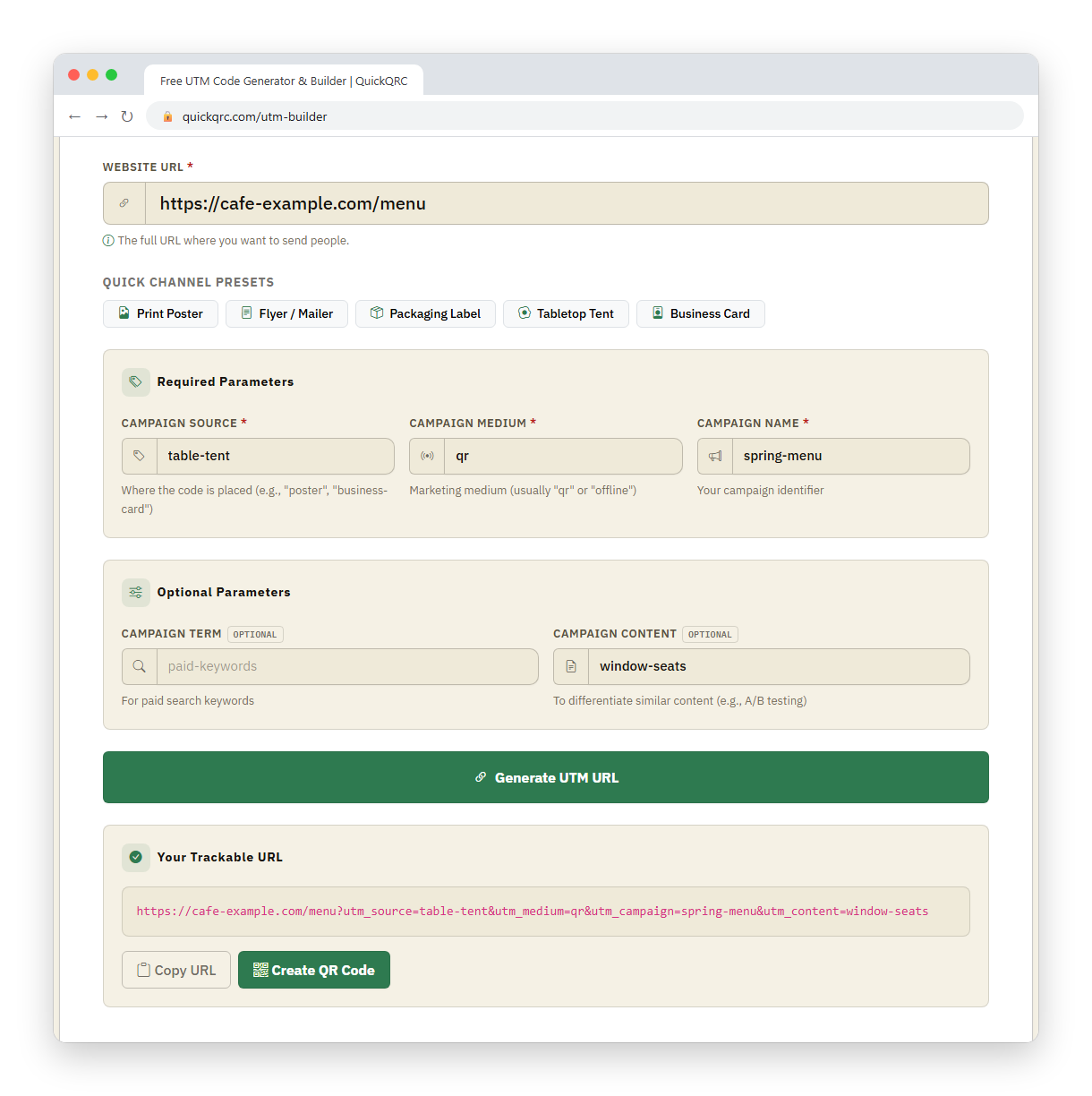
The five tags it writes
The tool builds a standard campaign URL using the parameters Google Analytics documents for manual tagging. Three are required; two are optional.
| Tag | Field label | What it records | Example value |
|---|---|---|---|
utm_source | Campaign Source * | Where the code or link sits | table-tent |
utm_medium | Campaign Medium * | The type of channel | qr |
utm_campaign | Campaign Name * | The promotion or initiative | fall-menu-2026 |
utm_term | Campaign Term | A paid-search keyword | oat-milk-latte |
utm_content | Campaign Content | Which specific placement or variant | window-seats |
It does not write utm_id, utm_source_platform, or the newer creative-format tags. If an ad platform hands you a campaign ID to pass through unchanged, add it to the link yourself after copying.
How each value is cleaned
When you press Generate UTM URL, every tag value runs through the same four steps before it goes into the link, and the field updates to show the cleaned version:
- Trim spaces from the start and end.
- Convert every letter to lowercase.
- Replace any run of spaces with a single hyphen.
- Remove every character that isn't a letter, digit, hyphen, or underscore.
That last step is worth watching. Accented letters and symbols are removed rather than converted, so the input and the output can differ more than you expect:
| You type | The link gets | Why |
|---|---|---|
Summer Sale 2026! | summer-sale-2026 | Spaces become hyphens; "!" is dropped |
Café Flyer | caf-flyer | "é" is removed, not changed to "e" |
email/newsletter | emailnewsletter | "/" is deleted, so the words run together |
Poster #12 | poster-12 | Space becomes a hyphen; "#" is dropped |
If a value matters, type it in the final form you want: lowercase, hyphen-separated, plain ASCII.
How the link is assembled
The tool takes your Website URL as entered, with two adjustments:
- If it doesn't start with
http://orhttps://, thenhttps://is added to the front. - The tags are joined on with
?if the URL has no query string yet, or&if it already contains a?.
The required tags are always written in the order source, medium, campaign, followed by term and content when you have filled them in. Each value is percent-encoded, though after cleaning there is rarely anything left that needs it.
The quick channel presets
The five preset buttons (Print Poster, Flyer / Mailer, Packaging Label, Tabletop Tent, and Business Card) fill in Campaign Source and Campaign Medium for you, and set a starter Campaign Name only if that field is still empty. Treat them as a starting point for offline placements and adjust any value before you generate.
Example: tagging a table-tent QR code for a café
Say Riverside Café prints a QR code on the table tents for its autumn menu launch, and wants scans from the window seats tracked separately from the rest of the room. (riverside-cafe.example is a placeholder domain; you would use your real one.) You enter:
| Field | You enter | Cleaned to |
|---|---|---|
| Website URL | riverside-cafe.example/menu | https://riverside-cafe.example/menu |
| Campaign Source | Table Tent | table-tent |
| Campaign Medium | QR | qr |
| Campaign Name | Fall Menu 2026 | fall-menu-2026 |
| Campaign Content | Window Seats | window-seats |
The tool prepends https://, sees no existing ?, and joins the tags in order. The result box shows:
https://riverside-cafe.example/menu?utm_source=table-tent&utm_medium=qr&utm_campaign=fall-menu-2026&utm_content=window-seats
Press Copy URL to take that link, or Create QR Code to open the generator with the URL already loaded. For the next placement (the counter sign, say), reuse the same source, medium, and campaign, and change only Campaign Content to counter-sign.
What the tagged URL tells you, and what it doesn't
Once someone opens the link, Google Analytics 4 reads the tags and files the visit under Session source, Session medium, and Session campaign in the Reports → Acquisition → Traffic acquisition report. You can then compare visits, engaged sessions, and key events by placement.
What a UTM tag can't do: count scans, count people, or record anything that happens before the link opens. Someone who scans a code, reads the URL preview, and closes it never reaches your site and never appears in analytics. A blocked script, a declined consent prompt, or a redirect that strips the query string each cost you the visit too. For how those numbers behave in practice, and how redirect analytics differ, see the QR code tracking guide.
UTM tags vs. dynamic-code scan tracking
Two different things get called "QR tracking", and they measure at different points.
| UTM tags on a static code | Dynamic (redirect) code | |
|---|---|---|
| What it measures | Visits that reach your analytics-tracked page | Requests hitting the redirect service |
| Needs a paid service | No | Usually, on an ongoing basis |
| Destination editable after print | No, unless you control the redirect | Yes |
| Counts a visitor who leaves before the page loads | No | Records the request anyway |
| Campaign attribution in GA4 | Yes, directly | Only if you also add UTM tags |
For a short campaign pointing at a page you already measure, UTM-tagged static codes are usually enough, and you own the whole chain. The static vs. dynamic comparison covers the trade-offs in full.
Tips, limits, and common mistakes
- Don't paste a URL with a
#fragment: the tags are added to the end of whatever you type, soexample.com/page#menubecomesexample.com/page#menu?utm_source=…; the tags sit inside the fragment and never reach analytics. Remove the#menupart first. - Strip existing
utm_tags before pasting: if your link already carries them, the tool adds a second set rather than replacing the old one, which makes attribution unpredictable. - Accented and non-Latin characters vanish: as the cleaning table above shows, they are deleted, not transliterated. Spell campaign names in plain ASCII.
- Keep personal data out of the tags: names, emails, and customer IDs in a URL end up in browser history, server logs, and shared screenshots.
- Match your existing naming: the tool lowercases for you, but it can't know you have been writing
newsletterelsewhere and typingemail-newsletterhere. Pick one convention and reuse it. - It builds one link at a time: for dozens of placements, build a master link, create the QR code, then vary
utm_contentper placement by hand or with the bulk generator.
Test the whole chain before printing
Generate the code, scan it with a real phone, and confirm a test visit shows up in GA4 with the right source, medium, and campaign. Note the time so you can exclude that test traffic from your analysis later.