To make a QR Code, choose the action you want, enter the exact payload, generate the symbol, and test the final version before publishing or printing. For a website, encode the complete HTTPS URL. For contact, Wi-Fi, email, SMS, phone, text, or calendar content, use the matching structured type and verify the result on representative devices.
A QR Code is only a data carrier. It does not host a website, keep a destination online, provide analytics, confirm consent, or guarantee that every phone will interpret a specialized payload identically. This guide walks through the five stages in order, shows what the stored text looks like for the common payload types, explains the difference between static and redirected codes, and ends with a production checklist and a worked example of a typical mistake.
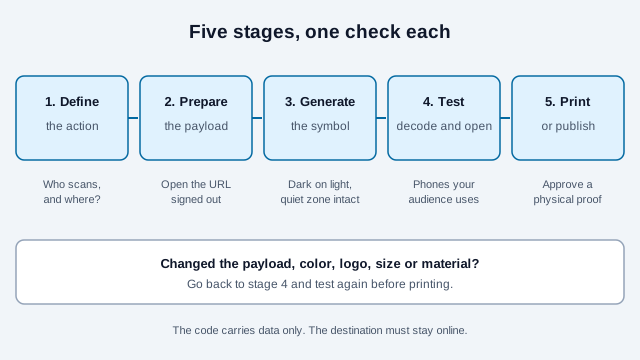
Step 1: What should happen after a scan?
Write one sentence describing the result: "Open the product instructions," "offer the guest Wi-Fi credentials," or "prepare an email to support." That sentence determines the payload.
| Goal | Payload type | Verify after scanning |
|---|---|---|
| Open a web page | HTTPS URL | Correct domain, page, language, and mobile experience |
| Show offline information | Plain text | Encoding, line breaks, and full content |
| Offer network details | Wi-Fi | Exact SSID, security type, password, and device support |
| Offer a contact | vCard | Field mapping, character encoding, and save flow |
| Prepare communication | Email, SMS, or phone | Recipient, editable draft, and user confirmation |
| Offer calendar details | Calendar event | Date, time zone, location, and import behavior |
Do not encode passwords for private systems, private records, payment-card data, authentication secrets, or information that should not be visible to anyone who photographs the symbol. A QR Code can be decoded without following its intended workflow. A guest Wi-Fi password printed on a wall sign is a deliberate exception, because the sign already shows it to every visitor.
Step 2: How do you prepare the payload?
For a URL, copy the canonical destination from the browser and include https://. Remove unnecessary tracking or personal parameters. Open the URL while signed out to confirm that the intended audience can access it. The URL QR Code generator takes the address as you would paste it into a browser.
For structured payloads, preserve exact spelling and syntax. The generator builds the string for you, but knowing what it contains helps you spot errors. The community-maintained ZXing documentation lists these conventions:
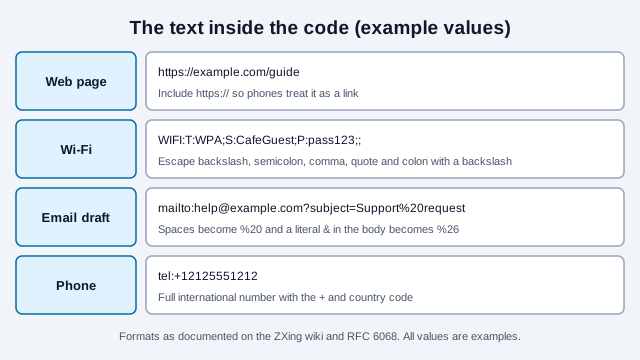
- Wi-Fi uses the form
WIFI:T:WPA;S:network;P:password;;. Field order does not matter, and the characters backslash, semicolon, comma, double quote and colon must be escaped with a backslash. A network name such asfoo;bartherefore needs to be writtenfoo\;bar. The Wi-Fi QR Code generator handles the escaping. - Email uses
mailto:with optionalsubjectandbodyparameters. RFC 6068 requires UTF-8 percent-encoding, and a literal ampersand inside the body must be written as%26because it separates parameters. Use the email, SMS or phone generators rather than typing these by hand. International numbers need the country code, and a scan should open an editable draft; it never sends anything or records consent. - Contacts use vCard. RFC 6350 requires the BEGIN, VERSION, FN and END properties and mandates UTF-8, so names with accents or non-Latin scripts need a generator that writes UTF-8. The vCard QR Code generator follows this format.
- Calendar entries use the VEVENT format from iCalendar, with a summary, start and end. The event generator writes it. Check the time zone after scanning, since a start time written in UTC shows differently on a phone set to another zone.
Wi-Fi network names and passwords can be case-sensitive, so copy them rather than retyping them.
Keep payloads concise. DENSO WAVE explains that QR versions grow with the amount of data: version 1 is 21 by 21 modules and version 40 is 177 by 177, with 4 more modules per side at each step. A longer payload usually creates more modules, which means each module becomes physically smaller when the overall printed size stays fixed. The largest symbol holds at most 2,953 bytes of binary data, and only at the lowest error-correction level; see the character limit guide for the per-mode numbers.
Step 3: How do you generate the QR code?
- Open the free QR Code generator.
- Select the payload type that matches the intended action.
- Enter or paste the prepared data.
- Inspect the displayed destination or content for mistakes.
- Start with a plain dark symbol on a light solid background.
- Preserve the empty margin around the complete symbol.
- Scan the preview before downloading.
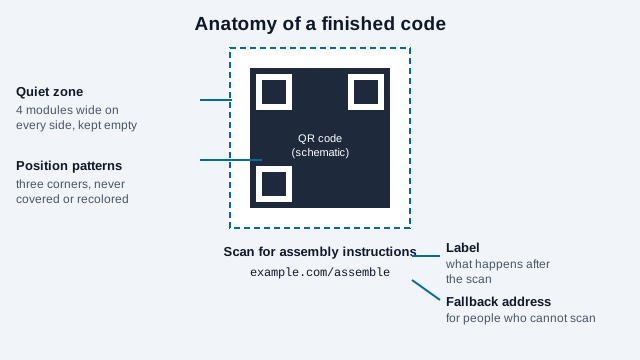
The standardized QR symbol requires a four-module quiet zone on every side. Do not crop it, place text or a border inside it, or let a busy photograph show through it.
Should you use a static code or a redirected one?
A static URL QR Code stores the destination directly. The symbol does not need a QR subscription, but the destination must remain valid. It can still become useless if the domain expires, the page moves, access is restricted, or the content is removed. The static vs dynamic guide compares the two in detail.
A hosted "dynamic" code normally stores a provider-controlled redirect URL. It may offer destination editing or request analytics, but its longevity depends on the redirect domain, account, plan, provider policies, and service availability. Some services may preserve redirects after a plan change and others may not; review the current terms rather than relying on a universal promise. The dynamic QR Code generator is one such option.
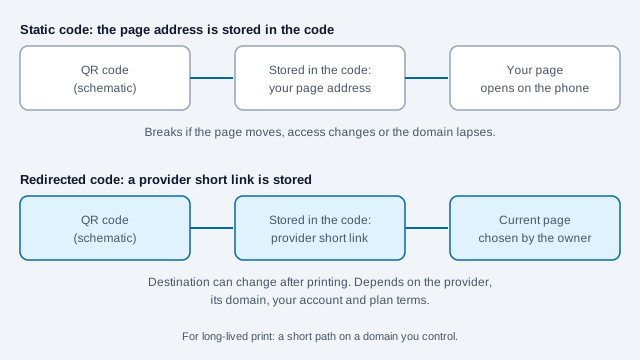
For long-lived print, prefer a short stable path on a domain the organization controls. That gives the owner a way to change the final page through its own redirect while preserving the printed URL. A flyer that says example.com/guide in the code can send people to a new page next year without a reprint.
How much can you customize the colors, logo and error correction?
Customize only after a plain version works. Use strong contrast and keep the background quiet. Avoid gradients across modules, transparency over imagery, reflective effects, extreme rounding, or changing the three position-detection patterns. The color and design guide covers contrast in more depth.
QR error correction adds redundant codewords that may help recover some dirt or damage. DENSO WAVE documents levels L, M, Q, and H, gives 15 percent for M and 25 percent for Q, calls M the level most often chosen, and notes that raising the level also increases symbol size for the same data. The published percentages describe approximate recoverable codewords under suitable damage conditions; they do not mean a logo can safely cover that percentage of the center. See error correction levels.
A logo can obscure concentrated structural or data areas even when its apparent area is small. If branding is necessary, keep it modest, preserve every functional pattern, use an appropriate error-correction setting, and retest the exact exported and printed design. The logo best practices page has size limits. For payments, safety, access, authentication, or emergency use, prefer an unmodified high-contrast symbol.
Should you download PNG or SVG?
| Format | Use it when | Main caution |
|---|---|---|
| SVG | Professional print, layout software, or repeated resizing | Some workflows rasterize or alter SVG; inspect the final output |
| PNG | A known fixed digital size or software with limited vector support | Upscaling can blur module edges |
SVG keeps geometry sharp during proportional resizing, but it cannot guarantee scan success. The final physical module size, contrast, quiet zone, ink spread, glare, curvature, and print process still matter. Read the SVG QR Code guide for production details and the print size guide for dimensions.
How do you test the destination and the symbol?
Test them separately. First verify the content without the code. Check the URL for HTTPS, correct ownership, access, redirects, mobile layout, privacy notice, page speed, and expected action. Then verify that the symbol decodes to the exact prepared payload. The scannability tester stress-tests a code against blur, low light and other conditions, and the payload decoder shows the raw text without opening it.
Apple documents scanning with the Camera app or the Code Scanner control and then tapping the link that appears. Other platforms and third-party scanners may show different previews or require different actions. Test representative phones used by the audience rather than relying on one creator device; how to scan a QR code covers iPhone, Android, Windows, Mac, and screenshots.
What belongs on your production checklist?
- Export the final file format and place it in the actual layout.
- Print or display it at the final size and resolution.
- Test at the expected distance, angle, lighting, and viewing time.
- Test both older and current representative devices where practical.
- Confirm the complete decoded payload, and look past the notification that a code was found.
- Test after lamination, coating, folding, mounting, or placing on a curved object.
- Check low-signal behavior if the destination requires internet access.
- Repeat after every change to payload, color, logo, size, material, or layout.
- Approve a physical production proof before a large print run.
How do you add context and an accessible fallback?
An unlabeled QR Code asks users to trust an unknown destination. The US Federal Trade Commission advises people to inspect the URL before opening a code that appears somewhere unexpected, so give your audience something to check against: a concise instruction such as "Scan for assembly instructions," the organization or destination domain, and a readable fallback URL or contact method where space allows. The safety check guide describes what careful scanners look for.
Do not make scanning the only way to receive essential information or complete a required task. Provide an equivalent link, printed text, staffed help, or other accessible option; the accessibility guide goes through the options. Forms opened by a code should have visible labels and instructions; W3C accessibility guidance explains that users need to know what information an input expects.
What mistakes do people make most often?
Look at a small gym that prints 500 membership flyers with a code pointing to a signup page it edited in a browser session. The link includes a draft-preview parameter. It works on the owner's laptop, where she is still signed in. The flyers go out, and every scan from a stranger's phone lands on a login screen. A signed-out test on a phone would have caught it in a minute, and a stable address on the gym's own domain would have let her fix the destination afterward. This is an illustration, and the same failure shows up in many variations:
- Encoding a draft, private, editing, or session-specific link.
- Printing before testing while signed out.
- Cropping the quiet zone or stretching only one axis.
- Using light modules on a complex or similarly colored background.
- Assuming error correction makes arbitrary logo damage safe.
- Using one code for several different promised actions.
- Publishing personal or secret data in the payload.
- Relying on an unowned redirect for permanent packaging.
- Testing a screen preview but not the produced material.
- Providing no text explanation or non-scanning alternative.
Some questions this checklist cannot settle: how long a destination domain will stay renewed, whether a provider's free redirect will outlive a printed batch, and how an unusual phone model reads a specialized payload. Decide who owns each of those for the life of the print run before you order it. Third-party scanner apps and operating systems change how they handle structured payloads over time, so recheck codes that must last for years. This guide is general information and does not replace advice on local rules for privacy, consumer protection, or accessibility.
References
- DENSO WAVE: generating a QR Code
- DENSO WAVE: quiet zone and code area
- DENSO WAVE: error correction
- DENSO WAVE: versions and data capacity
- ZXing wiki: barcode contents (Wi-Fi, mailto, SMS, tel, VEVENT formats)
- IETF RFC 6068: the mailto URI scheme
- IETF RFC 6350: vCard 4.0
- Wikipedia: QR code (capacity of the largest version)
- FTC Consumer Advice: scammers hide harmful links in QR codes
- Apple: scan a QR Code with iPhone or iPad
- W3C WAI: labels or instructions