QR code with logo best practices: set error correction to Level H, keep the logo near a tenth of the symbol area, stay clear of the corner finder patterns, and keep dark-on-light contrast strong. A logo works because ISO/IEC 18004 builds Reed-Solomon error correction into every symbol, so a decoder can rebuild a limited number of covered modules. A centered logo is damage you add on purpose, so leave room for real-world wear.
A branded code that scans well on a new phone in good light can still fail on an older handset, at an angle, or under glare. This guide explains the recovery budget a logo spends, how big the logo can be (and why published advice disagrees), where it can sit, how to build the light plate behind it, and how to test the result before a print run. No logo size or correction setting guarantees a scan, so the last step is always a printed proof tested on real phones.
How does a QR code with a logo remain scannable?
When the encoder builds the symbol, it adds Reed-Solomon parity codewords alongside the data. A decoder that finds modules missing under the logo treats them like dirt or damage and uses the parity data to work out what they should have been.
That recovery capacity is a fixed budget set by the error-correction level. The logo spends part of it before the code is even printed. Glare, scratches, curvature or a dim room spend more. Once the total goes past what the level can recover, the code stops decoding.
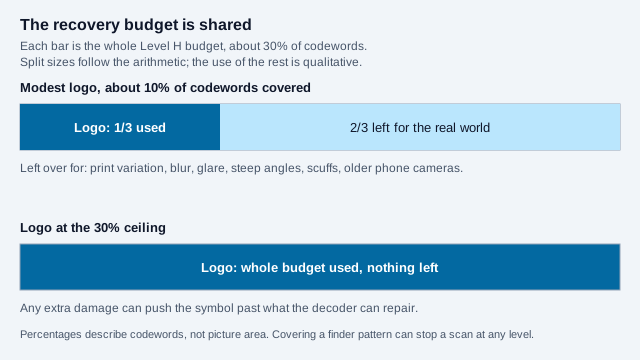
One detail makes the budget less predictable than a single percentage suggests. The figures refer to codewords, units of eight bits, and DENSO WAVE states that the rate is a ratio of total codewords including the parity ones. A logo covers a contiguous patch of the picture, and that patch can touch different parts of the data in different ways. This is why two codes with the same logo percentage can behave differently on the same phone.
Which error correction level should a logo QR code use?
| Error correction level | Approximate restoration | With a logo | Grid density | Typical use |
|---|---|---|---|---|
| Level L (Low) | ~7% of codewords | ✗ Not suitable | Lowest (largest modules) | Clean digital screens without logos |
| Level M (Medium) | ~15% of codewords | ! Risky, little spare capacity | Medium | Standard print labels without artwork |
| Level Q (Quartile) | ~25% of codewords | ∼ Possible for a small mark; test carefully | Higher | Packaging that may get dirty or scuffed |
| Level H (High) | ~30% of codewords | ✓ Usual choice | Highest (densest grid) | Codes with an embedded logo |
The restoration percentages are DENSO WAVE's published approximations for codewords, not for any area of the image. For a branded code, use Level H. Our QR code generator with logo switches to Level H automatically when you add one. The cost is density: DENSO WAVE notes that raising the level increases the amount of data and therefore the code's size, and one vendor help page gives a worked example of the same URL growing from 25×25 modules at Level L to 29×29 at Level H. At a fixed print size each module gets smaller. A short payload offsets that. The error correction levels guide compares all four in more depth.
How big can the logo be?
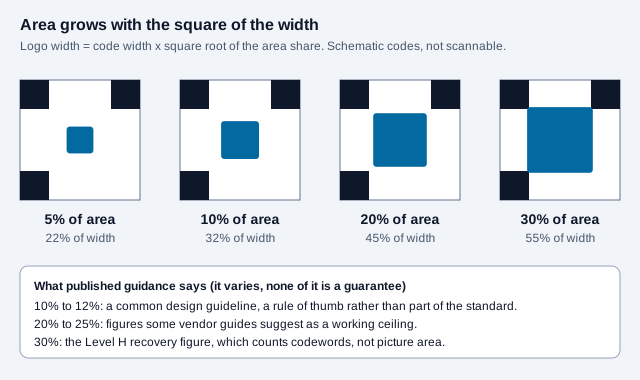
Level H can restore roughly 30% of codewords, but a logo that size leaves nothing for the conditions the code will actually meet. Published advice does not agree on a number, and none of it comes from the standard:
- One vendor help page states a centered logo may take up to 30% of the surface at Level H, while also telling readers to test on different devices and readers.
- Other vendor guides suggest a working limit in the range of 15% to 25% of the code area.
- A common design guideline is about 10% to 12% of the symbol area.
Treat the smallest of those as a starting point and the largest as a ceiling you may never reach. Area grows with the square of the width, so a logo covering 10% of the area is about 31.6% of the width:
Max Logo Width = Total QR Width × √(0.10) ≈ Total QR Width × 0.316
- A 500 × 500 px symbol allows a logo up to about 158 × 158 px.
- A 1000 × 1000 px symbol allows a logo up to about 316 × 316 px.
- A 50 mm (about 2 in) print allows a logo up to about 15.8 mm (0.62 in) wide.
The grid itself matters too. A longer URL pushes the symbol to a larger version, which has more modules, and a fixed logo then hides a smaller fraction of them. A version 3 symbol has 29×29 modules (841 in all), so a logo at 10% of the area covers roughly 84 modules, a patch about nine modules across. A short link and a clean logo are the two cheapest ways to widen your safety margin. If the link is long, a dynamic QR code can encode a shorter redirect address instead, at the price of depending on a service.
Where should the logo go?
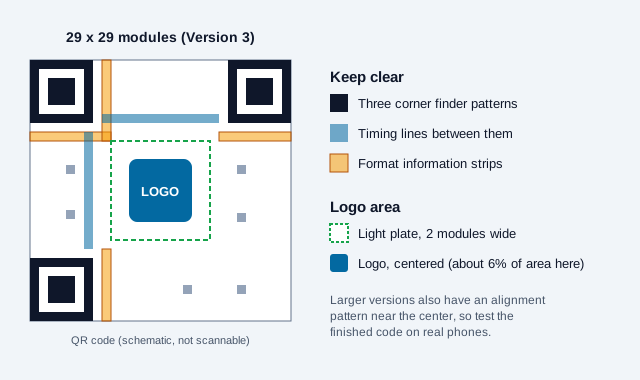
Put it in the center. That keeps it away from the structures a scanner needs to find and read the code, most of which sit near the edges and corners:
- The three finder patterns are the large squares in the top-left, top-right and bottom-left corners. Their 1:1:3:1:1 ring proportions let a scanner locate the symbol and work out its orientation. Covering even one of them can stop the camera from detecting the code at all.
- Timing patterns run between the finders as a line of alternating modules and tell the decoder the grid spacing.
- Format information sits beside the finder patterns and records the error-correction level and mask. If those modules are damaged, the decoder may not be able to interpret the rest.
- Alignment patterns are smaller squares that appear from Version 2 upward and help with perspective on angled or curved surfaces. From Version 7 upward one of them sits in the middle of the grid, directly under a typical logo, which is one more reason to test the finished code.
Does the logo need a background plate?
Yes, in most designs. Put a solid light plate behind the logo so its edges do not run into the surrounding modules. A transparent logo that touches black modules makes it harder for the decoder to see where the data starts.
- Leave a margin of one or two modules of plain white (or the code's light background color) around the logo.
- Keep the data modules clearly darker than the background. Black on white is the safe baseline. A contrast checker screens out weak pairs but cannot certify that a print will decode; the QR code colors guide covers brand palettes.
- Do not set a pale yellow, pastel or low-contrast icon straight over dark modules. Give it the light plate first.
The plate is not free either, since it is also missing data. Count the plate, not just the artwork, when you work out the logo's share of the area. DENSO WAVE's troubleshooting notes list overlapping pictures that reduce contrast between light and dark areas among the causes of unreadable codes, which is the same problem a busy logo edge creates.
How do you design and test a branded QR code?
Work through these steps before anything goes to mass print:
- Export the logo as SVG or a high-resolution PNG on a square or circular canvas, with a little white padding around the mark.
- Open the branded QR generator, enter your destination URL, set error correction to High (Level H), and upload the logo.
- Keep the URL short. Fewer characters mean fewer modules, and larger modules are easier to read.
- Download an SVG for print, or a 1000 px PNG for screens.
- Print a proof at 100% scale and scan it with at least three phones, for example an iPhone, a recent Android flagship and a budget Android. Try it in low light and at a steep angle of around 45 degrees, not just straight on at your desk.
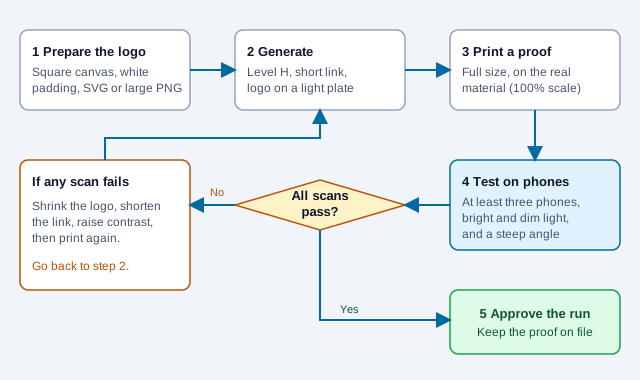
For a stress test before printing, the QR scannability tester can apply blur and low-light conditions to your exported image, and the print size guide shows how large the code needs to be for the viewing distance. Test your own code in a browser with the online QR scanner as well as with phone cameras.
What mistakes break branded QR codes?
Consider a boutique that orders 2,000 shelf cards with a logo covering about a quarter of the code, because the preview on the designer's screen scanned fine. On the shop floor, the cards sit behind glossy lamination under spotlights. The glare adds damage the logo's share never allowed for, and several older phones fail to read them. The reprint costs more than a proof would have.
- Sizing the logo to the maximum percentage instead of leaving room for wear.
- Letting the artwork touch a finder pattern or the format strips.
- Pasting a transparent logo straight on the modules without a plate.
- Testing only the preview on one phone, and never the finished print.
- Using a long link, so Level H pushes the grid to a dense version with tiny modules.
What matters most?
- Use Level H, and treat the 10% area figure as a guideline to test, not a promise.
- Keep the logo off the finder patterns, timing patterns and format information.
- Keep the payload short so Level H's extra modules do not end up too small at print size.
- Approve a full-size printed proof on several phones before a production run. For payments, access control or safety information, an unmodified code is the safer choice.
What can only a printed proof settle?
No source consulted gives a size at which every logo is safe, and scanner behavior varies by phone, app and lighting, so the numbers here are starting points that your own tests have to confirm. Brand rules may also limit how a logo can be placed on or near a code; check your brand guidelines and any platform rules for the channel where the code will appear. This guide is general information, not legal or compliance advice.
References
- ISO/IEC 18004:2024, QR code bar code symbology specification
- DENSO WAVE: Error correction feature of QR Code
- DENSO WAVE: Examples of problems encountered in reading a code
- DENSO WAVE: How to generate a QR Code
- Deloitte QR help: QR Code Error Correction (vendor guidance)
- QR Planet help: QR Code Error Correction (vendor guidance)
- TrueQRCode: QR code logo size (vendor guidance)
- W3C WCAG 2.2: Contrast (Minimum)
- DENSO WAVE: QR Code technology notes