Teachers and schools use QR codes on worksheets, classroom displays, library shelves, campus signs and newsletters to open an assignment, a reading, a campus map, a permission form or a video explanation. Link only to destinations your school has approved, say on the printed material what each code opens, and print a typed link beside it for any student who cannot scan.
This guide covers where a code helps and where it only adds a step, how student-privacy rules touch the pages behind a code, how to set document sharing so a code opens for students and nobody else, accessibility, and the fallbacks every classroom code needs.
Where does a QR code help in a school?
Codes earn their place when a student has a phone or tablet in hand and the address is long. They lose when the student is already on a laptop, because scanning forces a device switch. A writer at Tech & Learning makes the same point: use a code where phones are already out, such as check-ins, posters, scavenger hunts and gallery walks, and ask what devices people actually use before printing anything.
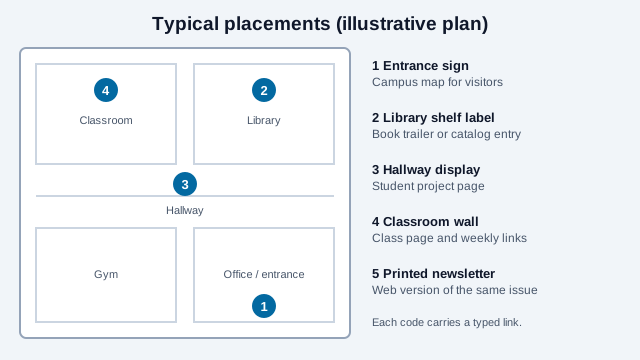
| Use | Where it goes | Destination | Watch for |
|---|---|---|---|
| Extension task or answer key | Worksheet footer | Doc or page in the school account | Sharing level (see below) |
| Read-aloud or book trailer | Library shelf label | Approved video or catalog entry | Ads and recommended videos on public sites |
| Campus map and room finder | Entrance and hallway signs | Mobile map page | Visitors have no school login |
| Permission slip or event RSVP | Paper flyer | Form that collects names | Data collected, who can read responses |
| Newsletter link | Printed newsletter | Web version | Long links break when wrapped |
For a single worksheet, one code is enough. For a unit with many resources, link one code to a resource page and keep the list there, so you can add or fix links without reprinting. Teacher guidance across the sources reviewed repeatedly favors a routine: students use codes regularly, so scanning becomes ordinary, and every code has a clear reason to exist.
Which privacy rules touch a classroom QR code?
The code itself holds only an address. The page it opens, and anything that page collects, is where student-privacy rules apply. The points below describe US federal rules at a high level; the right answer for a specific tool belongs to your district's privacy lead.
- FERPA. The Family Educational Rights and Privacy Act protects personally identifiable information from education records. Federal guidance, as summarized by state education agencies and universities (the Department of Education's student-privacy site is the primary source), says a school can share such information with a provider under the "school official" exception only when the provider performs a service the school would otherwise do itself and is under the school's direct control for that use. Those summaries also describe a written agreement as recommended practice. Do not link a code to a page that shows grades, attendance or identifiable student work to people who should not see it.
- COPPA. For children under 13, an online service that collects personal information generally needs verifiable parental consent. The FTC finalized amendments to the COPPA Rule in April 2025, effective June 23, 2025, with most compliance due by April 22, 2026. The FTC declined to write a school-consent provision into the rule text and said it would keep enforcing COPPA in education under its existing guidance. Law-firm summaries of that guidance say schools may consent for strictly educational use, with separate parental consent for uses such as advertising; confirm the current FTC wording before relying on it.
- Elsewhere. The UK and EU apply GDPR, with added protection for children. Rules in Canada, Australia and individual US states differ again.
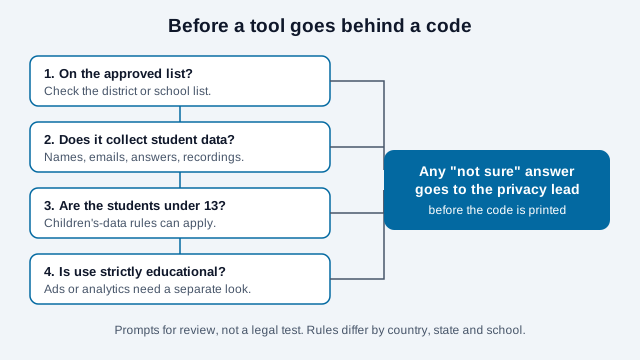
A practical habit: when a new quiz, form or video tool is not on the approved list, ask the privacy lead before it goes behind a code. A code printed and posted before approval is awkward to withdraw.
How should sharing settings be set so only the right people see it?
A QR code does not control access. Whoever scans reaches the same address as anyone else holding the link. Google's Drive help describes the general-access choice as "Restricted" (only people already given access) or "Anyone with the link", and then a role of Viewer, Commenter or Editor.
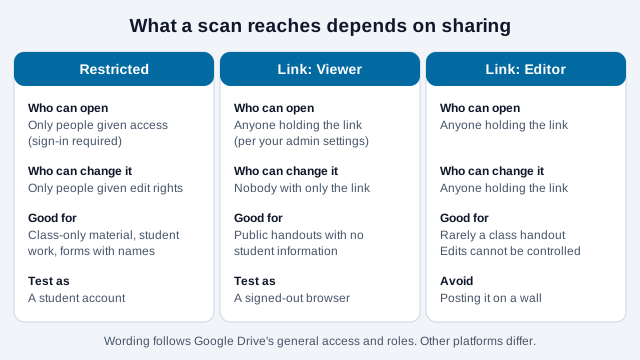
- Public handout: link sharing as Viewer. Anyone who scans can read it, so nothing in it should identify a student.
- Class-only material: restricted, or limited to your school domain. Students are prompted to sign in, which is the point.
- Student work or forms with names: restricted. Never link sharing as Editor, since anyone holding the link could change the file.
Test with a student account, not your own. Owners see everything, so a document that works for you can show an access request screen to a student. Also test on the school network and the exact device model, because managed Chromebooks and tablets sometimes restrict the camera or block the scan shortcut.
Is the linked content accessible?
Duties differ by school and country. In the US, Section 508 applies to federal ICT, and schools may have duties under the ADA, Section 504 and state law. Check with your institution which apply. Some practical steps hold up everywhere:
- Link to real text, not a photo of a worksheet. Screen readers and magnification need text.
- Caption instructional videos and offer a transcript.
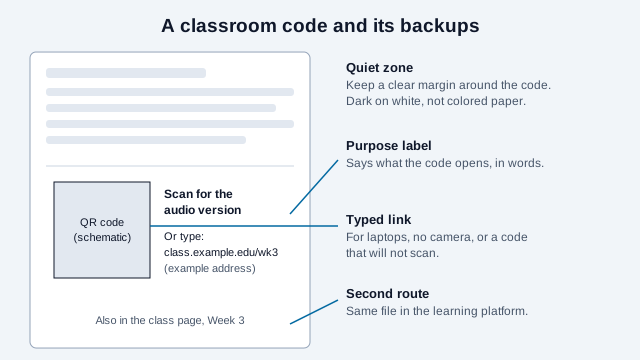
- Print the typed link next to every code. A QR-only handout leaves out students who cannot use a camera.
- Describe what the code opens in words ("Scan for the audio version of this chapter"), so a student using assistive technology can decide whether it is worth the effort.
The QR code accessibility guide covers the destination side in more detail, and the W3C's WCAG 2.2 is the reference most schools use for web pages.
What fallback should a classroom code have?
Teacher resources keep landing on the same remedies for students without phones: pair or group students so one device serves the table, offer a printed alternative, and post the same resource in the learning platform. Build these in at the start, not after a student says they cannot scan.
- A short readable link under the code, such as
class.example.edu/wk3. - The same resource posted in your learning management system.
- A printed copy for students without a device.
- An activity that works in pairs, so no student is left out by a missing phone.
- A one-minute demonstration of scanning with the camera at the start of the year.
If your classroom Wi-Fi code is for students on school devices, put it on a guest or student network only, since anyone who photographs the code can read the password.
How big should codes be, and where do they go?
- Worksheets and handouts: a readable size with the four-module quiet zone clear, and a proof scanned on school devices. No single inch measurement fits every payload; a short address yields a simpler, larger-module code that scans more easily.
- Hallway posters and campus signs: size for the reading distance, and test from there. The print size guide and scannability tester help.
- Dark modules on white. Avoid colored construction paper behind a code.
- Export SVG for larger signage, and use a laminated or sealed finish where students touch the material daily.
- Print the codes for a whole class set with the bulk generator when each station needs its own.
Hallway codes can be covered by a peel-off sticker like any public code. The guide to checking a QR code is worth sharing with older students, and see QR code scavenger hunts for activity design.
Static or dynamic for a school?
A static code is free and never expires, so printed material stays usable for as long as the page exists. Keep the address stable by pointing every code at a short path on a school-controlled site and changing what that page shows each term. A paid dynamic code is worth considering only if a printed destination has to change often and reprinting is costly, and it adds a vendor that holds student-adjacent scan data, which your privacy lead should review. The static vs dynamic guide compares the two.
What mistakes break school QR programs?
Picture a teacher who prints thirty copies of a worksheet with a code to a shared Doc. The Doc is set to Restricted, so every student sees "Request access". Two students use Chromebooks whose camera is disabled, and another has no phone. By the time the teacher notices, half the period is gone.
- Testing as the teacher instead of as a student.
- Printing a code with no typed link and no LMS copy.
- Linking to a public video site where ads or recommendations appear next to the lesson.
- Adding a new form tool without asking the privacy lead what it collects.
- Giving Editor access to anyone with a link.
- Leaving a poster up after the linked page was deleted.
How do you launch a classroom code?
- Decide what the code opens and why a code is better than a link in the LMS.
- Confirm the destination tool is approved and what it collects.
- Set sharing deliberately, then test as a student on a school device and the school network.
- Print one proof, scan it, then print the set.
- Add the typed link, the purpose label and the LMS location to every handout.
- Plan a pair or printed route for students without devices.
- Put a review date on every poster and shelf label.
Two points a checklist cannot settle: whether a particular tool meets FERPA and COPPA conditions for your use, and how accessibility law applies to your school type. Those answers sit with your district counsel and privacy lead.
This guide is general information, not legal advice. Student-privacy, children's-data and accessibility rules vary by country, state and school type, and change over time.
References
- U.S. Department of Education, Student Privacy Policy Office: using online tools and FERPA
- U.S. Department of Education: What is FERPA?
- Federal Register (April 22, 2025): FTC amendments to the COPPA Rule
- U.S. FTC: children's privacy (COPPA)
- Tech & Learning: QR codes in education, use with care
- Google Workspace help: share files and folders, general access and roles
- Faculty Focus: QR codes for quick student engagement
- Section508.gov: accessibility laws and policies
- W3C WAI: understanding WCAG 2.2