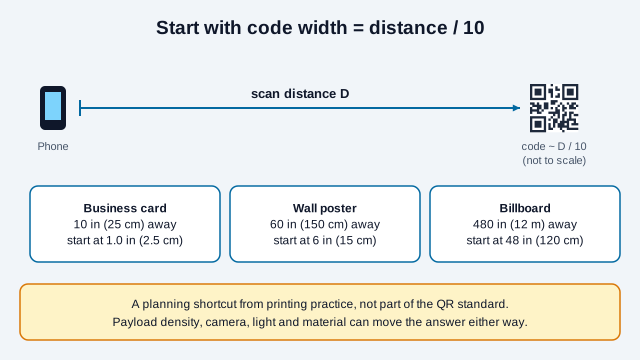
For QR code print size, a common rule of thumb is the 10:1 scan-distance ratio: start testing with a code one-tenth as wide as the furthest distance a person will scan it from. A poster scanned from about 40 inches (100 cm) away wants a QR code roughly 4 inches (10 cm) wide so a phone camera can resolve the individual modules.
Viewing distance is only one input. The data payload, the resulting QR version (1 to 40), the error-correction level, and any center logo all affect how large the code needs to be. None of these produce a guaranteed scan; a printed proof, tested at the real distance on more than one phone, is the only reliable check.
What is the 10:1 scanning ratio?
The 10:1 ratio comes from printing practice rather than from the QR standard. It gives you a sensible first size to proof, which the payload, the camera, and the print conditions can then push up or down. The reasoning behind it is simple: a camera needs enough pixels across each dark or light module to tell them apart, and both a bigger print and a shorter payload make each module larger.
Estimate a starting physical print size using the planning heuristic:
Starting width = expected scanning distance ÷ 10
| Print application | Expected scan distance | Calculation (distance ÷ 10) | Starting code size |
|---|---|---|---|
| Business card | 6–10 in (15–25 cm) | 10 in ÷ 10 | 1.0 × 1.0 in (2.5 × 2.5 cm) |
| Flyer, brochure, or mailer | 12–15 in (30–38 cm) | 15 in ÷ 10 | 1.5 × 1.5 in (3.8 × 3.8 cm) |
| Restaurant table tent or coaster | 15–20 in (38–50 cm) | 20 in ÷ 10 | 2.0 × 2.0 in (5.0 × 5.0 cm) |
| Wall poster or window decal | 3–5 ft (36–60 in) | 60 in ÷ 10 | 6.0 × 6.0 in (15.0 × 15.0 cm) |
| A-frame sidewalk sign or banner | 6–8 ft (72–96 in) | 96 in ÷ 10 | 9.6 × 9.6 in (24.4 × 24.4 cm) |
| Trade show backdrop | 10–12 ft (120–144 in) | 144 in ÷ 10 | 14.4 × 14.4 in (36.5 × 36.5 cm) |
| Billboard or building sign | 30–40 ft (360–480 in) | 480 in ÷ 10 | 48.0 × 48.0 in (120 × 120 cm) |
Where the code goes also changes the distance. The placement guides for posters, flyers and brochures, banners and trade show signage, and billboards work through those cases, and the placement overview helps you pick one. The QR mockup placer lets you drop a code onto a photo of the real surface to judge its size by eye before you print.
Printing for a business card? The business card QR code guide covers what to put in the code and where to place it, and the vCard QR code generator builds a contact code you can size with the table above.
How do QR code versions and payload length affect module size?
A longer payload can require a higher version, which packs more modules into the same space. Standard QR Code has 40 versions, from Version 1 (21 × 21 modules) to Version 40 (177 × 177 modules). The required version depends on encoding mode, encoded bytes, and error-correction level. Inspect the generated symbol instead of estimating its version from character count alone.
The number of modules along one side of any version follows a simple formula:
Modules per side = 21 + 4 × (version − 1)
There is no single minimum module size that applies everywhere. The calculated examples below all use a hypothetical 25 mm symbol width, excluding its quiet zone. Divide that width by the module count to find module size. These are arithmetic examples, not tested scan limits.
| QR version | Grid size | Module width at 25 mm symbol width | Total width including four-module borders |
|---|---|---|---|
| Version 2 | 25 × 25 modules | 25 ÷ 25 = 1.00 mm | 33.00 mm |
| Version 5 | 37 × 37 modules | 25 ÷ 37 ≈ 0.68 mm | 30.41 mm |
| Version 9 | 53 × 53 modules | 25 ÷ 53 ≈ 0.47 mm | 28.77 mm |
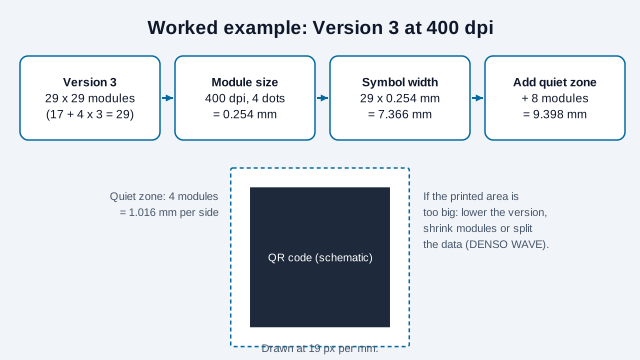
DENSO WAVE, the inventor of QR code, publishes a worked example of the same arithmetic. A Version 3 symbol is 29 modules wide. Printed at 400 dpi with 4 dots per module, each module is 0.254 mm, so the symbol is 29 × 0.254 mm = 7.366 mm wide. Adding the four-module margin on each side (8 modules in total) brings the required area to 9.398 mm square. DENSO WAVE suggests lowering the version, using smaller modules, or splitting the data across codes when that area is too large.
Some industries fix the module size instead of the print width. The QRStuff guide to GS1 QR codes reports that for retail point-of-sale use the module (X-dimension) must fall between 0.396 mm and 0.990 mm, with a 0.495 mm target. If your code has to be read by store scanners rather than shopper phones, follow the GS1 rules for your application rather than the 10:1 shortcut. The GS1 Digital Link guide and the packaging guide cover that case.
How does a real URL change the printed size?
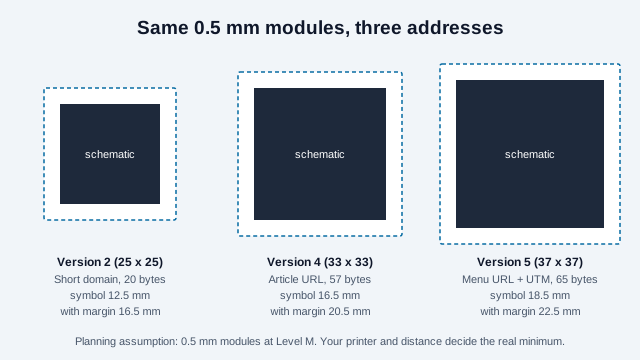
This table encodes three real addresses at Level M and works out the symbol width if each module is printed 0.5 mm wide. The 0.5 mm module is a planning assumption for the arithmetic, not a tested minimum. Your printer, paper, and scanning distance decide the real figure, so proof it.
| Address | Bytes | Version (Level M) | Symbol width at 0.5 mm modules | With four-module quiet zone |
|---|---|---|---|---|
https://quickqrc.com | 20 | 2 (25 × 25) | 12.5 mm | 16.5 mm |
https://quickqrc.com/knowledge/qr-error-correction-levels | 57 | 4 (33 × 33) | 16.5 mm | 20.5 mm |
https://cafe-example.com/menu?utm_source=table-tent&utm_medium=qr | 65 | 5 (37 × 37) | 18.5 mm | 22.5 mm |
The longest address needs a code about 50% wider than the shortest at the same module size, or smaller modules at the same width. That is the practical reason to keep printed URLs short.
Why does a shorter URL allow a smaller print?
A short link produces a low-version code with large modules that a phone can resolve even at small sizes. A long URL with dozens of query parameters forces a high-version code, and that can become hard to scan if it is printed small.
A few habits keep the payload, and so the code, small:
- Point the code at a short path such as
site.com/gorather than a deep one likesite.com/products/marketing/2026/campaign/item. - Keep long tracking strings out of the code itself. Encode a short URL and have your web server add the UTM parameters when it redirects the visitor.
- Export a vector file. The free QR code generator produces static codes you can download in SVG format, which stays sharp at any print size.
How do center logos and error correction level H affect size?
A logo does not change the code underneath it. It covers modules, and the decoder has to rebuild them from the error-correction data. What changes the size is the setting you usually pair with a logo: switching to Level H adds redundancy, and for the same payload that can push the code up a version, so each module gets smaller at the same print width.
So after changing the error-correction level, regenerate the code, check its module count, and redo the size calculation. Printing somewhat larger helps keep modules readable, but no size makes an oversized logo safe. Keep the logo to roughly a tenth of the symbol area (see logo best practices), confirm with a physical proof, and read QR code error correction levels for the full redundancy and density trade-off.
How wide should the quiet zone be?
A standard QR Code requires a clear, uniform light margin (the quiet zone) at least 4 modules wide on all four sides. Cropping this margin can make it harder for a reader to distinguish the symbol from nearby text or graphics. Micro QR has a different two-module quiet-zone requirement.
When calculating final layout dimensions for print shops, always include the quiet zone in your total graphic bounding box. For a 1.0-inch code with 25 modules, the quiet zone adds 0.16 inches (4 mm) of unprinted space around all four edges.
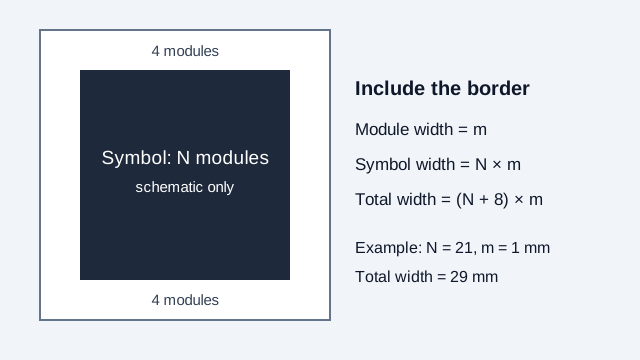
The margin is fixed in modules, so its millimeter width changes with the module size. A hard-coded margin in millimeters can be too narrow when a design is enlarged or reduced. The QRStuff GS1 guide makes the same point: the margin stays four modules at every version and must be recalculated whenever the module size changes, and cropping the artwork removes part of it.
How can you record a repeatable print check?
Fill in a simple record like this for each proof, so the next reprint can be checked the same way:
| Record | Include |
|---|---|
| Asset | Payload, version, error-correction level, module count, total artwork width, and quiet zone |
| Printer, material, coating, and proof identifier | |
| Scan conditions | Device, scanner app, distance, angle, and lighting |
| Result | Attempts, successful decodes, decoded destination, and any failure condition |
What does a sizing mistake look like?
Think of a gym that prints a QR code on a 1.5-inch (3.8 cm) sticker for a poster hung 6 feet (1.8 m) from the aisle. The link is a long campaign URL with several tracking parameters, so the code is a high version, and the designer adds a logo and switches to Level H for safety. On screen, zoomed in, it scans instantly. On the wall, the modules are tiny and the code is a tenth of the size the ratio would suggest. Members try twice and give up.
The repair has four moves. Move the tracking parameters behind a short redirect, drop the logo or shrink it, regenerate and read off the new module count, then enlarge the code toward the 7 inch (18 cm) mark for a 6 foot distance and proof it on the wall itself.
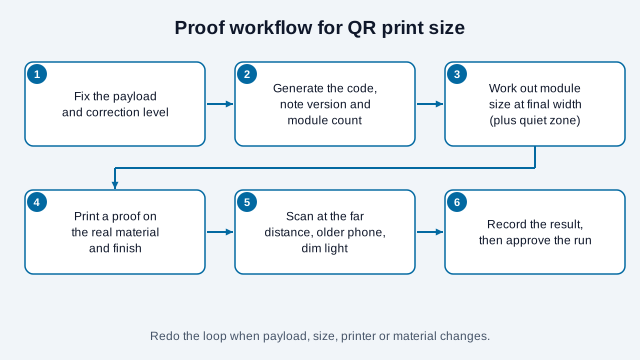
Pre-print verification checklist
- Measured expected scanning distance and used the 10:1 ratio only as a starting point for testing.
- Checked the printed modules are large enough for your printer and surface, by scanning a proof.
- Enlarged the physical code if a center logo is embedded, and re-tested.
- Confirmed an unobstructed 4-module quiet zone surrounding the symbol.
- Exported the code as a vector SVG or 300+ DPI raster file per our printing guide.
- Kept strong dark-on-light contrast (black on white is the safe baseline) per our color guide.
- Scanned a physical proof print at maximum viewing distance with an older smartphone model.
Open questions remain after any checklist. Phones differ in camera quality and autofocus, a printer may spread ink differently from the proof, and no published rule gives a guaranteed minimum module size for every device. If a standard governs your label, such as GS1 retail or a regulated product, its rules override the planning figures here. This guide is general information, so check the requirements that apply to your product and region.