To print a QR code that scans, give the printer a vector file (SVG, EPS or PDF), set the code in 100% black on the K plate only, keep a blank border at least four modules wide, and check a physical proof on the real paper. If you have to use a raster image, make it at least 300 DPI at the final printed size. Blurry edges and four-color "rich" black are two frequent reasons a code that scanned on screen fails on paper.
This guide covers file preparation, black ink, paper and finishes, the quiet zone, how professionals grade print quality, and a checklist to hand to your print shop. For how big to make the code, see the print size guide.
Why should you send a vector file instead of a PNG?
A vector file describes the code as shapes, so the printer can scale it to any size and the edges stay sharp. A PNG or JPG is a fixed grid of pixels, and enlarging it softens the module edges. Phone cameras find a code by detecting sharp contrast between neighboring modules, so blurry edges make decoding less reliable.
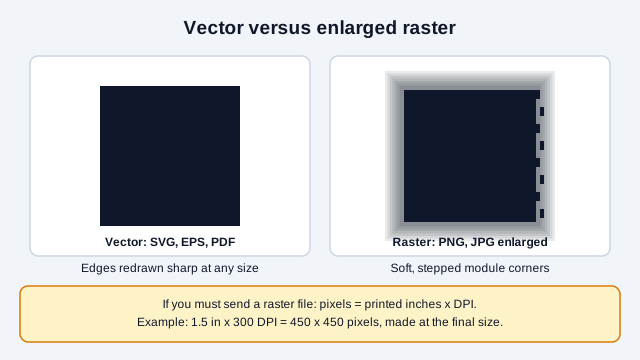
| Format | Type | Scaling | For print | Use it for |
|---|---|---|---|---|
| SVG | Vector | No quality loss at any size | Preferred | Business cards, packaging, posters, signs |
| EPS or PDF/X-1a | Vector | No quality loss at any size | Standard pre-press formats | InDesign, Illustrator and QuarkXPress layouts |
| PNG | Raster | Pixelates when enlarged | Acceptable at 300 DPI or more, at the final size | Mockups, email signatures, office printing |
| JPG | Raster | Pixelates when enlarged | Not recommended, because compression blurs module corners | Avoid for print |
Download your print files as SVG from the free QR code generator. Our article on SVG QR code benefits goes into the file format in more detail. A vector file can still print badly if the press, ink, or paper is wrong, which is why the next sections matter.
What resolution does a PNG need?
If a raster file is unavoidable, generate it at the final printed size and at least 300 DPI. Do not make a small screen-resolution image and stretch it in your layout software. The pixel count is the size in inches times the DPI:
Required pixels = physical size in inches × output DPI
| Printed size | DPI | Calculation | Minimum pixels |
|---|---|---|---|
| 0.8 × 0.8 in (business card) | 300 | 0.8 × 300 | 240 × 240 |
| 1.5 × 1.5 in (flyer or menu) | 300 | 1.5 × 300 | 450 × 450 |
| 4.0 × 4.0 in (counter stand) | 300 | 4.0 × 300 | 1,200 × 1,200 |
| 12.0 × 12.0 in (wall poster) | 150 | 12.0 × 150 | 1,800 × 1,800 |
| 36.0 × 36.0 in (large sign) | 100 | 36.0 × 100 | 3,600 × 3,600 |
Large formats can use a lower DPI because they are viewed from farther away, but the module edges still need to be crisp. One more check: make the PNG so that each module is a whole number of pixels wide. A 25-module code in a 250-pixel image gives exactly 10 pixels per module, while a code scaled to 253 pixels forces some modules to be wider than others and blurs the edges.
Why use 100% K black instead of rich black?
Set the code's dark modules to 100% K (cyan 0, magenta 0, yellow 0, black 100). Rich black stacks several inks, and on a press the plates can sit slightly out of register, which shifts one color against another. Ink also spreads a little as it dries (dot gain). Both effects soften module corners and let ink creep into the white gaps. A single black plate has nothing to misalign with, so its edges stay clean.
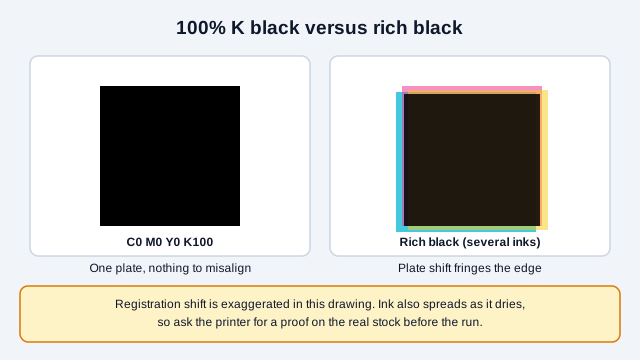
| Black | Example values | Registration risk | Edge quality | Advice |
|---|---|---|---|---|
| Pure K black | C0 M0 Y0 K100 | None, because one plate prints it | Crisp | Use for all printed codes |
| Rich black | For example C40 M30 Y30 K100 | Higher, since four plates must line up | Softer, with more spread | Avoid for QR codes |
| Cool black | For example C60 M0 Y0 K100 | Moderate, with two plates | Slightly softer | Avoid for small codes |
Colored codes can work, but the dark modules still need strong contrast against the light background. Check any brand-color pair with the contrast checker and read the QR code color guide first. A contrast ratio screens out weak pairs and does not certify a scan, so the proof still decides.
What paper and finish work best?
Glossy coatings and reflective laminates cause glare under spotlights and camera flashes, which washes out contrast. Matte, silk or uncoated stocks, and matte lamination over the code, avoid the problem. Guides from several QR vendors give the same advice: gloss is riskier, and a matte finish is the more forgiving choice. If you must use gloss, test under the lighting where the code will hang.
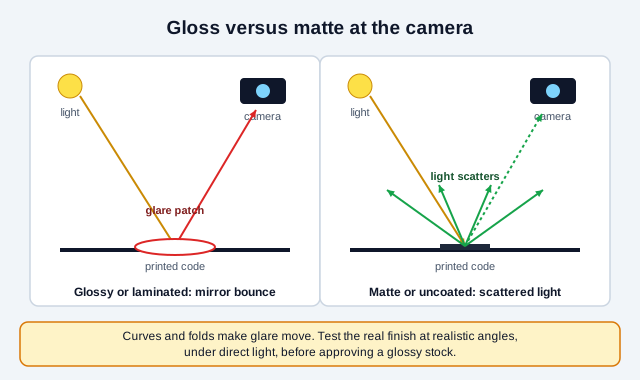
- Business cards and postcards. A stiff, matte card resists curling, which would distort the code when it is scanned at an angle. See the business card QR code guide.
- Menus and table tents. Synthetic waterproof paper or a matte laminate works better than gloss. Ask the printer for a matte film.
- Outdoor signs. Use a substrate and overcoat the supplier rates for outdoor sun exposure, and ask them for their expected lifespan in your climate.
- Packaging and labels. Keep foil, hot stamping and gloss varnish away from the code. A matte varnish over the code area is the safer choice. The labels and bottles guide and the packaging guide go further, including curved surfaces.
How wide is the quiet zone?
ISO/IEC 18004 specifies a blank margin, the quiet zone, at least four modules wide on every side of the code. DENSO WAVE, the inventor of QR code, states the same four-module requirement. Text, artwork, borders, background patterns and fold or die-cut lines inside that margin can stop a scanner from finding the corner squares.
For example, a standard Version 2 code (25 × 25 modules) printed 1.0 in wide has modules 0.04 in across, so each side needs at least 0.16 in (about 4 mm) of clear space. Do not crop the margin to make the code fit a smaller frame. Shrink the code or enlarge the frame. Frames with dark panels are the most common offender, which our QR code frame test measured across 61 templates.
How is print quality graded professionally?
Barcode verifiers grade a printed symbol against ISO/IEC 15415, the standard for 2D symbols. According to vendor documentation, a symbol that cannot be decoded gets the lowest grade, F, and a decodable one is graded on parameters such as symbol contrast, modulation, reflectance margin, fixed pattern damage, and unused error correction, with grades running from A (4.0) down to F (0.0). Cognex describes the overall grade as the lowest of the parameter grades, while another vendor describes a weighted combination, so check the standard itself if a contract depends on it.
Two practical points follow. First, a verifier needs controlled lighting and a calibrated setup, so it is a tool for production and compliance, and your phone remains the right everyday test. Second, a good grade measures print quality and says nothing about whether the encoded link is correct. GS1 applications set minimum grades of their own, so a supply-chain label has more demanding acceptance rules than a poster. Ask your printer whether they can verify codes, and read error correction levels to see why spare correction capacity is one of the graded measures.
What should you hand to the printer?
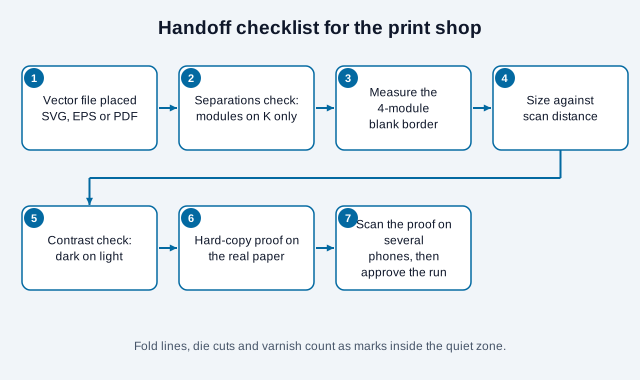
- Place the code as a vector (SVG, EPS or PDF/X-1a) in your layout software, such as InDesign, Illustrator or CorelDRAW.
- Open the separations preview and confirm that only the black plate has ink in the code's modules.
- Measure the four-module blank border around the whole code.
- Check the size against the scanning distance in our print size guide.
- Check contrast. Black on white is the safe baseline.
- Ask for a hard-copy proof on the actual paper, and scan it with several phones under dim indoor lighting before you approve the press run.
What does a typical printing mistake look like?
Think of a café that sends a flyer to a print shop with the QR code pasted in as a screenshot. The designer enlarged it to fit the layout, and the file uses a rich black with a gloss varnish across the whole sheet. On the office monitor the code scans perfectly. On the 2,000 printed flyers the edges look soft, the varnish throws a bright band under the café's spotlights, and about half of the people who try have to tilt the flyer. Nothing about the link was wrong.
The fix is an order of operations. Replace the screenshot with an SVG, set the modules to 100% K, mask the varnish off the code area, and ask for a single proof on the real stock before the run. The flyers and brochures guide shows how that layout works for a campaign.
Rollout checklist for a print run
- The payload is final. Printed static codes cannot be edited, so decide whether a dynamic code fits a design that must stay live for months (see static vs dynamic).
- The file is vector, or a raster made at final size and 300 DPI.
- The modules are 100% K, and the background is light and plain.
- The four-module quiet zone is clear of text, borders, folds and die lines.
- The finish over the code is matte, or you have tested gloss under real light.
- One proof was scanned on at least two phone models, one of them older.
What this checklist cannot settle
Some questions a checklist cannot settle. Presses and papers behave differently, so the printer's proof beats any generic rule here, and the module size a given press can hold depends on the stock and the process. Industry applications such as retail, pharmaceutical or logistics labels may impose their own grades and sizes, and those rules override this general guidance. Check what applies to your product and region. This guide is general information, not engineering advice.
References
- ISO/IEC 18004:2024, QR code bar code symbology specification
- ISO 12647-2: Graphic technology: process control for half-tone colour separations, proof and production prints
- DENSO WAVE: determining the QR Code area and quiet zone
- Cognex: ISO/IEC 15415 barcode verification
- GS1: 2D barcode creation and printing playbook
- QRStuff: GS1 QR code quiet zone of 4 modules
- Euresys: ISO/IEC 15415 for Data Matrix and QR codes