This online QR scanner reads a code from your camera or from an image file, entirely in your browser, and shows what the code contains before anything opens. Here you see the decoded text first, with the destination and a safety-check button. Native camera behavior varies: the iPhone Camera also previews a link and requires a tap to open it.
Update, 2026-09-19: we fixed a flaw in how decoded results were displayed. Crafted QR codes could inject markup into the result panel. Decoded content is now always shown as plain text.
How do you scan a QR code with it?
From a camera
- Open the Camera tab and press Start Camera.
- Allow camera access when the browser asks. Browsers only allow camera access on secure (HTTPS) pages, which this site is.
- Hold the code steady in the frame. On phones it prefers the rear camera.
If the camera does not start, use the "Camera not working?" prompt, which switches you to the upload tab. Common causes are a denied permission, another app using the camera, or a browser that blocks camera access for the site.
From an image
- Open the Upload Image tab and drop a file on the box or click to browse.
- The scanner decodes the image, including light-on-dark (inverted) codes, and shows the result.
Use a screenshot, a photo, or a saved image. If the image contains several codes, the scanner reads one of them.
How do you test a QR code you made?
Upload the image of your code in the Upload Image tab and compare the decoded text with what you meant to encode. A wrong character in a web address, a missing password in a Wi-Fi code or an old link all show up in the raw-data box straight away. This confirms the code decodes. It does not prove a printed copy will scan, so check the final print with the QR validator and the scannability tester, and scan it on a phone or two before you print many.
What does it show you?
| The code contains | What you see |
|---|---|
| A web address | The full URL as a link that opens in a new tab, plus a Verify Safety in Security Scanner button |
| Wi-Fi details | Network name, security type, and hidden flag. The password is masked until you press Show |
| A vCard contact | Name, organization, title, phone, email, website, and notes |
| SMS, email, phone, or map location | The number or address and, for SMS, the pre-filled message |
| Bitcoin or Ethereum payment | The wallet address |
| A SEPA (EPC) payment code | Beneficiary, BIC, IBAN, and amount |
| Anything else | Labeled Raw Text / App Data, with the exact decoded text |
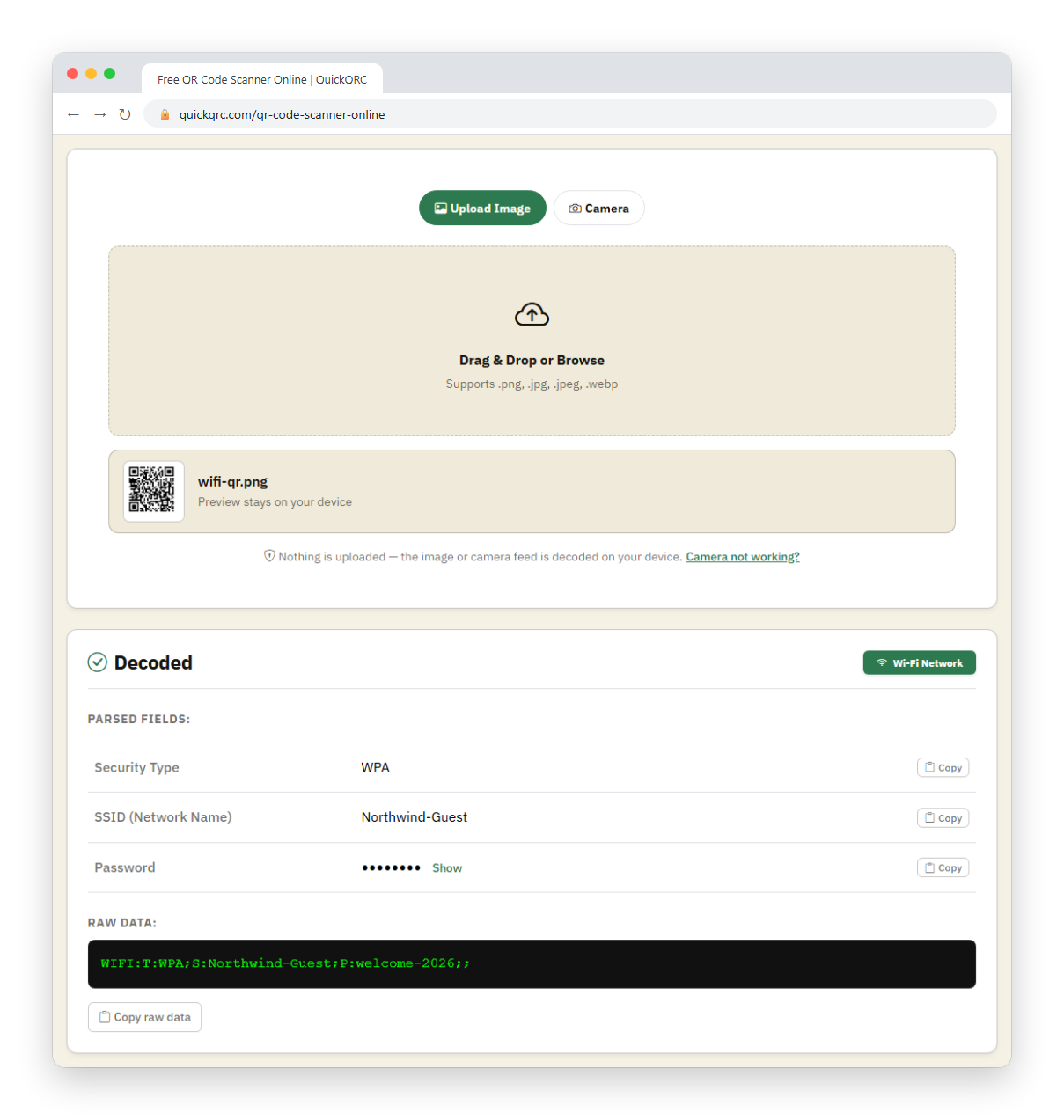
Every result has a raw-data box and a Copy raw data button, and each parsed field has its own Copy button. Formats this scanner does not parse into fields, such as authenticator (otpauth) links, eSIM activation codes, or UPI and PIX payments, appear as raw text. For a deeper field-by-field reading, use the payload decoder.
Why read before you open?
A QR code is a string of text. The risk lies in what that text does when opened: a link to a fake login page, an unexpected payment, a Wi-Fi network you did not intend to join. Seeing the destination first lets you spot a misspelled domain or an unfamiliar host, and the safety button sends the URL to the Security Scanner, which combines local checks with a Google Safe Browsing lookup. It does not guarantee a link is safe. A code that passes today can lead to a page that changes tomorrow, so treat any unexpected code with care. Read how to check QR code safety and quishing scams.
What happens to your data?
- Decoding runs in your browser. The camera feed and images are not uploaded to our servers.
- Recent Scans keeps your last 20 results in this browser's local storage only, and nowhere else. You can export them as CSV or clear them. Clearing site data in your browser also removes them.
- Pressing Verify Safety sends only the link to the Security Scanner page, which checks it with Google Safe Browsing on the server side.
Scanner or phone camera?
Use the phone's camera for a quick scan of a code you trust. Use this scanner when you want to inspect first, when you are on a laptop and the code is on a screen or in an image, when you want to keep a log of scans, or when the code is a Wi-Fi or payment code and you want to read the fields. It relies on standard browser camera access, so if the camera will not start in your browser, use the upload tab instead.
Why won't a code scan?
- Too small or blurry. Move closer or use a sharper image.
- Glare or low light. Tilt the code, or improve the light.
- Damaged or low contrast. Faint, folded, or badly printed codes may fail.
- Not a QR code. This tool is built for QR codes, so do not expect other symbol types to decode.
If it is your own code that will not scan, check it with the QR validator and the scannability tester. See why a QR code is not scanning and how to scan a QR code for more help.