Create a static vCard QR code by entering the contact details you want to share, generating the symbol, and testing it before printing. When scanned by a compatible phone, the code presents a contact card that the user can review and save. It does not upload a live profile or update the phone automatically.
This generator creates the QR content in your browser and does not require an account. Include only information you intend to distribute publicly: anyone who receives or photographs the code can read the embedded contact fields.
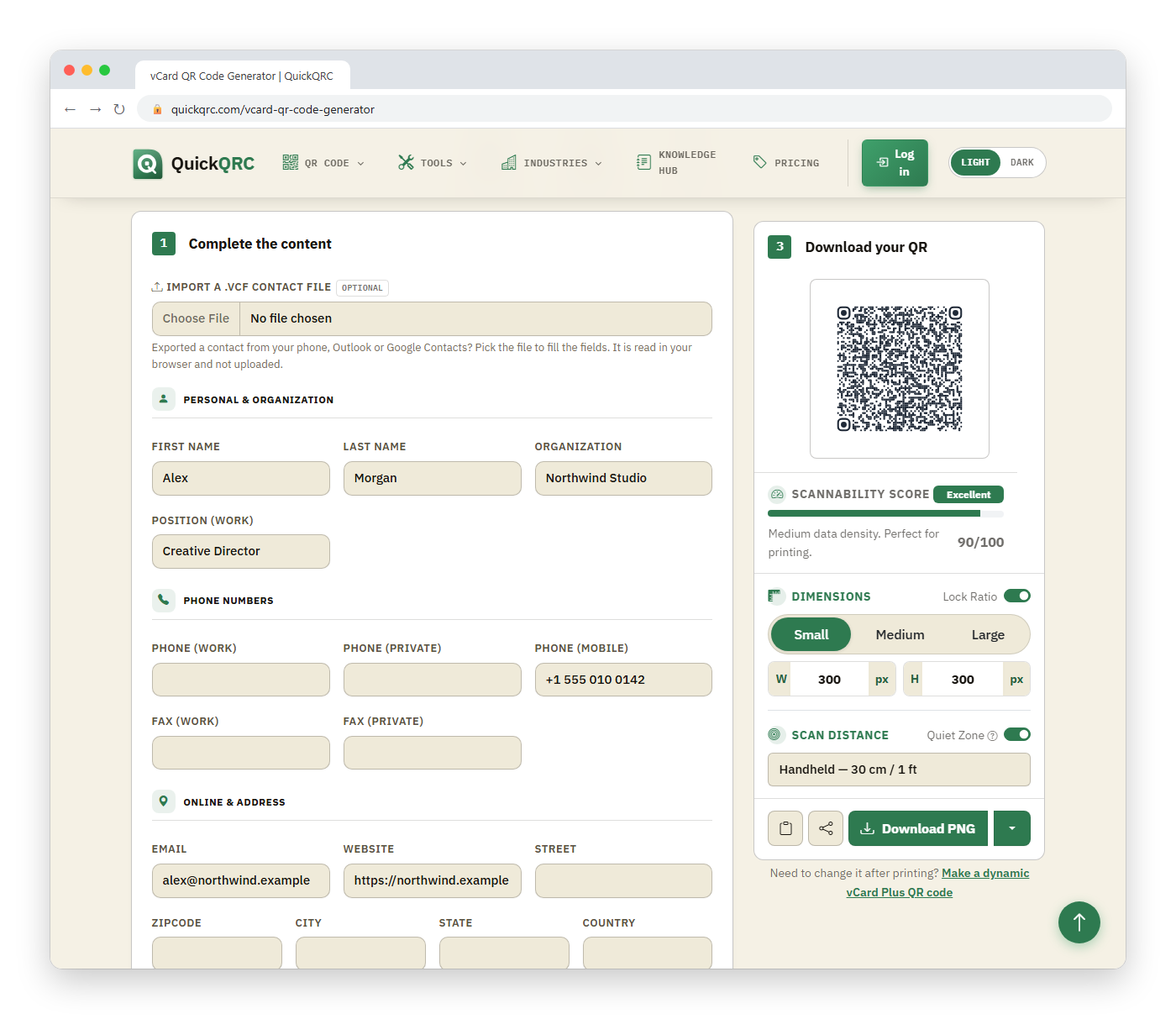
How to create a vCard QR code
- Enter your full display name.
- Add the phone number and email address you want recipients to use.
- Optionally add an organization, job title, website, or address.
- Generate the QR Code and scan the preview with at least two phones.
- Confirm each field appears in the correct contact-card location.
- Download a suitable format and place it in the final design.
- Test a physical proof at the actual print size.
How do you turn a .vcf file into a QR code?
Use Import a .vcf contact file at the top of the vCard form. Pick the file and the generator fills in the name, organization, title, phone numbers, email, websites, and address for you to check. The file is read in your browser and is not uploaded.
- Export the contact. On an iPhone, open the contact and use Share Contact; in Google Contacts, use Export and choose the vCard format; most desktop address books have a similar export or "save as vCard" option.
- Import the .vcf file into the form.
- Read the status line under the import button. It names anything the form has no field for, such as a note or a birthday.
- Fix or trim fields, then generate and test the code as usual.
Why not encode the file exactly as exported? Phone exports often carry a photo, notes, several old addresses, and app-specific lines. All of that makes the QR code denser, and a QR code tops out at 2,953 bytes of binary data even at its largest size and lowest error correction, per DENSO WAVE. A cleaned-up card is smaller and scans more reliably. The importer reads the first contact in the file and leaves the photo out on purpose; you can still add one in the Photo field if you need it.
Static or dynamic vCard QR code?
The generator on this page makes a static vCard QR code: the contact details are written into the pattern itself. It is free, works without an internet connection after scanning, and never depends on a server. The trade-off is that nothing can change once it is printed.
A dynamic vCard QR code stores a short link instead. Scanning it opens a hosted contact page with a button to save the contact, and you can edit that page after printing and see how often the code is scanned. That fits staff cards, trade-show badges, and anyone whose number or role is likely to change. QuickQRC Pro makes dynamic codes, and its free account includes a few to try.
| Static vCard (this page) | Dynamic vCard (Pro) | |
|---|---|---|
| Edit after printing | No, reprint instead | Yes |
| Needs internet when scanned | No | Yes, to load the contact page |
| Scan statistics | No | Yes |
| Code density | Grows with every field | Stays low, it is a short link |
| Account needed | No | Yes |
What is a vCard?
vCard is a structured format for representing contact information. RFC 6350 defines vCard 4.0, including properties for formatted names, telephone numbers, email addresses, organizations, titles, addresses, URLs, and other contact data.
A QR Code can store the vCard text directly. The scanner recognizes the structure and offers an action such as creating a contact. Exact field handling varies by camera app, operating system, and address-book software, so compatibility testing is essential.
Static vCard QR versus a contact-page QR
| Feature | Embedded vCard | Contact-page URL |
|---|---|---|
| Works after decoding without web access | Contact data is inside the code | Page normally requires a network |
| Update after printing | No | Yes, if you control and maintain the page |
| QR density | Increases with every field | Can stay low with a short URL |
| Privacy exposure | Anyone can decode all embedded fields | Anyone can open public page fields |
| User action | Scanner may offer to save a contact | User opens a page, then chooses an action |
Use an embedded vCard when immediate contact saving and limited fields matter most. Use a stable page on a domain you control when details change frequently, you need richer content, or the embedded record becomes too dense.
Which fields should you include?
Include the smallest useful set. A business card usually needs a name, role, organization, primary telephone number, professional email, and one relevant website. Adding several addresses, notes, social links, and photographs increases payload size and privacy exposure.
Use international telephone formatting with a leading plus and country code when contacts may scan in different countries. Use a complete HTTPS URL. Check spelling, capitalization, and which phone or email is marked as primary after import.
Can a static vCard QR code expire?
The QR symbol does not contain an expiry timer (do QR codes expire? covers the general case). It continues to encode the same vCard data. However, the information can become obsolete when a person changes roles, phone numbers, domains, or addresses.
For long-lived signage or large print runs, encode a stable contact page rather than personal details that are likely to change. For business cards with a short lifecycle, an embedded vCard may be simpler and avoids a hosted redirect dependency.
vCard version and device compatibility
RFC 6350 defines vCard 4.0, while older contact applications may expect 3.0 or support only common properties. A generator can produce valid structured text and still encounter an application that drops a title, changes an address label, or ignores an unfamiliar field.
What this generator writes: vCard 3.0 (VERSION:3.0), which is the version older contact applications expect. Name, organization, title, and address parts are escaped for backslashes, semicolons, commas, and line breaks, so "Acme; Sales, Inc." stays one organization name. Email, phone, and URL values are written as typed. An embedded photo is written as a PHOTO;ENCODING=b;TYPE=JPEG property, which makes the code much denser. Since 2026-09-19 accented and non-Latin names are also encoded correctly; if you printed a card with such characters earlier, regenerate it.
For a broad public audience, prioritize widely recognized fields and test the precise output. Do not assume a successful import into one cloud address book proves compatibility with every native contacts app. If a workflow requires a particular vCard version, document and verify that requirement.
Should a photo be embedded in the contact card?
A photo can make the payload dramatically larger and the QR pattern denser. Some scanners may also reject or omit large binary or URI-valued properties. Use a contact-page URL when a portrait, portfolio, biography, downloadable file, or several social profiles are important.
How to manage employee contact codes
Organizations should define which fields are approved, who updates them, and how cards are replaced when someone changes role or leaves. Avoid embedding personal numbers by default. Keep the source record so a card can be regenerated consistently, but protect that data according to the organization's privacy and retention rules.
Privacy and security considerations
A vCard QR code is readable data, not encrypted storage. Do not add a private home address, personal notes, internal identifiers, or a phone number you would not publish visibly. Scrapers and cameras can copy the code without saving it through the normal contact interface.
Recipients should review imported fields before saving. An unknown contact card could contain a misleading name, URL, or other untrusted value. The QR Code does not prove the identity of the person who printed it.
Why does a vCard QR code become dense?
Every property and character uses capacity. International text, long URLs, detailed addresses, and notes add bytes. Higher error correction also uses space, potentially increasing the QR version.
Remove low-value fields and avoid embedding images. A shorter payload creates larger modules at a fixed physical size and is generally easier to reproduce and scan.
Can you add a logo to a vCard QR code?
Yes, with a trade-off. When you add a logo in the Design step, this generator raises the error correction to Level H (about 30%) so the covered modules can be recovered. Higher error correction adds modules, so a vCard that was already dense becomes denser and its dots get smaller at the same print size.
Keep the logo small, trim optional fields such as the fax number and extra social links, and skip the embedded photo. Then scan a printed proof at its real size on more than one phone before you order a print run.
Business-card print checklist
- Use dark modules on a light, solid background.
- Preserve a clear quiet zone four modules wide on every side.
- Do not stretch the code or crop its margin.
- Keep it away from folds, rounded corners, and reflective foil.
- Label the action, such as “Scan to save my contact.”
- Print the key phone number or URL as a human-readable fallback.
- Test the finished card with representative iPhone and Android devices, and check file format and stock with the printing guide.
Why did the contact import incorrectly?
The scanner or contact application may support a different vCard subset, interpret type labels differently, or omit optional properties. First test a minimal card containing only name, one phone, and one email. Add fields individually to find the compatibility issue.
Also check escaping of commas, semicolons, backslashes, and line breaks. A generator should serialize those characters correctly rather than simply joining user input into text.