What is a dynamic feedback QR code?
A feedback QR code opens a short survey where customers rate their visit and leave a comment. Answers are saved to your dashboard, and you can invite people who gave a high rating to post a public review as well.
How it works
- You write the question and choose how people answer.
- The QR code holds a short link to the survey.
- Customers scan, rate and comment. Each response is saved to the code in your dashboard.
A feedback code opens a page QuickQRC hosts for you, so it uses one of your plan's hosted pages as well as one dynamic code.
How to create a dynamic feedback QR code
You make the code in the QuickQRC dashboard. The free plan is enough to follow every step below, and the whole thing takes a few minutes once your content is ready.
Step 1: Create a free account
Press Sign up free on this page and enter your email address and a password. No card is needed. QuickQRC sends a link to confirm your email address; open it and you land in your dashboard.
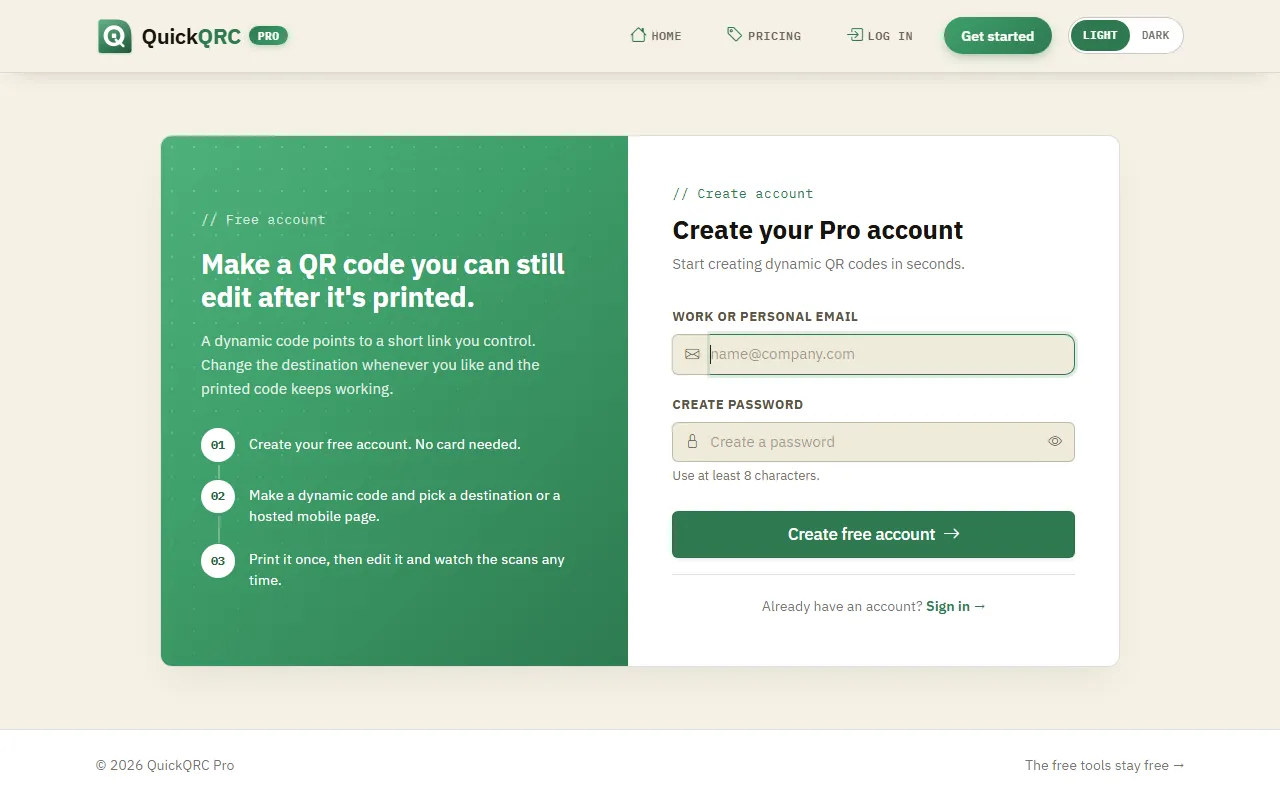
Sign up with an email address and a password.
Step 2: Pick the Feedback type
If you came from this page, the wizard opens with Feedback already selected. Otherwise choose New QR code in the sidebar and click the Feedback card. The phone on the right shows what a feedback page looks like, so you can check you picked the right type. Press Next.
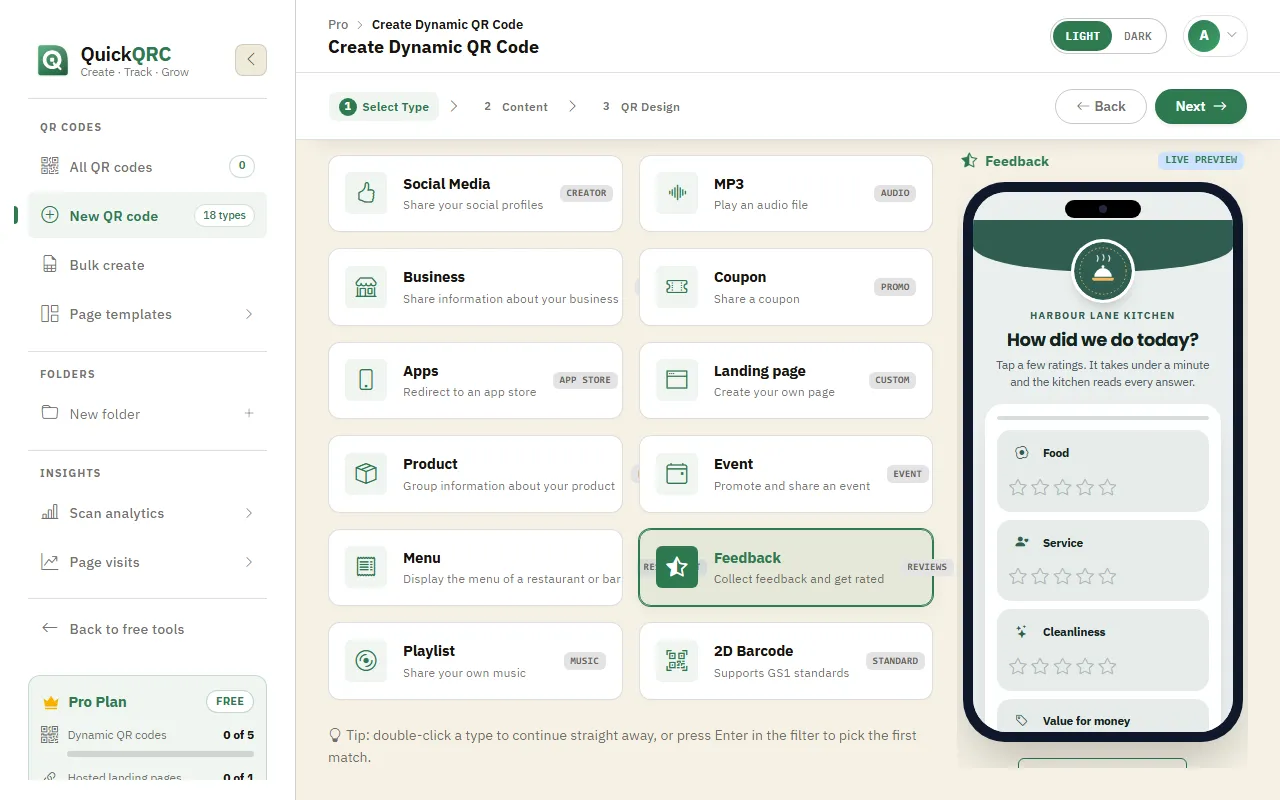
The Feedback type selected in step 1 of the wizard.
Step 3: Add your content
Start with the name field at the top. Only you see it, so use something you will recognise in your list of codes later.
The Feedback form has these cards:
- Look & feel: survey style, main and rating colours, fonts.
- The question: who is being reviewed, the main question, a short intro, and how people answer: stars 1-5, faces, a 0-10 score, yes or no, or no rating.
- Optional extras: a written comment (required or not), categories to rate, contact details with a permission tick box.
- After they answer: the thank-you screen, a public review link shown when the rating is high enough, and an apology message for everyone else.
- Where responses go: your dashboard, and optionally an email for each new response.
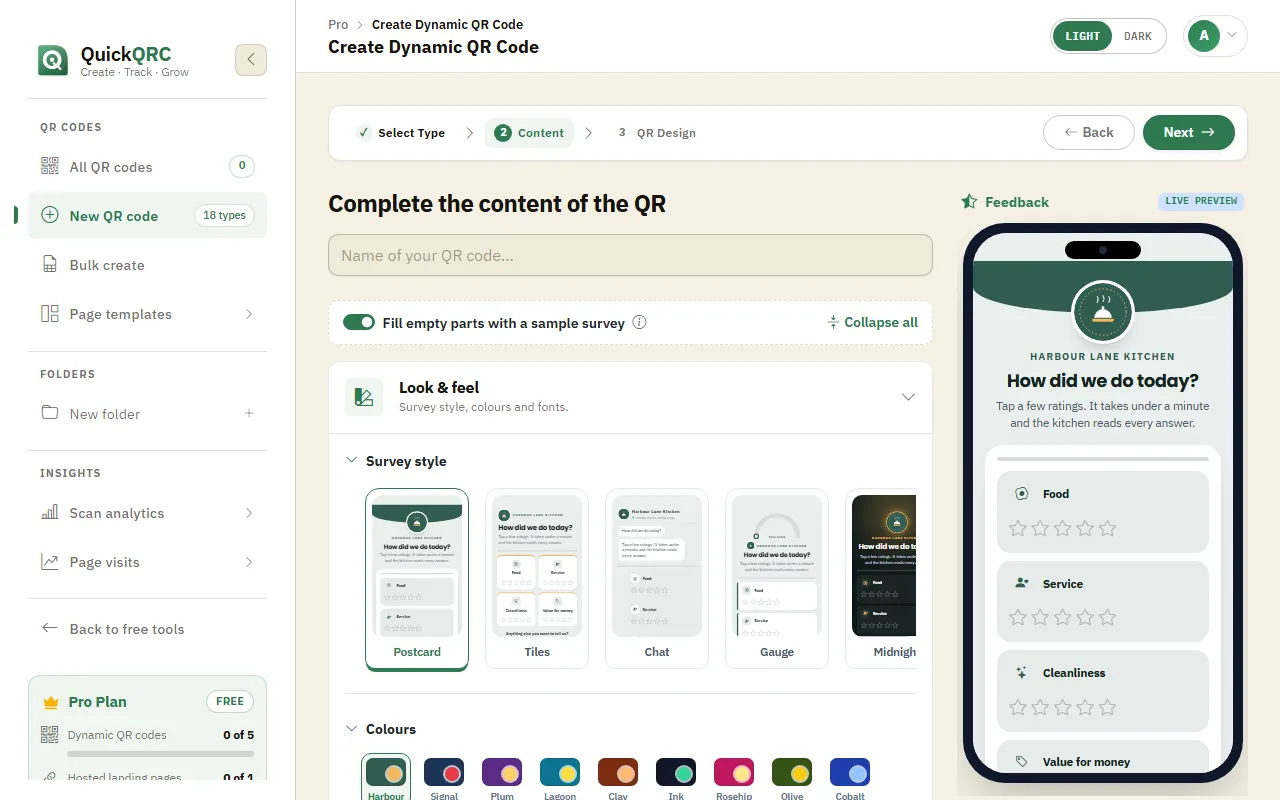
The live preview updates as you fill in the form.
Step 4: Design the QR code
Press Next to style the code itself. The tabs across the top cover the dot shape and colours, a logo in the middle, a frame with a call to action such as "Scan me", and the error correction level. The scannability score on the right warns you if a colour choice makes the code hard to read.
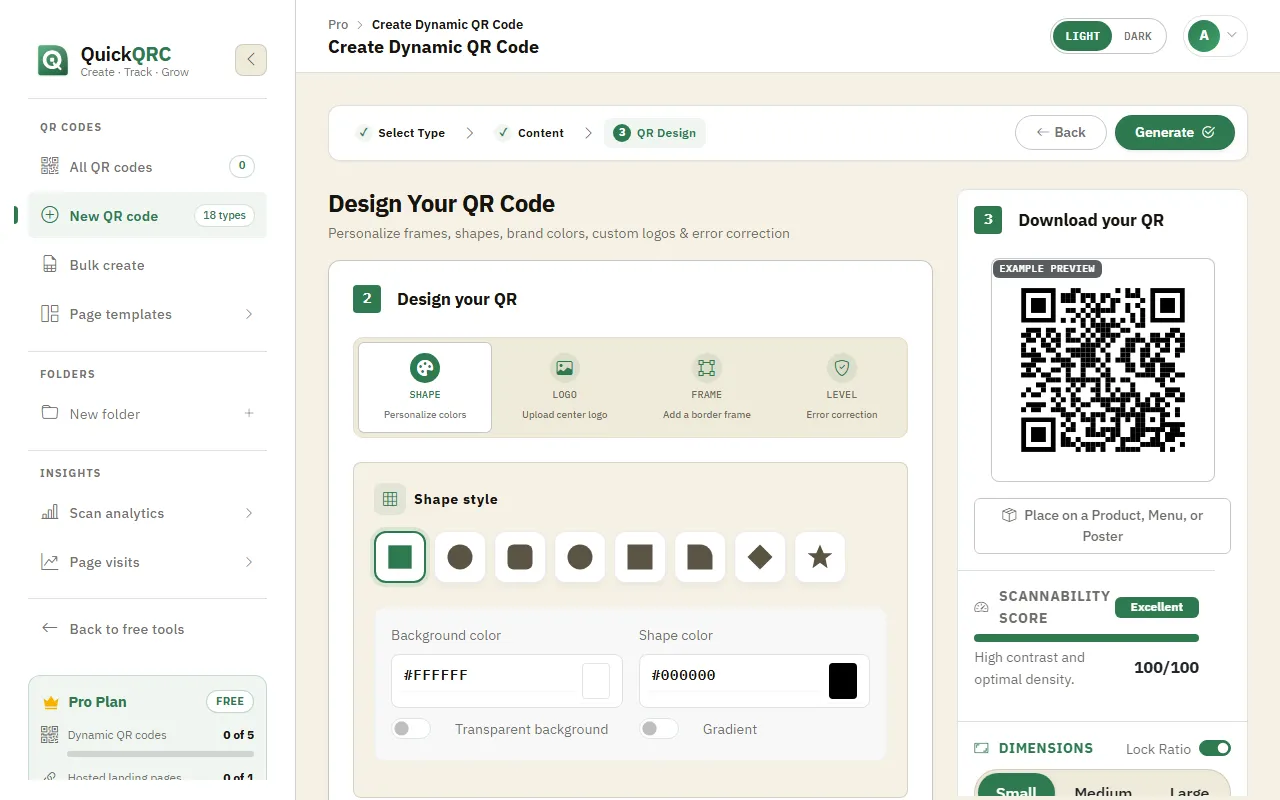
Shape, logo, frame and error correction level, with a scannability score.
Keep the dots darker than the background, and keep a plain margin around the code. Most scanning problems come from low contrast or a busy background.
Step 5: Generate and download
Press Generate. The code is saved and appears in My QR codes with its short link.
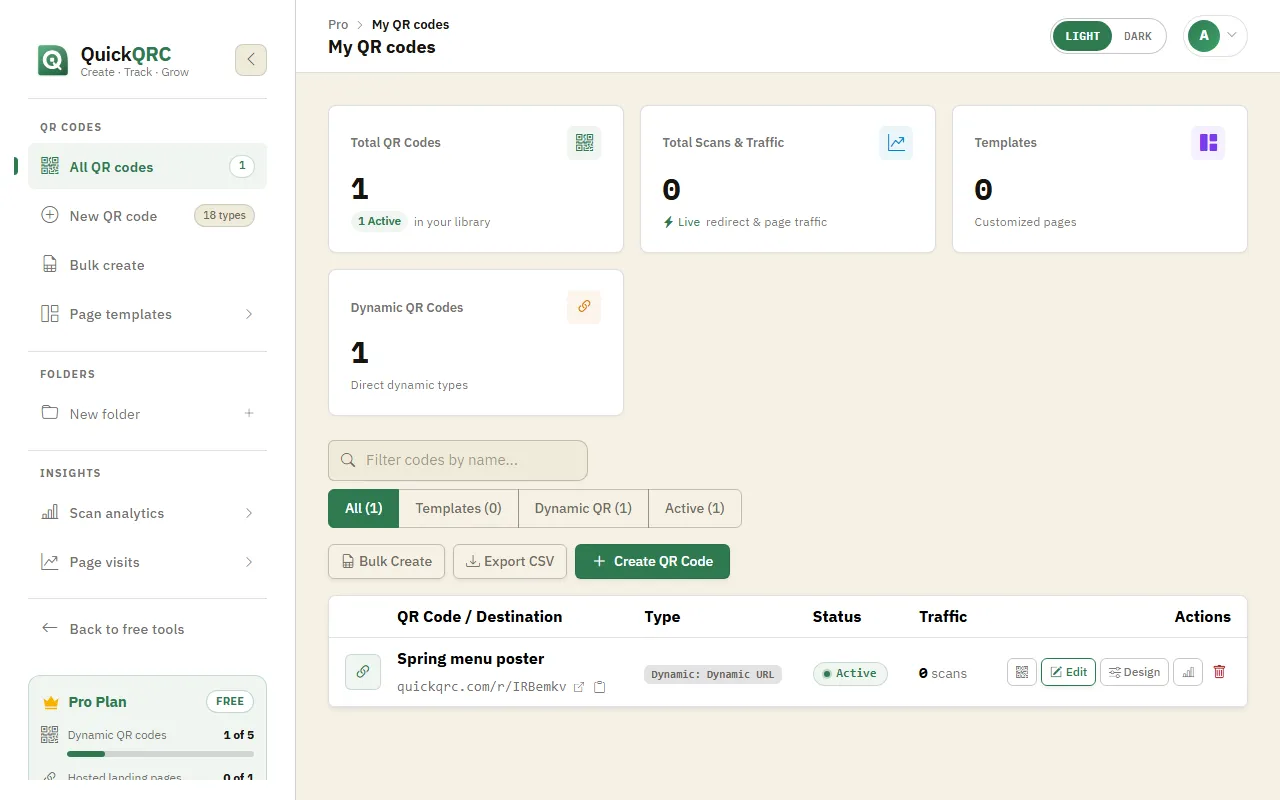
Your new code in My QR codes, with its short link.
Click the QR icon on the code's row to open it. Download PNG suits screens and documents; the arrow next to it offers SVG and PDF for print, plus JPEG and WebP. You can also copy or share the code from the same window.
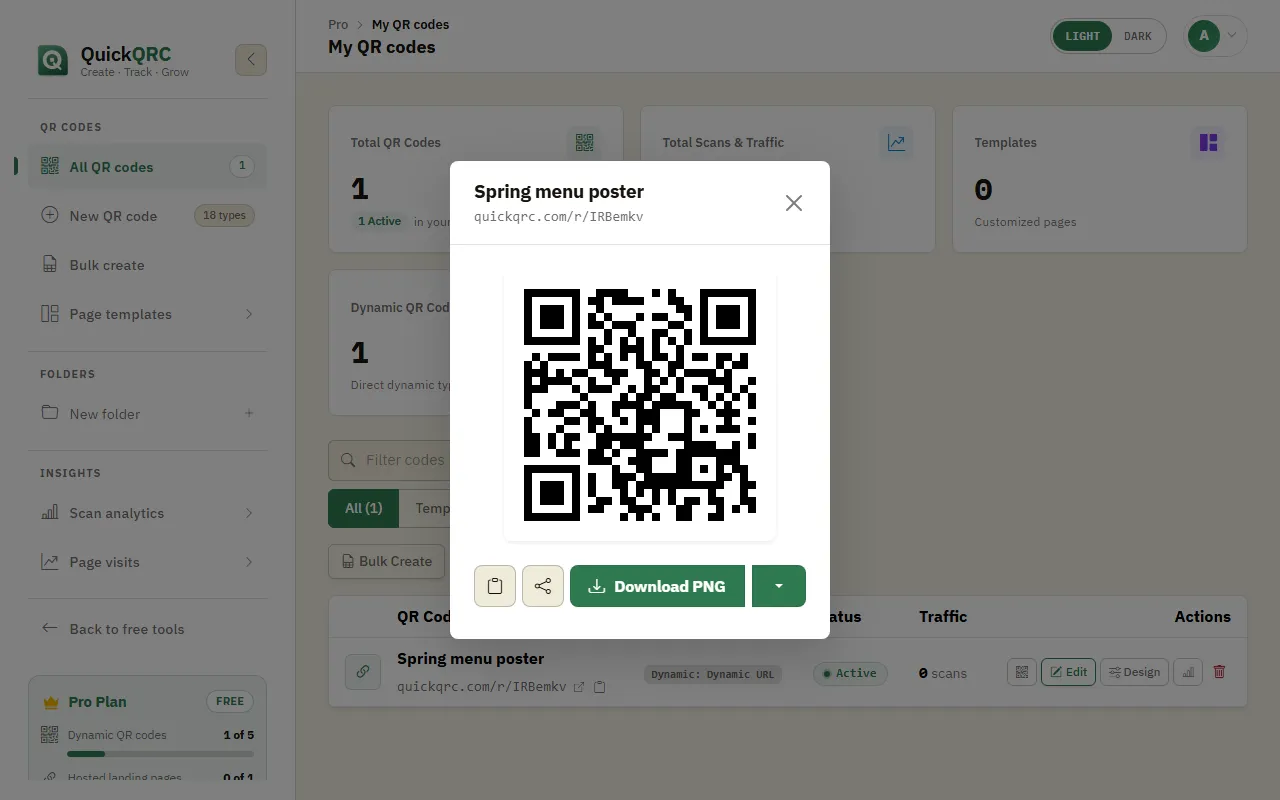
Download the code as PNG, or pick SVG or PDF for print.
Scan the downloaded code with your own phone, then print a test copy at the real size and scan that too before you print the full run.
Step 6: Edit it whenever you need to
To change the feedback content later, press Edit on the code's row, make your changes and save. Design restyles the code, and the chart icon opens its scan statistics. The short link inside the printed code never changes, so every copy already printed shows your update on its next scan.
Responses stay in your dashboard. Public reviews are only posted if the customer chooses to follow the review link.
Tips for feedback QR codes
- Ask one question. Every extra question loses some people.
- Place the code where the experience ends: on the receipt, the table or the checkout.
- Read low ratings first and reply where people left contact details.
- Make sure inviting reviews follows the review site's own rules.
New to dynamic codes? How dynamic QR codes work explains short links, scan counts and when a static code is the better choice. For printing, see the QR code print size guide.