What is a dynamic URL QR code?
A dynamic URL QR code sends people to a web page, the same as an ordinary link code, with one difference: the printed pattern holds a short QuickQRC address instead of your page address. Because the short address forwards to your page, you can point it somewhere else later and the code on the poster, menu or box keeps working.
How it works
- You enter a web address. QuickQRC saves it and gives the code a short link such as quickqrc.com/r/a7Kp2xQ.
- The QR code holds the short link. That is all the printed pattern contains, which keeps it small and quick to scan.
- Each scan is forwarded. The phone opens the short link, QuickQRC counts the scan and sends it on to whatever address the code points to today.
A URL code forwards to a page you already have, so it only uses one of your plan's dynamic codes.
How to create a dynamic URL QR code
You make the code in the QuickQRC dashboard. The free plan is enough to follow every step below, and the whole thing takes a few minutes once your content is ready.
Step 1: Create a free account
Press Sign up free on this page and enter your email address and a password. No card is needed. QuickQRC sends a link to confirm your email address; open it and you land in your dashboard.
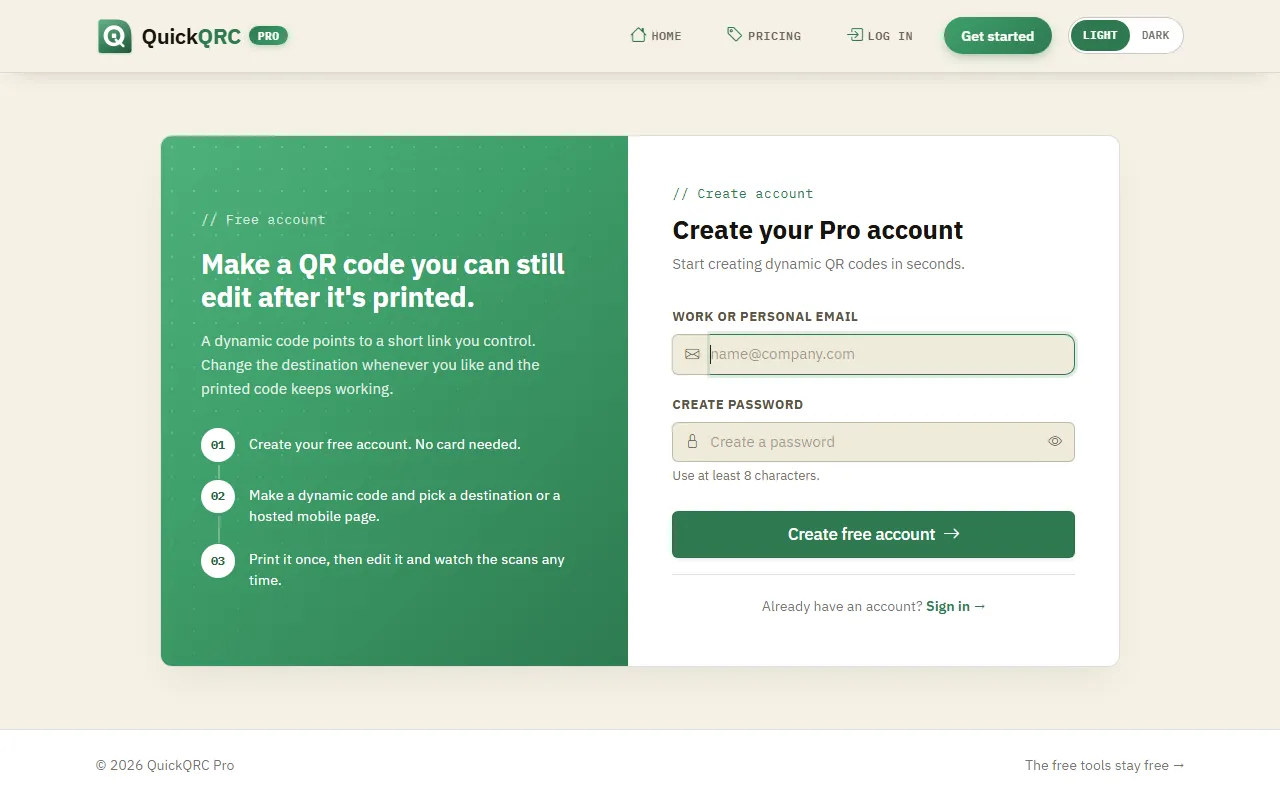
Sign up with an email address and a password.
Step 2: Pick the Website type
If you came from this page, the wizard opens with Website already selected. Otherwise choose New QR code in the sidebar and click the Website card. The phone on the right shows what a URL page looks like, so you can check you picked the right type. Press Next.
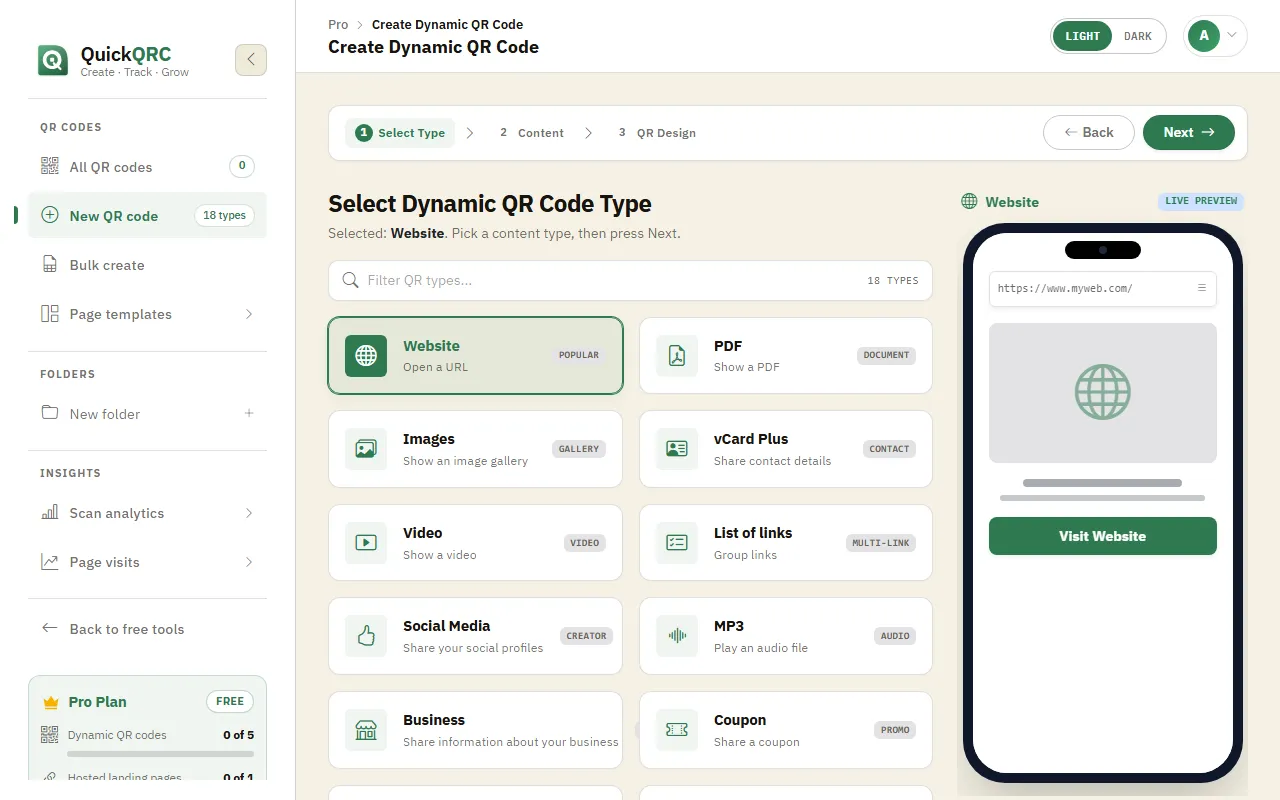
The Website type selected in step 1 of the wizard.
Step 3: Add your content
Start with the name field at the top. Only you see it, so use something you will recognise in your list of codes later.
The URL form is short. Give the code a name at the top (only you see it, so pick something you will recognise in a list, such as "Spring menu poster") and paste the full address under Website URL, starting with https://.
Check the address in a browser before you go on. A typo here is the most common reason a new code "doesn't work", and although you can fix it later, it's easier to catch now.
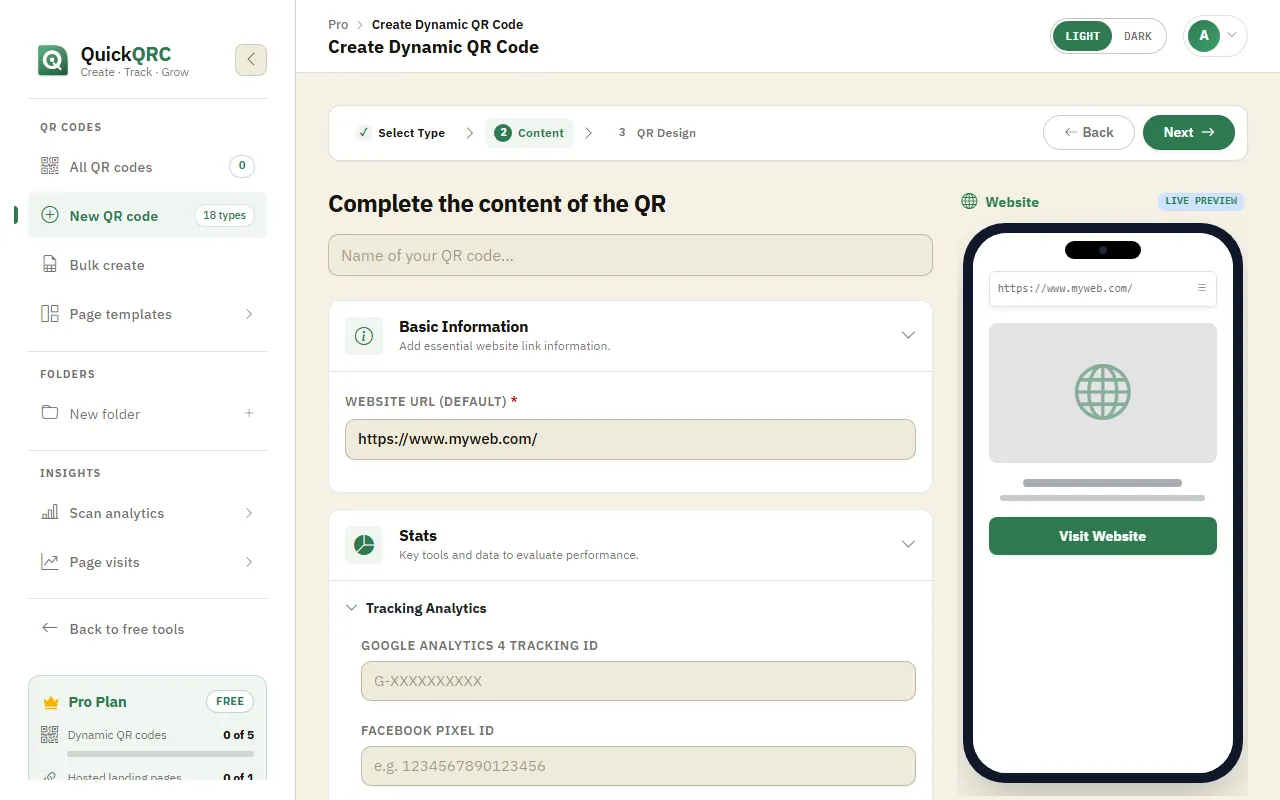
The live preview updates as you fill in the form.
Step 4: Design the QR code
Press Next to style the code itself. The tabs across the top cover the dot shape and colours, a logo in the middle, a frame with a call to action such as "Scan me", and the error correction level. The scannability score on the right warns you if a colour choice makes the code hard to read.
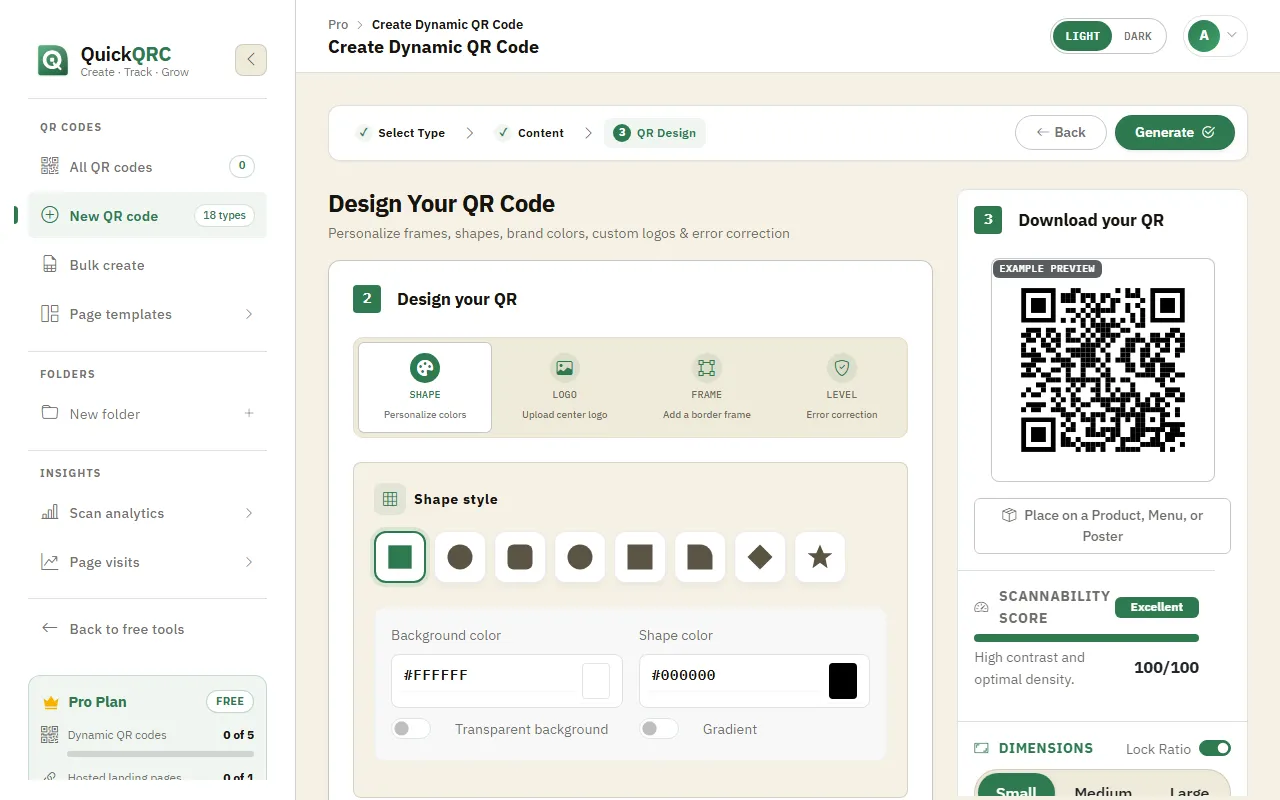
Shape, logo, frame and error correction level, with a scannability score.
Keep the dots darker than the background, and keep a plain margin around the code. Most scanning problems come from low contrast or a busy background.
Step 5: Generate and download
Press Generate. The code is saved and appears in My QR codes with its short link.
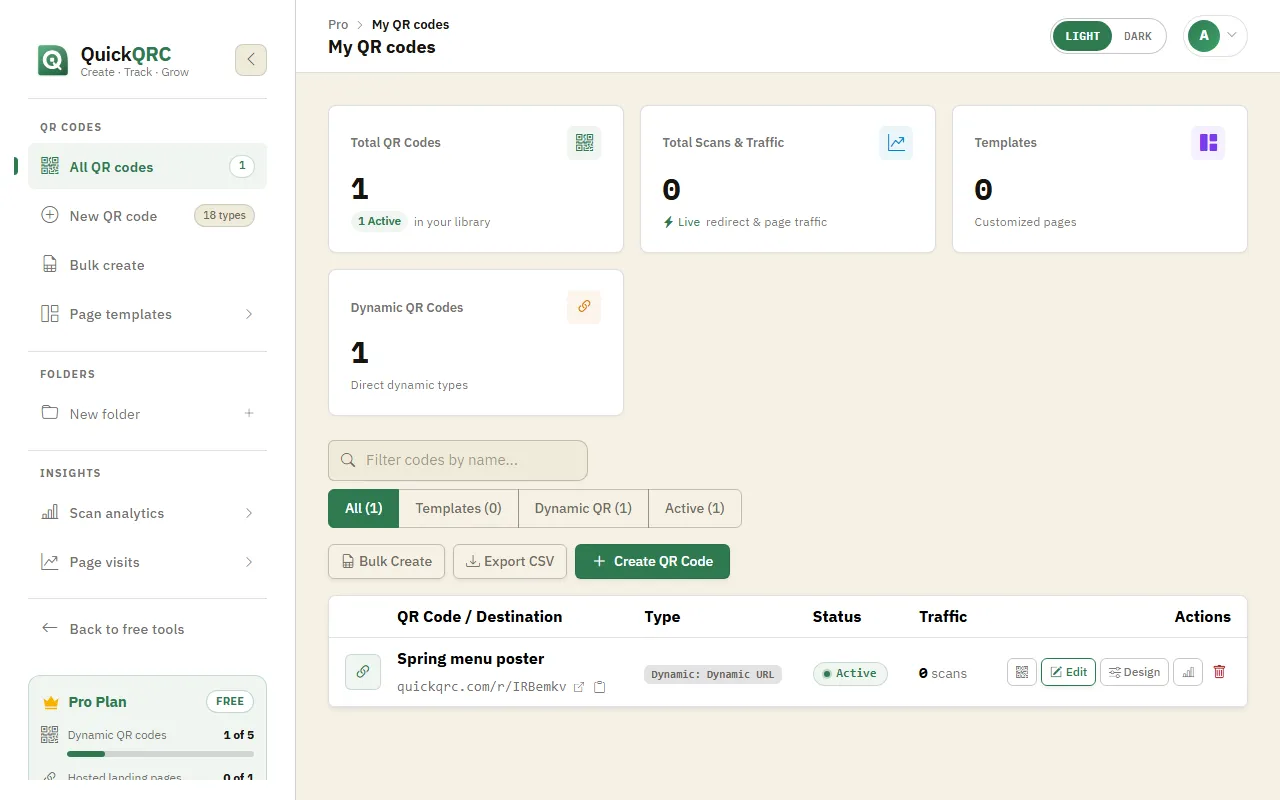
Your new code in My QR codes, with its short link.
Click the QR icon on the code's row to open it. Download PNG suits screens and documents; the arrow next to it offers SVG and PDF for print, plus JPEG and WebP. You can also copy or share the code from the same window.
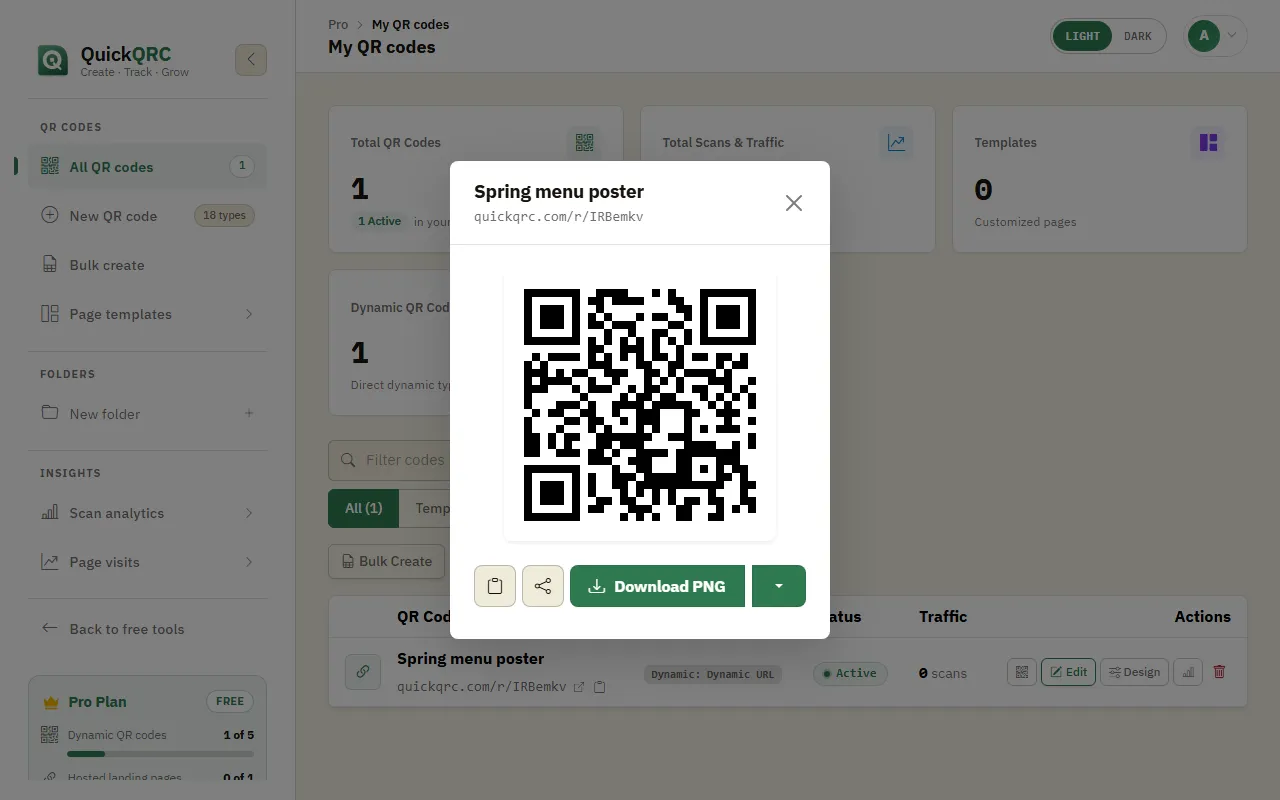
Download the code as PNG, or pick SVG or PDF for print.
Scan the downloaded code with your own phone, then print a test copy at the real size and scan that too before you print the full run.
Step 6: Edit it whenever you need to
To change the URL content later, press Edit on the code's row, make your changes and save. Design restyles the code, and the chart icon opens its scan statistics. The short link inside the printed code never changes, so every copy already printed shows your update on its next scan.
Changing the destination only changes where the next scan goes. Anyone who already opened the old page and bookmarked it still has the old address.
Tips for URL QR codes
- Link to a page that will stay put, such as a campaign page on your own site, rather than a social post that may be deleted.
- Add UTM tags to the address if you report on traffic in Google Analytics. The UTM builder makes them for you.
- Use the start date, expiry date or scan limit settings for offers that should only run for a while.
- If the link will never change and you don't need scan counts, a static URL QR code works without an account.
New to dynamic codes? How dynamic QR codes work explains short links, scan counts and when a static code is the better choice. For printing, see the QR code print size guide.