A Google review QR code opens the review form for your business in one scan, so a happy customer does not have to search for you on Maps, pick the right listing and find the "Write a review" button. Google provides the link and QR code free in your Business Profile, and you must invite reviews honestly: no rewards, no screening of who gets asked, and no pressure.
This guide shows how to get the official link, where and when to show the code, what to say, which rules from Google and consumer regulators apply, how to print a code that scans, what goes wrong, and a rollout checklist. Review rules are regulated and change, so check the current policies and your local law before you launch.
Why do reviews matter for local search?
Google says local results are ranked mainly on relevance, distance and prominence, and that prominence depends on how well known a business is, including how many reviews it has. Its Business Profile help states that more reviews and positive ratings can help local ranking, though it does not say how much weight they carry against other factors. It also says there is no way to request or pay for a better ranking.
A QR code will not raise your rating. It removes the effort between "that was good" and "I left a review", which tends to raise how many reviews you collect. Replying to reviews matters too: Google's tips page advises polite, specific, conversational replies that do not offer deals. You can generate the code with the Google review QR code generator once you have the link.
How do you find your official Google review link?
Take the link or QR code from your own Business Profile. Google's help page says to open your profile on a computer, select Read Reviews, then Get more reviews, and share the link or QR code from there. It also says reviews QR codes can currently be generated only in a computer browser, not on a mobile device.
- Sign in to the Google account that manages the business and open the profile on a computer.
- Choose Read Reviews, then Get more reviews.
- Copy the link, or save the QR code image. Menu labels change over time, so follow Google's current help page.
- If you want your own branding, paste the link into the URL QR code generator and export an SVG. Keep the link exactly as Google gave it.
Before printing, open the link on a phone that is not signed in to your business account, and confirm that it opens the review form. Customers need a Google account to post, according to Google, and it can be created with a non-Gmail email address.
Where and when should you show the code?
Show it where customers are already pleased and holding their phone: at payment, at the end of a job, or at handover. An in-person prompt reaches people while the experience is fresh. Google itself suggests receipts, thank-you emails, chat endings and printed displays in your store.
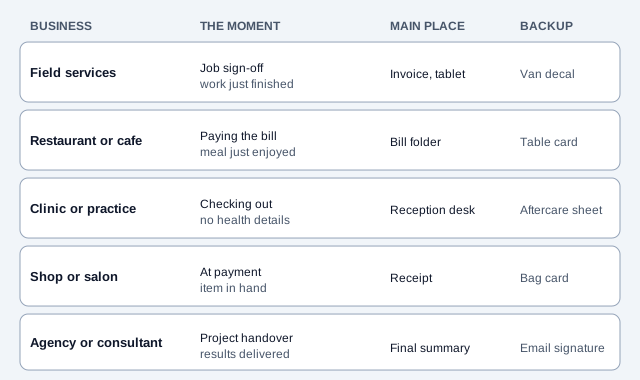
| Business type | Best place | Backup place |
|---|---|---|
| Field services (plumbing, HVAC, electrical) | On the invoice or the technician's tablet, at job sign-off | A decal on the van |
| Restaurants and cafes | Back of the table card, or the bill folder | The checkout counter |
| Clinics and wellness practices | The reception desk, while checking out | The aftercare sheet |
| Shops and salons | The receipt or counter stand | A card in the shopping bag |
| Agencies and consultants | The final project summary | The email signature |
Restaurants can put the request on the back of the card that carries the restaurant menu QR code. Clinics should think about what a review could reveal about a patient and avoid prompts that identify who is being treated for what. Salons and shops can pair the request with their salon or retail signage.
What should you say when you ask?
Pair the code with a short, relaxed request. The code does the finding, so the conversation can stay friendly.
- Offer the same neutral invitation to every customer: "Would you like to share your experience?" Keep service recovery separate from the review invitation.
- Point to the code: "If you have a minute, scanning this opens our Google page."
- Say why it helps: "Honest reviews help other people nearby know what to expect."
- Step back and let them write in private. Standing over someone's screen feels like pressure.
What are the rules on asking for reviews?
Google and consumer regulators both restrict how businesses solicit reviews. The main points below come from the public policy pages, so read them in full.
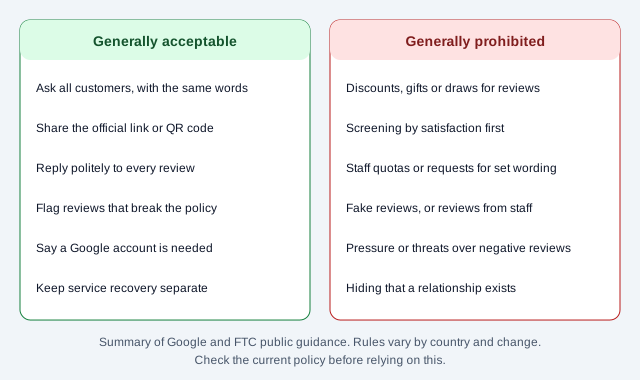
- No incentives: Google's policy prohibits offering payment, discounts or free goods or services for posting a review, changing one or removing a negative one.
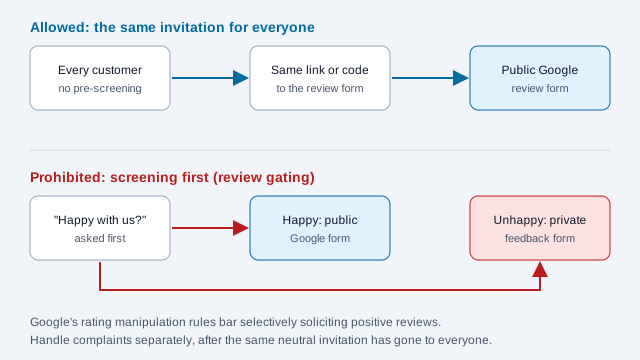
- No gating: Google's rating manipulation section says merchants may not discourage or prohibit negative reviews or selectively solicit positive ones. Send everyone to the same public form.
- No quotas or scripts: merchants may not ask staff to solicit a set number of reviews or reviews with specific content, and staff should not be pressured to leave reviews.
- US consumer law: the FTC's rule on consumer reviews and testimonials, finalized in August 2024 and effective October 2024 according to law-firm summaries, bars incentives conditioned on a positive or negative sentiment, fake reviews, undisclosed insider reviews and review suppression through threats or intimidation.
- UK: law-firm summaries report that rules under the Digital Markets, Competition and Consumers Act 2024 took effect on 6 April 2025, banning fake reviews and concealed incentives. The CMA's guidance is document CMA208.
Reviews can still be removed or delayed under Google's moderation, and a QR link does not bypass that. Offering a discount "just for scanning" is risky for the same reason as offering one for the review. Rules differ by country, so check the current Google policy and your local regulations.
How do you print a code that scans?
- Generate the code from your review link and choose error correction level M, or H if you add a logo.
- Use dark modules on a plain, light background. Skip photos or patterns behind the code.
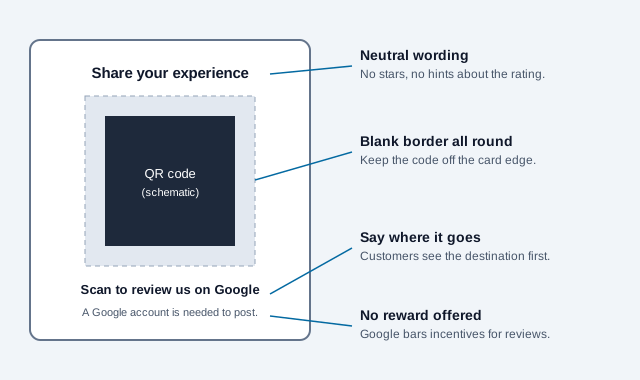
- Put a clear instruction next to it, such as "Scan to review us on Google."
- Export an SVG and print at full size. A tenth of the scanning distance is a rough guide to width, so a handheld card can be small, but a counter display read at arm's length should be larger. See the print size guide.
- Scan the printed proof on at least three phones before ordering a full run.
Count visits only if you add tracking. A static code holds just the link, so scans are invisible unless the code routes through a redirect on your own domain or a link service. That adds a dependency you have to keep working, and Google's own Business Profile insights are the simpler place to watch review counts.
What breaks a review code, and how do you launch one?
Imagine a dental practice that places a review QR code at reception with a note saying "Happy with your visit? Scan here!" A receptionist also asks only patients who smile on the way out. The ratings climb, but the practice has screened its invitations by mood, which Google's policy treats as manipulation, and a patient who is asked in public may feel their visit is no longer private. A neutral card in the aftercare packet would have served the practice better.
- Confirm that your Business Profile is verified and that you can reach Get more reviews on a computer.
- Save the official link and QR code, and test the link on a phone signed out of your account.
- Design a card or counter display with neutral wording and a blank border.
- Brief staff to invite every customer, to never offer rewards and to never ask for specific wording.
- Print a proof, scan it on three phones, and place the code at the agreed moment.
- Reply to reviews politely, and flag any that clearly break Google's policy.
- Review the process every few months against the current policy.
Open issues this checklist cannot settle: how many reviews a given business will get, how Google moderates borderline reviews, and how your country's consumer law treats a particular wording. Ask a qualified adviser if you are unsure.
This article is general information, not legal advice. Review policies and consumer-protection rules differ by country and change often; confirm the current Google policy and your local requirements before you ask customers for reviews.
References
- Google Business Profile Help: create a link or QR code to request reviews
- Google Business Profile Help: tips to get more Google reviews
- Google Business Profile Help: improve your local ranking
- Google: prohibited and restricted content for Maps contributions
- FTC: final rule banning fake reviews and testimonials
- UK CMA: fake reviews guidance (CMA208)
- ISO/IEC 18004:2024, QR code bar code symbology specification