What is a dynamic form QR code?
A form QR code opens a short mobile form with questions you write yourself. People scan, fill it in and press send. Each answer is saved to your dashboard, where you can read it or download everything as a CSV file.
How it works
- You build the form from up to 20 questions and choose which ones are required.
- The QR code holds a short link to the form.
- People scan, answer and send. Each answer is saved to the code in your dashboard.
A form code opens a page QuickQRC hosts for you, so it uses one of your plan's hosted pages as well as one dynamic code.
Form or Feedback?
The Feedback type is built around one rating and a comment, with a link to your public review page. Pick Form when you need your own questions: a name and email for a sign-up, a date for a booking request, a dropdown for a choice of session.
How to create a dynamic form QR code
You make the code in the QuickQRC dashboard, and the free plan covers every step. List the questions you need, which ones are required, and what people should see after they press send.
Step 1: Create a free account
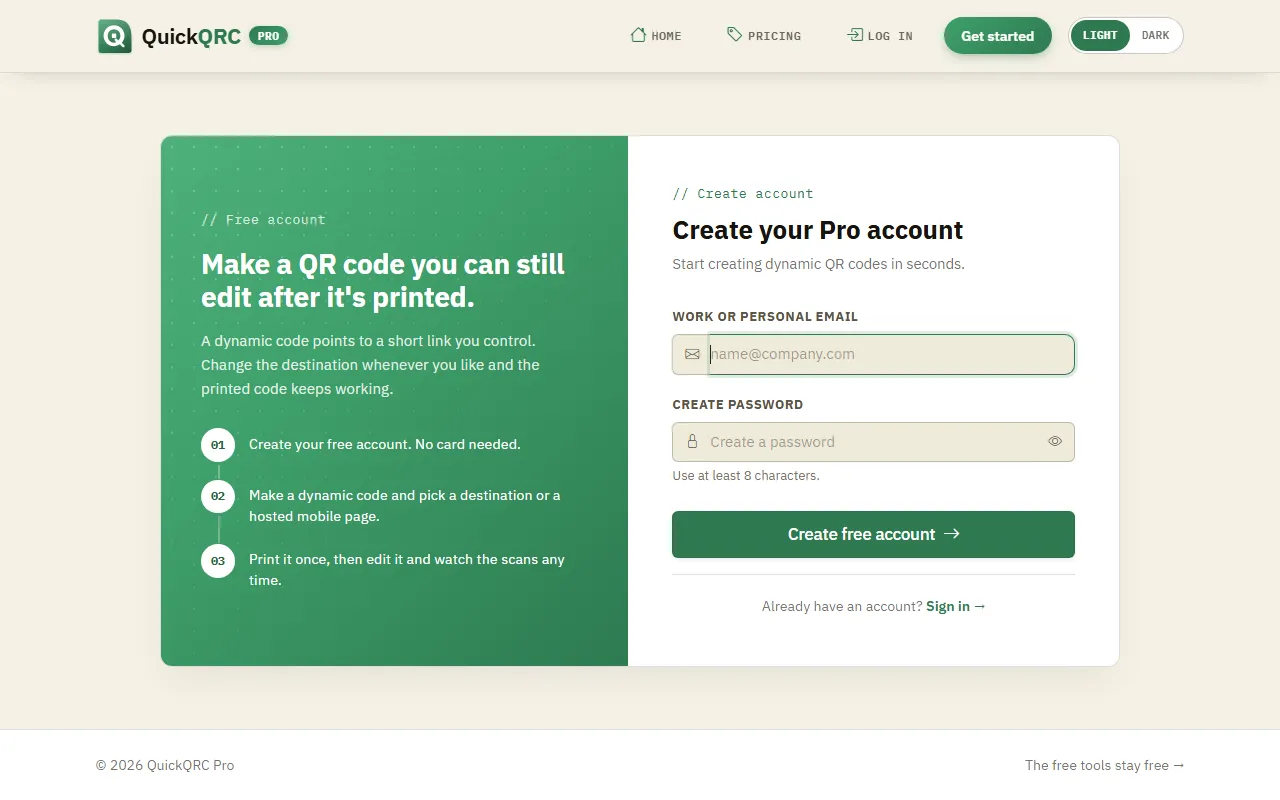
Press Sign up free, enter an email address and a password, and open the confirmation link we email you. No card is needed.
Step 2: Pick the Form type
If you came from this page, the wizard opens with Form already selected. Otherwise choose New QR code in the sidebar and click the Form card. Press Next.
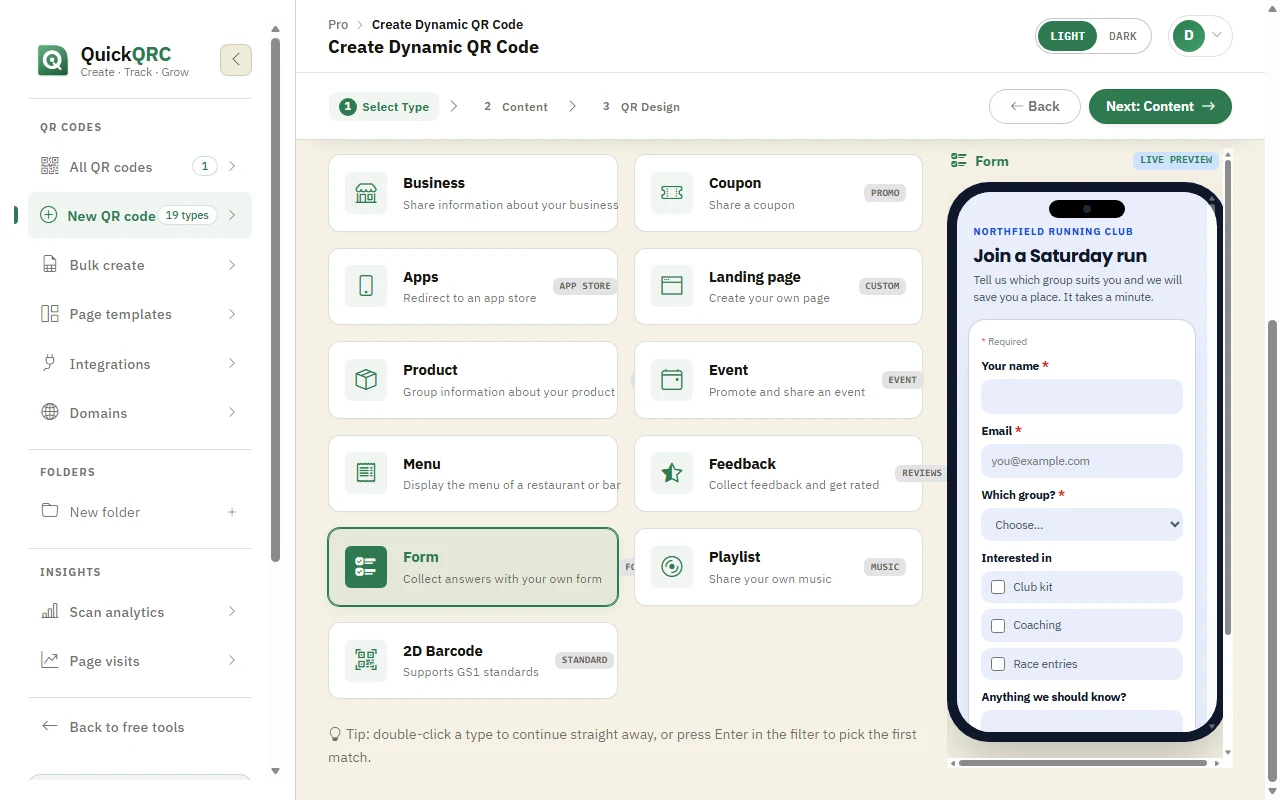
The Form type selected in step 1 of the wizard.
Step 3: Write your questions
The Form step has these cards:
- Questions: the organisation or event name, a form title and a short introduction, then your questions. Each question has a type, a label and a Required tick box, and dropdowns and checkboxes take a list of choices. The types are short answer, long answer, email, phone, number, date, dropdown, checkboxes and star rating. Arrows move a question up or down.
- Look & feel: the form style (Card, Minimal or Bold), the main colour, a tinted, white or dark page, and fonts for headings and body text.
- After sending: the button text, the thank-you heading and message, and an optional email to you for each new answer.
The phone on the right shows the form as people will see it and updates as you type. You can fill it in and press send to check the required questions and the thank-you screen; nothing is saved from the preview.
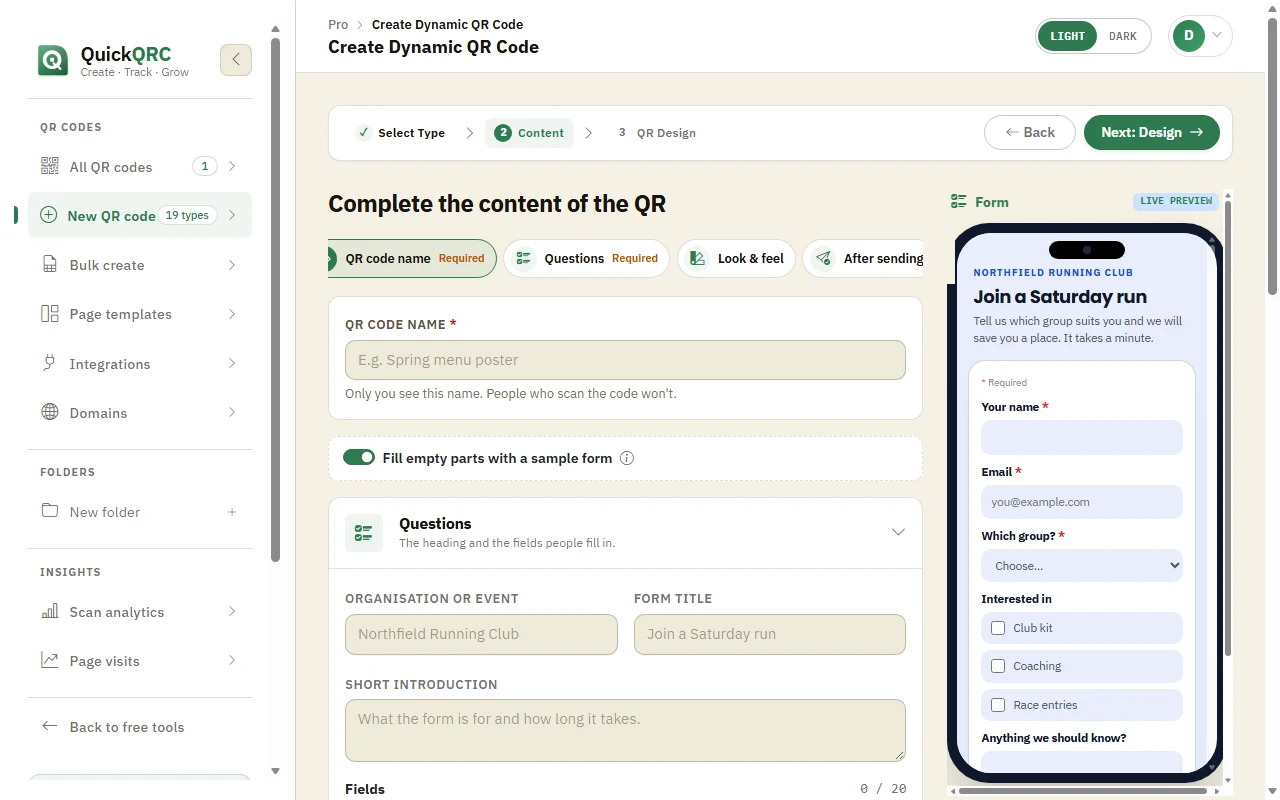
The questions on the left, the live form on the right.
Step 4: Design the QR code
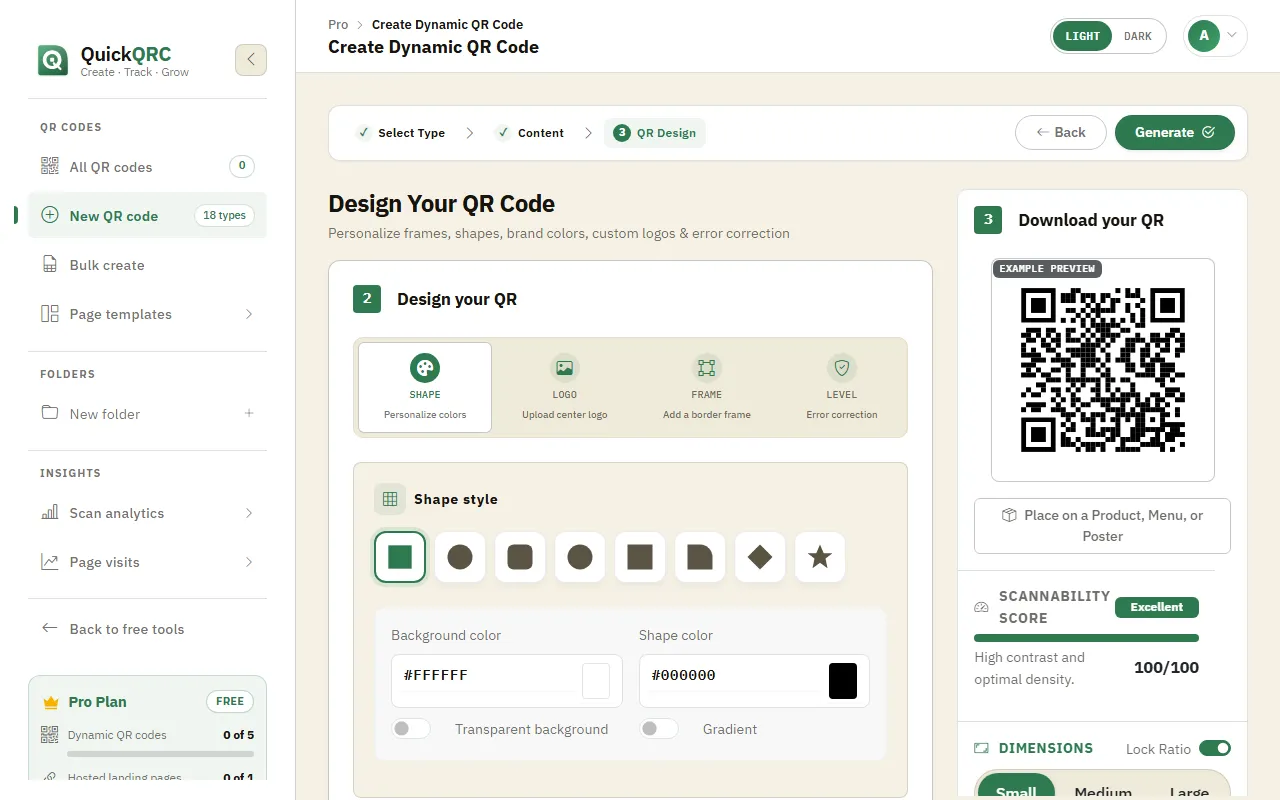
Press Next to style the code: dot shape and colours, a logo, a frame with your own call to action, and the error correction level. The scannability score flags colours that are hard to read.
Put the purpose on the frame, such as "Sign up here" or "RSVP", so people know what they are filling in before they scan.
Step 5: Generate and download
Press Generate. The code is saved and appears in My QR codes with its short link.
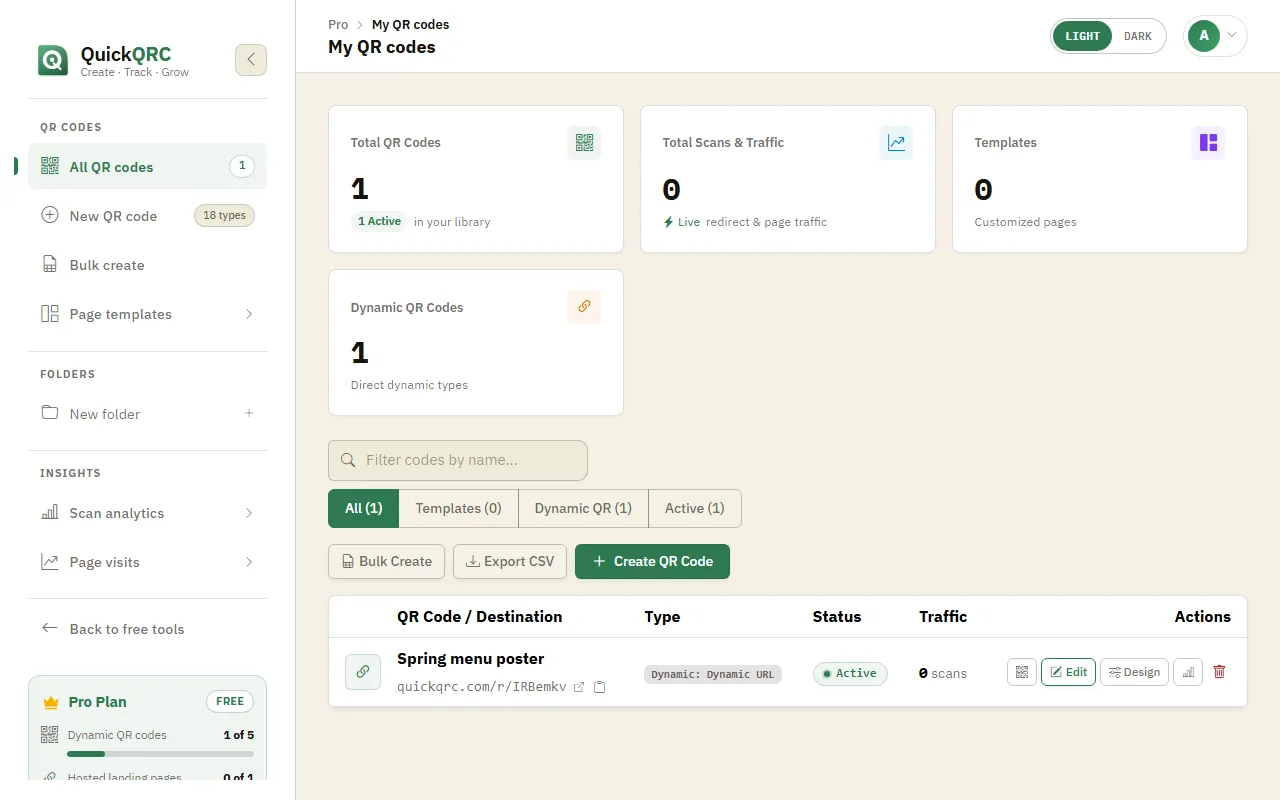
Open it with the QR icon on its row: Download PNG for screens, or the arrow beside it for SVG and PDF print files.
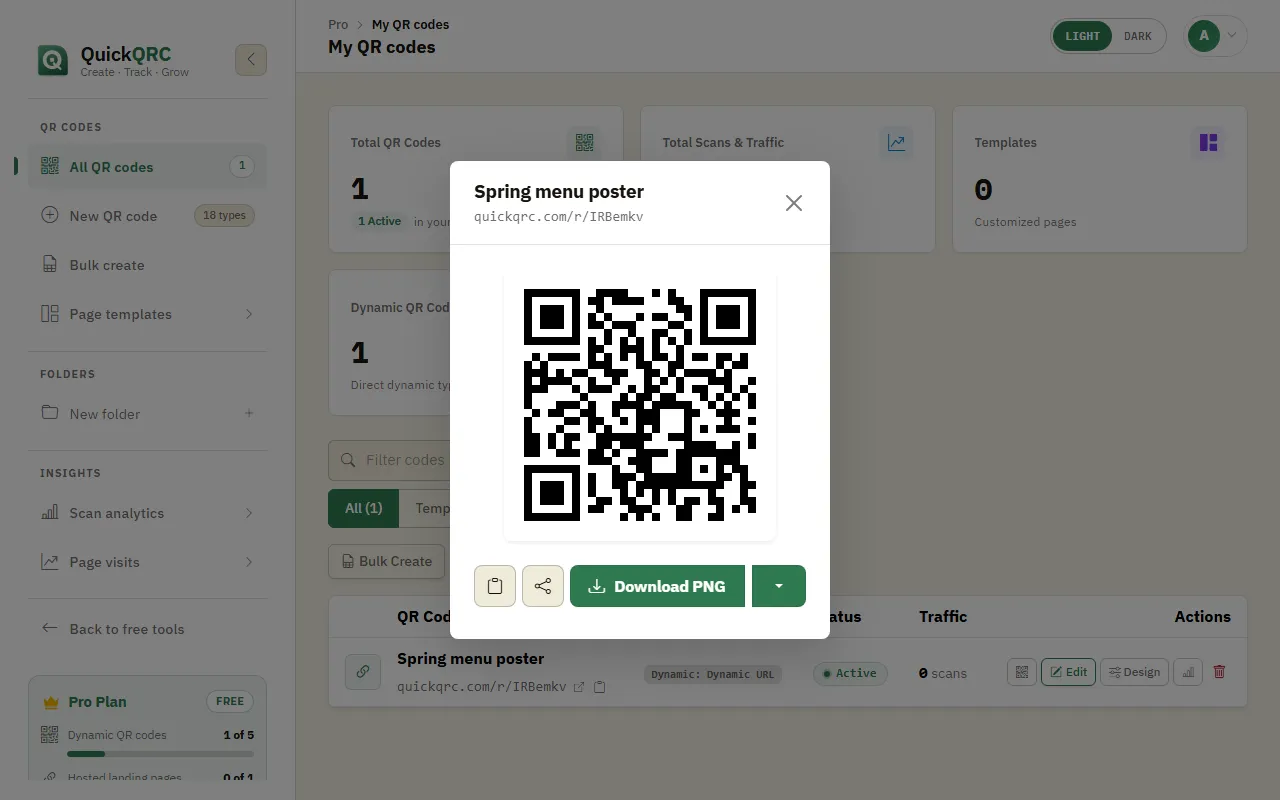
Scan the downloaded code with your own phone and send a test answer before you print the full run.
Step 6: Read the answers
In My QR codes, press Answers on the form's row. Every answer is listed with the time it was sent. Download CSV gives you a file that opens in Excel, Google Sheets or Numbers, with one column per question.
On Pro and above, each answer can also go straight to Slack, Zapier, Make or your own webhook: connect one under Integrations and new answers arrive there as well as in your dashboard.
To change the questions later, press Edit page on the code's row, make your changes and save. The short link inside the printed code never changes, so every copy already printed shows the new form on its next scan.
Only ask for an email address or phone number when you will use it, and say why in the introduction. People finish shorter forms.
Tips for form QR codes
- Keep it to the questions you need. Three to five suits a code people scan standing up.
- Use a dropdown or checkboxes instead of a free-text answer when the choices are known. The answers are easier to count.
- Put the purpose on the frame or the sign: "Join the club", "Book a callback", "RSVP".
- Download the CSV regularly if you work with the answers in a spreadsheet, or send answers to Google Sheets through Zapier or Make.
Further reading: the event QR code guide, how dynamic QR codes work and the print size guide.