One QR code can send iPhone users to the App Store and Android users to Google Play, if it points at a page or small redirect script that reads the visitor's device and forwards them. If you want no redirect at all, print two static codes side by side. That setup keeps working as long as the store links do.
This guide covers the three setups, how device detection works and where it fails, how to tag installs by campaign, what changed when Google retired Firebase Dynamic Links, how to lay out a package or poster, and a rollout checklist with the questions it cannot settle.
How does a smart app download code tell iOS from Android?
When someone scans the code, their phone opens the link and sends a User-Agent header naming the operating system. A server or edge function reads it and answers with an HTTP redirect to the matching store. Anything it does not recognize, such as a desktop browser, goes to a fallback page that lists both stores.
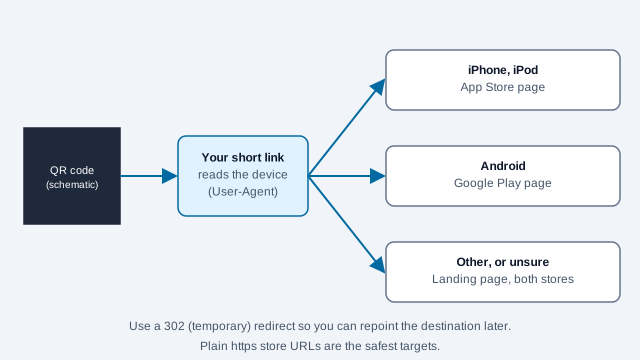
| Device | What to look for in the user agent | Where to send it |
|---|---|---|
| iPhone or iPod | iPhone or iPod |
https://apps.apple.com/app/id[YOUR_APP_ID] |
| iPad running iPadOS 13 or later | Reports itself as Macintosh; in browser code, check navigator.maxTouchPoints > 1 |
https://apps.apple.com/app/id[YOUR_APP_ID] |
| Android phone or tablet | Android |
https://play.google.com/store/apps/details?id=[YOUR_PACKAGE_NAME] |
| Desktop browser | Windows, Macintosh or Linux, with no touch points |
https://yourdomain.com/app-landing-page |
If you only need plain store links, the URL QR code generator exports each one as an SVG for print.
What are the three ways to set it up?
The right choice depends on how long the printed piece will circulate and whether you control a domain.
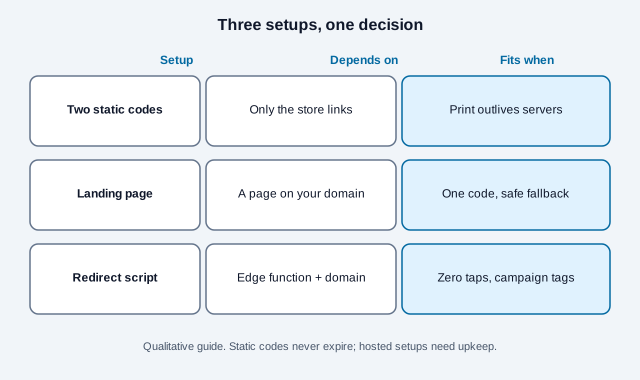
| Method | Effort | What it depends on | Ongoing cost |
|---|---|---|---|
| Two static codes side by side | Minimal: generate two codes | Only the store links themselves | None |
| Landing page with two buttons | Low: a simple mobile page | A web page on your domain or another host | Hosting and domain, often free or cheap |
| Redirect script on an edge function | Medium: a few lines of code | A serverless platform and your domain | Free tiers exist; check the platform's current limits |
Method 1: two static codes side by side
This suits permanent packaging, because nothing sits between the scan and the store.
- Copy your App Store URL (
https://apps.apple.com/...) and your Google Play URL (https://play.google.com/...). - Generate one static code for each with the free QR code generator.
- Print them next to each other and label them clearly, for example "iPhone" and "Android".
With no redirect service in the chain, there is no subscription or domain to keep alive. Static codes are free and never expire. They work until the store URLs change.
Method 2: a landing page with two buttons
- Build a small, fast mobile page on your own domain, for example
yourbrand.com/download. - Put two large buttons on it, one for each store.
- Generate one static QR code that points to that page.
It costs one extra tap, but it also works for iPads in desktop mode, for people who want to read the listing first, and for anyone the script would misjudge. You can also add Apple's Smart App Banner meta tag to the page; Apple's documentation page could not be read in full here, so confirm the syntax there.
Method 3: an edge redirect script
A small function on a serverless platform can send each device straight to its store. A Cloudflare Worker on your own domain looks like this:
export default {
  async fetch(request) {
    const userAgent = request.headers.get('user-agent') || '';
    const iosUrl = 'https://apps.apple.com/app/idYOUR_APP_ID';
    const androidUrl = 'https://play.google.com/store/apps/details?id=YOUR_PACKAGE_NAME';
    const fallbackUrl = 'https://yourbrand.com/app';

    if (/iPhone|iPad|iPod/i.test(userAgent)) {
      return Response.redirect(iosUrl, 302);
    } else if (/Android/i.test(userAgent)) {
      return Response.redirect(androidUrl, 302);
    } else {
      return Response.redirect(fallbackUrl, 302);
    }
  }
};
Encode the Worker's URL (for example https://get.yourbrand.com/app) in one QR code. Point the fallback at a landing page like the one in Method 2 so anything the script cannot identify ends up somewhere useful.
What edge cases break device detection?
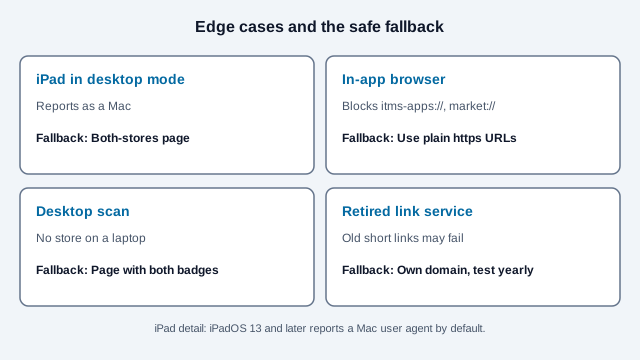
- iPads in desktop mode. Since iPadOS 13, Safari on iPad identifies itself as a Mac by default, so a server-side script cannot tell it from a laptop. In browser code, test
navigator.maxTouchPoints > 1. On the server, send unrecognized devices to a page with both store buttons. - In-app browsers. Scanning from inside another app, such as Instagram, TikTok or WeChat, may open a built-in browser that refuses custom schemes like
itms-apps://ormarket://. Plainhttps://store URLs are the safer choice. - Desktop scans. People sometimes scan from a laptop screen. Keep a fallback page with both store badges and a short description.
- Retired link services. Google's Firebase Dynamic Links stopped on August 25, 2025, and reports differ on whether existing links still redirect or return errors. If printed codes ran through that service or a similar one, test them now and move to a domain you control.
How do you tag installs by campaign?
Tag the destination, and read the result in each store's own tools. The two stores work differently.
- Google Play: Google's documentation shows a
referrerparameter added to the Play URL, for example...details?id=com.sample.package&referrer=utm_source%3Dsearch%26utm_medium%3Dcpc%26utm_campaign%3Dsummerpromo. The value must be URL-encoded and 512 characters or fewer. The app then reads it with the Play Install Referrer library, and that page says the referrer is kept up to 28 days before install and 90 days after, so your app needs code to read it. - Apple custom product pages: each page has its own URL with a page ID parameter, you can create up to 70 extra versions per app, and App Analytics shows impressions, downloads and conversion for each. Use one page per placement when the store listing should change with the audience. Apple's separate campaign-token parameters were not confirmed from Apple's pages for this guide, so check Apple's current documentation.
Counts come from the store consoles, not from the QR code. A scan is not an install, and many scans never finish the download. If you also want page-level numbers from your own domain, use the UTM builder and read the QR code tracking guide. The dynamic QR code generator suits cases where you need to repoint a printed code later.
How should you lay out the printed code?
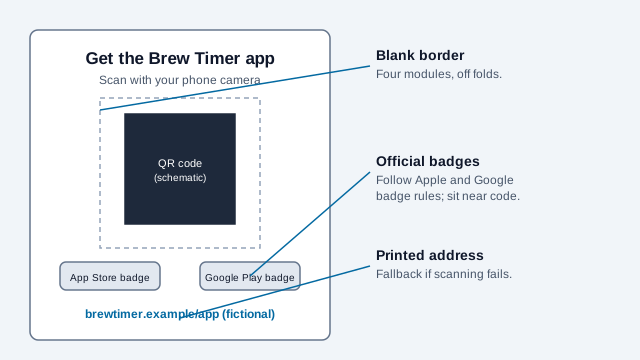
- Put the official App Store and Google Play badges near the code so people know what scanning does. Follow Apple's and Google's badge guidelines, linked below.
- Add a short line such as "Scan with your phone camera to get the free app." Say "free" only if the app is free.
- Size for viewing distance. A small card or box can carry a code around 1 in (25 mm) across, while a banner needs far more for the same scan distance. The print size guide shows how to size by distance, and the labels and bottles guide covers curved surfaces.
- Keep at least four modules of blank space around the code and test the printed proof on an iPhone and an Android phone.
- Print a short web address as text for people who cannot scan.
What does a rollout look like, and what goes wrong?
Picture a company that prints 10,000 retail boxes with one code that points to a redirect hosted on a free-tier project under an employee's personal account. A year later the account is closed, the redirect disappears, and every box on every shelf scans to an error. Two static store codes, or a redirect on a company domain with named owners and a renewal reminder, would have kept the boxes working.
- Decide how long the print will circulate. If it outlasts any server you can promise, choose Method 1.
- Confirm both store listings are live and copy the plain https URLs.
- Choose the setup, build it, and name the owner of any domain or script.
- Add campaign tags if you need install attribution, and test that the app reads them.
- Test on iPhone, Android, an iPad in desktop mode, a desktop browser and an in-app browser.
- Print a proof and scan it on two phones; the troubleshooting guide helps if one fails.
- Log the encoded address, owner and the date of the last check, and retest every few months while stock remains.
Related reading: static versus dynamic codes and the software use-case guide.
What do the app stores decide that this checklist cannot?
- Stores change URL formats, badge rules and attribution tools. Recheck the current Apple and Google pages before a big print run.
- Whether a given phone opens the store app or a web page first varies with settings and cannot be forced.
- Apple campaign-token parameters and Smart App Banner details were not confirmed from Apple's own pages here.
- Legal rules on tracking, children's apps and store-listing claims differ by country. Check your local rules.
This guide is general information, not legal advice. Follow each store's current developer terms and your privacy obligations.
References
- Apple Developer: App Store marketing guidelines and badges
- Apple Developer: custom product pages
- Apple Developer: promoting apps with Smart App Banners
- Google Play: badge and brand guidelines
- Android Developers: Play URL referrer parameter
- The Pragmatic Engineer: Google shutting down Firebase Dynamic Links
- IETF RFC 9110: HTTP Semantics (User-Agent, redirection status codes)
- ISO/IEC 18004:2024, QR code bar code symbology specification