A wireless QR code scanner lets staff scan where the work happens: at the shelf, in the queue, at the door or on the loading dock, instead of carrying everything back to a desk. It pays off when codes are spread out and people move around; at one fixed till, a wired scanner is still fine. Below we cover what wireless models do well, how Bluetooth scanners actually connect, what to check before you buy, and the cases where a phone camera and our free online QR code scanner are all you need.
- Why choose a wireless QR code scanner?
- How do Bluetooth QR code scanners connect?
- Does a handheld design make scanning easier?
- Where do wireless scanners create the most value?
- Do you need a hardware scanner at all?
- How should you test your QR codes before buying?
- What should you look for in a QR code scanner device?
- What are the common buying mistakes?
- Wired or wireless: which should you choose?
- Checklist before you buy
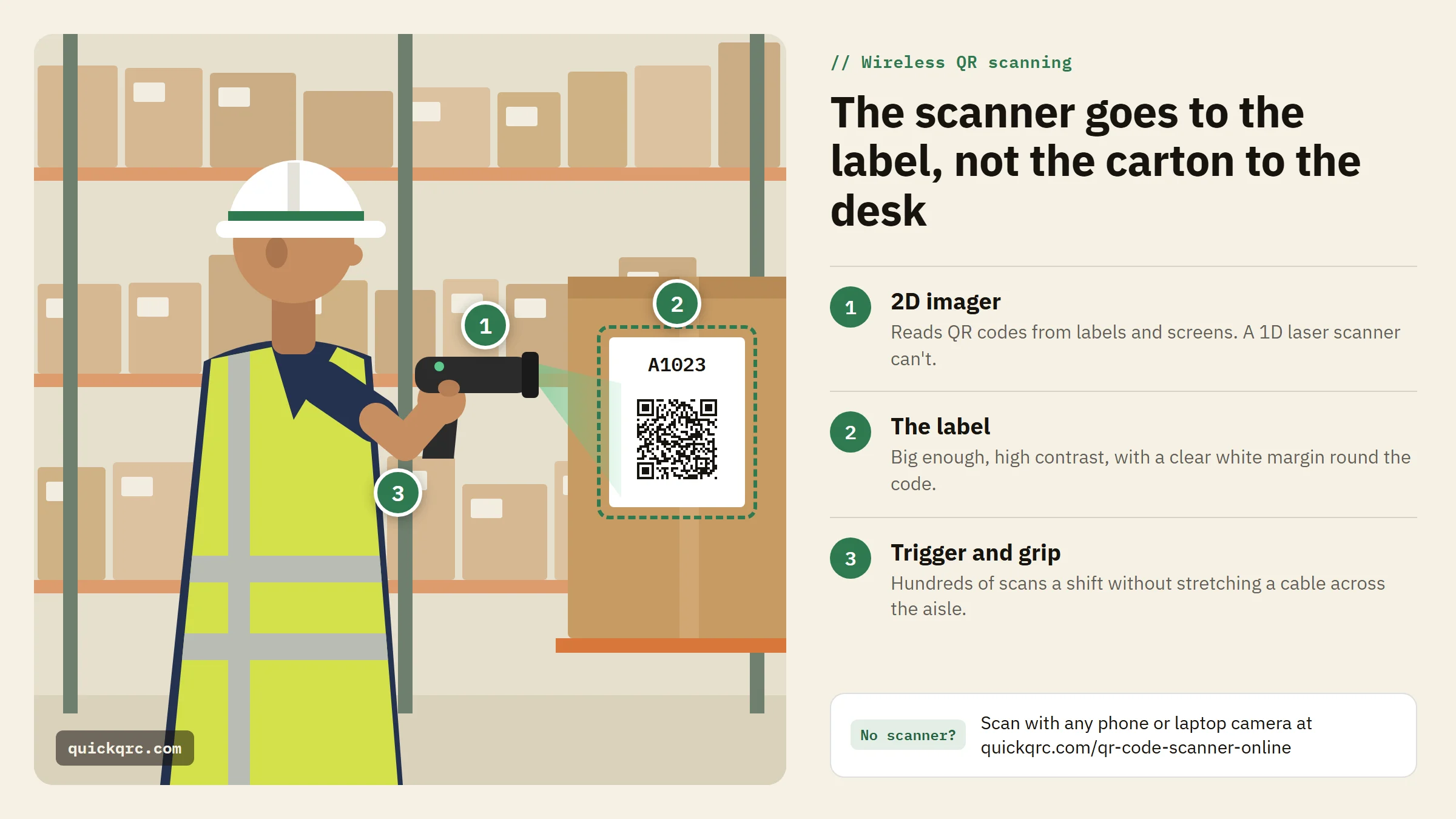
Why choose a wireless QR code scanner?
Choose a wireless QR code scanner when the codes are spread out and the people scanning them move around. With a fixed scanner, every item, badge, parcel or document has to come to the station. With a wireless one, the scanner goes to the item.
That changes small things that add up over a shift. A cashier scans a bulky item in the trolley without lifting it onto the counter. A warehouse associate confirms stock while standing at the rack. An event team checks tickets at three doors instead of funnelling everyone through one desk.
Mobility improves everyday productivity
When scanning tasks are spread across a space, a fixed scanner adds walking, waiting and handling. A handheld QR scanner lets the user work through the task in order:
- Inventory counts: scan shelf labels, bin locations and carton codes in sequence down the aisle.
- Healthcare and labs: scan wristbands, sample tubes and equipment tags at the bedside or bench.
- Offices and IT: audit laptops, monitors and furniture tags without unplugging anything.
It also helps when the item is heavy, fragile or already installed. Moving the scanner is easier than moving a pallet or a server rack.
Cleaner and safer workspaces
A wired scanner is fine at one checkout desk. In a stockroom, classroom, reception area or pop-up event space, the cable starts to get in the way. Wireless devices keep those areas open, and nobody pulls the scanner off the desk with a snagged lead.
Ergonomics improve too. Users don't have to twist toward a mounted scanner or hold items at an awkward angle to reach a short cord. Setup is simpler when the layout changes: seasonal tills, temporary check-in desks and new picking zones need less planning when there is no cable to route, tape down or protect.
How do Bluetooth QR code scanners connect?
A Bluetooth QR code scanner pairs with a computer, tablet, phone or POS terminal without a cable. The connection mode decides which software the scanner will work with, so check it before you buy:
- Keyboard (HID) mode: the scanner pairs as a keyboard and "types" the decoded text into whatever field has focus. This works with almost any app, spreadsheet or web form with no driver. It is the most common mode and the easiest to start with.
- Serial or SDK mode: the scanner sends data to a specific app that supports it. You get more control, such as no on-screen keyboard popping up on tablets, but only with compatible software.
- USB receiver (dongle): some models ship with a small receiver that plugs into a PC. Pairing is simpler and range is often better than plain Bluetooth.
- Batch or inventory mode: the scanner stores scans in memory when it is out of range and uploads them later. This matters in large warehouses, cold rooms and basements with patchy signal.
Ask practical questions. Will the scanner stay paired to one tablet all day, or move between devices? Will several scanners work in the same room? Does your app expect keyboard input or a vendor SDK? Those answers matter more than the spec sheet.
One side effect of keyboard mode is worth knowing: the scanner types whatever the code contains, with no preview. If staff scan codes from outside sources, such as customer phones or supplier labels, make sure the receiving field only accepts what you expect.
Does a handheld design make scanning easier?
Yes, for repetitive work. A handheld QR code reader gives users a simple point-and-scan action, which matters when a queue is building or a truck is waiting. A comfortable grip and a clear aiming light make hundreds of scans a day less tiring.
Look past size. The trigger should be easy to press, the grip secure, and the angle natural for how people hold it. If staff wear gloves, scan from ladders or work in cold storage, grip and button placement matter even more.
Aiming by hand also helps with accuracy. QR codes turn up on curved bottles, shiny labels, tiny tags and phone screens. Being able to change the distance and angle quickly is often the difference between a first-time read and three retries.
Where do wireless scanners create the most value?
Wireless scanning works best when the task involves movement, repeated scans or several work areas:
- Retail: product codes, loyalty codes, shelf tags, click-and-collect orders and returns, away from the counter. See QR codes for retail.
- Warehousing and logistics: bins, pallets, shipping labels, packing slips and location codes while moving through aisles. Our guides on QR codes for logistics and QR codes vs barcodes in logistics go deeper.
- Events and venues: tickets, badges, registrations and access passes at entrances, session rooms and pop-up check-in points.
- Healthcare and labs: patient materials, samples, equipment and medication packaging within controlled workflows.
- Education and libraries: books, devices, classroom kit and event passes in different rooms.
- Field service: equipment tags, service records, parts labels and customer paperwork on site.
In each case scanning becomes part of the walk through the job, not a separate trip to a fixed device.
Do you need a hardware scanner at all?
Not always. Any phone or laptop with a camera can read QR codes, and for many small teams that is enough. Our online QR code scanner covers a lot of light-duty work with no app and no account:
- Scan live with a phone, tablet or laptop camera, or upload a screenshot or photo (PNG, JPG or WebP) of a code.
- See the decoded content and its parsed fields before anything opens, then copy any value with one click.
- Keep a list of your 20 most recent scans and export it as a CSV file for a quick stock check or attendance list.
- Send any link found in a code to the QR security scanner before you visit it.
- Decoding runs in your browser, so the camera feed and images are not uploaded to our servers.
| Situation | Phone + online scanner | Wireless hardware scanner |
|---|---|---|
| A few scans a day, spot checks | Good fit | Usually overkill |
| Remote or temporary staff | Good fit, nothing to buy or pair | Needs a device per person |
| Reading a code from a screenshot or email | Good fit (upload the image) | Not possible |
| Checking an unknown code before opening it | Good fit, content shown first | Keyboard mode types it straight in |
| Hundreds of scans per shift | Slow: unlock, aim, tap | Good fit |
| Gloved hands, cold rooms, drops | Poor fit | Good fit with a rugged model |
| Scanning into a POS or WMS all day | Poor fit | Good fit |
Many teams use both. A dedicated wireless scanner handles the high-volume station, and staff use the online scanner on their own phones for the odd code that turns up elsewhere. If you just need to read a code on your phone, our guide on how to scan a QR code covers iPhone, Android and desktop.
How should you test your QR codes before buying?
When a new scanner "doesn't work", the label is often the problem, not the device. Low contrast, glossy laminate, a missing quiet zone or a code printed too small will slow down any reader. Test your real labels first:
- Print or display a few of your actual codes, in the size and material you really use.
- Scan them with a phone using the online QR scanner. If a phone struggles at a normal distance, a handheld scanner may struggle too.
- Upload the code image to the QR scannability tester, which runs stress tests such as blur, glare, low light, damage and curved surfaces, to see how much abuse the design can take.
- Fix weak labels before you roll out new hardware: a bigger print size (see the QR code print size guide), more contrast, a clear margin and a higher error-correction level.
If codes still fail, our QR code not scanning guide walks through the usual causes one by one.
What should you look for in a QR code scanner device?
Match the QR code scanner device to your environment, software and scan volume. A scanner that suits a quiet office may fail on a busy dock, and a rugged industrial model is more than a small front desk needs.
2D imaging, not a laser
QR codes are two-dimensional, so they need a 2D area imager (a small camera). Many cheap "barcode scanners" use a 1D laser that sweeps a single line and can only read linear barcodes. Check that the listing says 2D, QR or imager, not just "barcode".
Compatibility
Confirm the scanner works with your operating systems, apps, POS and inventory platform. For tablets and phones, check Bluetooth support and which mode (keyboard or SDK) your app needs. For desktops, check whether it connects through a receiver, dock or Bluetooth.
Scan performance
QR codes appear on paper, plastic, screens, labels, badges, cartons and damaged packaging. If you scan tickets or passes from phone screens, make sure the model reads screens reliably, since glare and screen brightness trip up some imagers. If codes are small or far away, look at the rated reading distance and how visible the aiming light is.
Battery and charging
The battery should last a full shift, or charging should fit between uses. Charging cradles, swappable batteries and clear battery indicators prevent mid-shift downtime for busy teams.
Durability
A reception desk and a loading dock are very different. Check the drop rating, the dust and water rating (the IP code defined in IEC 60529), the operating temperature range and whether the casing tolerates your cleaning products.
Key advantages at a glance
| Advantage | Why it matters |
|---|---|
| Freedom of movement | Staff scan items, tickets, labels or assets wherever they are. |
| Faster workflows | Less walking and repositioning on repetitive scanning tasks. |
| Cleaner work areas | Fewer cables around desks, counters and temporary stations. |
| Flexible pairing | Bluetooth and receiver options work with tablets, laptops, phones and POS. |
| Easier handling of large items | The scanner goes to the object, not the other way round. |
| Adaptable deployment | Scanning points can move as layouts, seasons or events change. |
What are the common buying mistakes?
- Buying a 1D laser scanner. It will not read QR codes. Confirm 2D imaging.
- Ignoring software compatibility. The scanner is only useful if your app, database, POS or browser tool accepts its input.
- Choosing on connection type alone. Bluetooth is convenient, but range, battery life and read quality still decide whether staff like it.
- Overlooking the scan environment. Bright light, reflective surfaces, damaged labels and phone screens all affect performance.
- Forgetting user comfort. At hundreds of scans a day, weight, grip, trigger feel and aiming feedback matter.
- Trusting vague product listings. If a listing has unclear specs or a keyword-stuffed title, check the supported code types, connection modes and battery figures before paying.
- Skipping the test. Try the scanner with your real QR codes, devices and software before a larger rollout, and test the labels too.
Wired or wireless: which should you choose?
Wired models still suit fixed, high-volume stations where the scanner never moves far, such as a dedicated checkout lane, reception desk or production line. They are simple to manage and never need charging.
If scanning happens in one predictable spot, wired is usually enough. If it follows people, products or customers around a building, wireless is more practical. Many businesses run both: wired scanners at the tills, wireless ones for stock counts, curbside pickup, events and exceptions, plus phones with an online scanner for everything else.
Checklist before you buy
Before choosing a handheld QR scanner, map the workflow from start to finish and answer these questions:
- What will it connect to: desktop, laptop, tablet, phone or POS terminal?
- Which connection is needed: Bluetooth keyboard mode, app SDK, USB receiver or dock?
- Does it use a 2D imager that reads QR codes, including from screens?
- How many scans will each user do in a typical shift?
- Will codes be on paper, screens, packaging, plastic cards or metal tags?
- How far from the code will the scanner usually be?
- Will users wear gloves, climb ladders or work in the cold?
- Does it need to store scans offline when out of range?
- Can it be charged without interrupting work?
- Does the environment need extra durability or frequent cleaning?
- Will one scanner be shared, or does each person need their own?
- Have you tested your real labels with a phone and the online scanner first?
For low-volume scanning, spot checks or testing labels before you spend money on hardware, start with the free online QR code scanner. It works in any browser, on any phone or laptop, with nothing to install.