Couples use QR codes on save-the-dates, invitations, welcome signs, table cards, and thank-you cards to collect RSVPs, gather guest photos, and share the schedule, directions, dress code, registry and menu, without printing every detail on the stationery. Give each placement one labeled purpose, point each code at something you control, and print the time and venue in plain words so nothing essential sits behind a phone.
This guide follows the stationery in the order guests meet it, then covers photo sharing and guest privacy, how long each page needs to stay online, helping older relatives, and printing and tinting the code so it still scans under venue lighting.
Which wedding QR code goes on which piece of stationery?
Match the code to the moment. A save-the-date is read at a fridge door, an invitation at a kitchen table, and a table card at a reception with the lights low. Each moment suits a different destination.
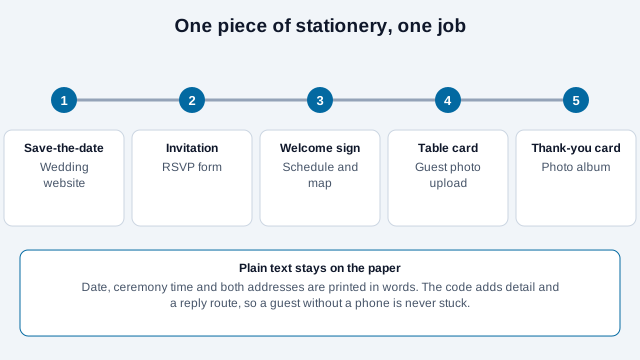
| Stationery | Label on the card | Destination |
|---|---|---|
| Save-the-date | "Wedding website" | A page with the date, city and a place to leave an address |
| Invitation or RSVP card | "Scan to RSVP" | A form with attendance, meal choice and dietary needs |
| Welcome sign or program | "Schedule and map" | Timeline, ceremony and reception addresses, parking, transport, dress code |
| Table card or favor | "Share your photos" | A shared album upload page |
| Thank-you card | "Our photos" | The album you keep adding to, perhaps as an image QR code |
| Anywhere | "Add to calendar" | An event QR code in the iCalendar format (RFC 5545) |
Keep codes separate, with the label next to each, rather than one code that opens a menu of choices. Registry links belong on the wedding website or a card in the suite, since that is where guests look for them. If the wedding has a day-of program, a PDF QR code can open a printable schedule.
The calendar code has a trap. A generator that encodes local start and end times without a time zone can add the event at the wrong hour for guests traveling from elsewhere, and calendar handling varies by phone. For a destination wedding, link to a hosted calendar or event page that states the time zone, and test on the devices your guests use.
What does an invitation with a QR code look like?
Let the code support the card and keep the essentials in print. A guest who never scans should still know when to arrive and where to go, and a guest who does scan should know exactly what happens next.
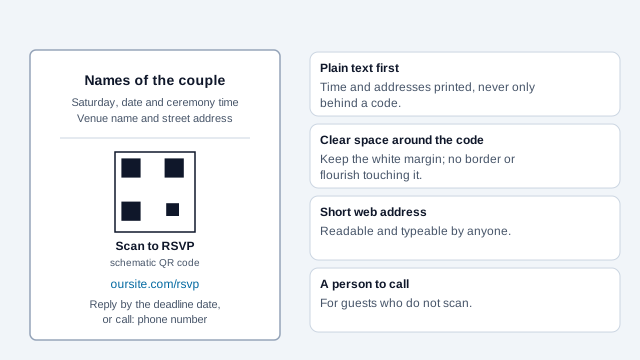
Couples and wedding sites that discuss QR codes on invitations often suggest keeping a paper reply card in the suite. One wedding-stationery retailer recommends a traditional card especially for older guests, and an Australian wedding site suggests printing paper cards for some invitations and using QR codes for the rest. A wedding-planning forum thread adds practical wording advice: state the deadline and the method in words next to the code. These are opinions rather than rules, and what works depends on your guest list. If grandparents are on it, call one before the invitations go out and watch whether they can reach the RSVP page.
How should guest photo sharing handle privacy?
A photo-sharing code invites guests to upload images of other guests. A few precautions are worth taking before you print the sign.
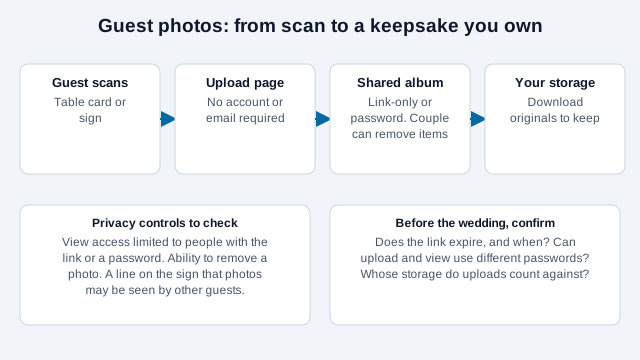
- Choose an album service that lets you moderate or remove uploads, and set the album so only people with the link can view it, not a public gallery.
- Check whether upload and view can use different passwords. Some services let anyone with the code upload, while only people with the password can view and download.
- Add a line on the sign: "Photos may be shared with the couple and other guests." Give guests an easy way to ask for a photo to be removed.
- Do not require guests to create an account or hand over an email just to upload.
- If children are in the photos, be more conservative about who can see the album.
- Know whose storage uploads count against. With an Apple shared album, Apple states that photos and videos in shared albums you own count toward your iCloud storage, and older albums have fixed caps on subscribers and items that vary by software version.
A QR code does not protect an album. Anyone who photographs the code or receives the link can reach it, and several photo-sharing vendors say as much. Treat the link as a shared secret for the guest list and plan to revoke it.
How long does the destination need to stay live?
Longer than you think. A static QR code's link never changes, but the page behind it only works while it is paid for and online. Link lifetimes differ across services; one vendor comparison lists albums that never expire next to others that expire after 30 days. Some link shorteners also add expiry dates of their own, so check both the album service and any shortener.
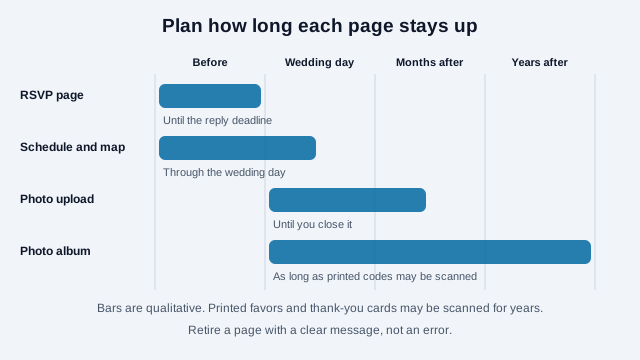
RSVP and schedule pages can come down after the wedding. A photo album printed on favors, thank-you cards or a guest book may be scanned for years. Decide up front:
- Keep the album host's subscription active for as long as you want guests to add or view photos, or
- Download everything, move it to permanent storage, and retire the code with a message that says where the photos are now.
- If the code is on a keepsake, consider a page on a domain you will keep. You can later redirect it to wherever the photos live.
Tell guests when uploads will close. A line such as "Uploads open until the end of the month" on the thank-you card turns an ending into a plan.
Will older relatives be able to scan?
Assume some guests will not. Design so nobody is stuck.
- Print the ceremony time and both addresses in plain text; never only behind a code.
- Add a short readable web address beneath each QR code (
oursite.com/rsvp) and offer a phone number or reply card for RSVPs. - Include one line explaining how to scan with the phone camera. The how to scan a QR code page is easy to link from your website.
- Make the wedding website real text, large and high-contrast, so it is usable at a glance and with a screen reader. The QR code accessibility guide covers the destination side.
- Expect some phone calls. Forum posters report that older guests sometimes ring the couple instead of replying online, so plan who answers.
How do you print and tint a wedding QR code?
- Invitations and cards: at least 1 inch (2.5 cm) square, with the four-module quiet zone clear of any border or flourish. See the print size guide.
- Welcome signs and seating charts: size for the reading distance, then test the printed piece.
- You can tint the code to match your palette, but keep dark modules on a light background. A pale-on-pale code that looks elegant may not scan under venue lighting. Check contrast with the contrast checker, and read the colors and design guide first.
- The white margin around the code is functional. A transparent PNG can sit on textured stock if the paper behind the code stays light and plain.
- Export SVG for large signage and PNG at the final size for stationery. Scan a proof with the scannability tester and two phones before the print run.
Static codes suit nearly all of this. A dynamic code is worth considering only for a keepsake whose destination might need to change later. The static vs dynamic guide explains the trade-off.
What mistakes cause wedding QR code problems?
Imagine a couple who print 120 invitations with an RSVP code, a schedule code, and a photo code, all black squares of the same size with no labels. A guest scans the photo code at the table expecting the menu, then cannot tell which of three codes opens the RSVP form. Two months later the free album trial lapses, and a cousin scanning the code on a favor reaches a login page.
- Printing several unlabeled codes close together.
- Putting the only copy of the time and address behind a scan.
- Choosing an album with an expiry date nobody checked.
- Making guests create an account to upload a photo.
- Using a pale tint for the code on cream stock.
- Forgetting that older guests may prefer a reply card.
Checklist before the print run
- List the codes you need and write the label that goes beside each.
- Build the RSVP, schedule and photo pages and test them signed out, on mobile data.
- Check the album's expiry, access settings and removal tools.
- Add a short web address and a phone number to every card that has a code.
- Print one proof at final size, and scan it on two phones in dim light.
- Ask one older relative to try the RSVP route.
- Write down the date you will download the photos and retire or redirect each code.
What this checklist cannot settle
Two things this checklist cannot settle for you. How your album service stores and deletes guest uploads depends on its own terms, and the privacy rules about photographing and sharing images of other people differ by country. Check both.
This guide is general information, not legal advice. Privacy rules for photos, especially of children, differ by country and change over time.
References
- IETF RFC 5545: iCalendar (calendar event format)
- DENSO WAVE: determining the code area and quiet zone
- ISO/IEC 18004:2024, QR code bar code symbology specification
- Apple Support: Shared Albums limits
- Viallo: QR code photo sharing (vendor comparison)
- Bitly: how QR codes simplify sharing wedding photos (vendor blog)
- Bella Bridesmaids: QR code wedding invitations
- Easy Weddings: RSVP slip or QR code
- W3C WAI: accessible design tips