A QR code can't carry a photo, but it can open one. To make a QR code for a picture or a photo album, put the photos somewhere online, then turn that page's link into a QR code. The decision that matters is where the photos live, because it settles who can see them, whether you can change them after printing, and how long the printed code keeps working.
This guide compares the four realistic ways to do it, walks through the two most common ones step by step, and covers the parts most guides skip: privacy and what happens to the code a year later.
- Can a QR code hold a picture?
- Which way should you share photos with a QR code?
- How do you make one, step by step?
- What happens to the printed code later?
- Who can see the photos?
- How should you prepare the photos?
- What if you want a picture inside the code?
Can a QR code hold a picture?
Not one you'd want to look at. Capacity is the problem. Even a version 40 symbol, the biggest size in the specification at 177 modules square, tops out at 2,953 bytes in binary mode, and that figure assumes the weakest error correction. Choose level H for a sturdier printed code and the ceiling falls to 1,273 bytes. Compare that with any ordinary camera-roll photo, which is measured in megabytes, and the gap is three orders of magnitude. The full limits by data type are in the QR code character limit guide.
You'll find forum threads about squeezing a tiny image into a code anyway, usually by converting it to text (Base64), which adds about a third to its size. Two problems sink the idea. The image has to be a thumbnail a few dozen pixels across to fit, and the resulting code is so dense it needs good light and a steady hand to scan. Phone camera apps are also built to open links and show short text. They won't display embedded image data as a picture. So every practical "picture QR code" stores a link, the same way a QR code for a PDF does.
Which way should you share photos with a QR code?
There are four routes, and they suit different jobs. The first two cost nothing if you already use the photo service; the third gives you an album you can edit behind a printed code; the fourth is a design choice that doesn't share photos at all.
| Route | What the scan opens | Change after printing? | Watch out for |
|---|---|---|---|
| Google Photos' own QR code | Your shared album in Google Photos | Photos yes; the link no | Anyone with the link can also add photos to the album |
| Any album link in a static QR code (iCloud, Google Photos, Dropbox, your website) | Whatever page the link points to | Photos yes; the link no | If the album is deleted or its sharing is switched off, every printed code goes dead |
| A hosted image QR code (dynamic) | A mobile gallery made for scanning | Photos and the destination | The page depends on the service staying in place; check plan limits |
| A picture placed in the middle of the code | Whatever the code links to; the picture is decoration | Depends on the link | Too large an image stops the code scanning |
Our recommendation: if the photos are for friends and family and you already keep them in Google Photos or iCloud, use that album's link. If the code is going on something printed in quantity or meant to last (wedding stationery, a property sign, product packaging), use a dynamic code so you can repoint it without reprinting. The trade-offs are covered in static vs dynamic QR codes.
How do you make one, step by step?
From a Google Photos or iCloud album you already have
- Create the album and add the photos.
- Turn on link sharing. In Google Photos, open the album, tap Share and create a link; the Android app can also show a ready-made QR code for the album. In iCloud, open the shared album's sharing settings and switch on Public Website, which lets people view it in a browser without an Apple Account.
- Copy the link and paste it into a URL QR code generator. Download the code as SVG for print or PNG for screens.
- Scan the downloaded file with a phone that isn't signed in to your account. If the album opens there, it will open for your guests.
As a hosted album with QuickQRC
- Sign in or create a free account, then start a new image QR code. The album needs an account so it has somewhere to live; the free plan includes one album with 100 MB of photos.
- Add up to 30 photos (JPG, PNG, WebP, GIF or AVIF). The preview shows the album on a phone as you go.
- Give the album a title and an optional line of text, and pick a layout.
- Style the code if you like (colors, frame, a logo), save it, download it, and scan a printed test before the full run.
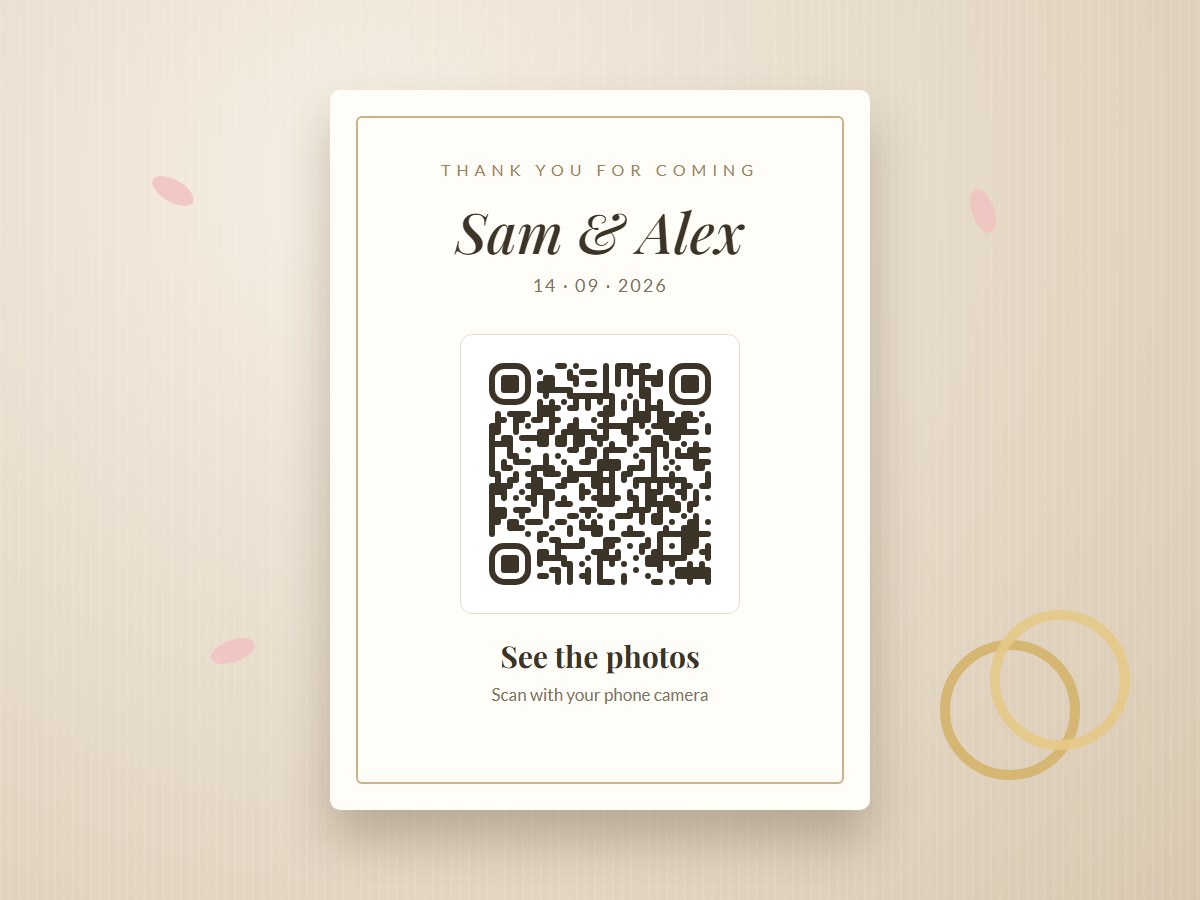
What happens to the printed code later?
This is where most photo QR codes fail, and it isn't the code's fault. A static code is permanent: the link inside it never changes. The page behind the link is another matter. Delete the album, turn off its sharing, move the photos to a different service, or let the account lapse, and every card, sign and label carrying that code now opens an error page. Google's own developer documentation notes that an album's shareable link stops working when the owner turns off link sharing or unshares the album.
A dynamic code adds one step: the printed code points to a short link the service controls, and that short link forwards to your album. You can swap the photos or point it somewhere else entirely, and the printing stays valid. The cost is a dependency on that service. For a keepsake meant to work for years, such as a memorial plaque, think about who will keep the destination alive. Our guide to memorial QR codes covers that case in detail.
Who can see the photos?
Treat any album you put behind a QR code as visible to anyone holding the printout, because it is. A shared-album link looks random, but it works like an unlocked door: whoever has it can open it, and they can pass it on.
- A Google Photos link lets people add photos to the album as well as view it, according to Google's help page. That suits a guest-upload album, and it's a problem if you meant the album to be view-only.
- An iCloud album with Public Website switched on can be viewed in any browser by anyone with the link.
- A hosted image album is public to anyone who scans or has the link. QuickQRC's paid plans can put a password on the code, and any plan can set an expiry date after which the code stops opening the album.
If children or other guests appear in the photos, ask before publishing, and give people an easy way to have a photo removed. The wedding QR code guide covers guest consent in more depth.
How should you prepare the photos?
- Check the format of iPhone photos. Apple's High Efficiency setting stores photos as HEIF (.heic), which saves space on the phone but isn't accepted by many web uploaders, QuickQRC's included. Exporting as JPEG fixes it for photos you already have; for future ones, Apple documents a Most Compatible option under Settings > Camera > Formats.
- Don't upload full-size originals if you can avoid it. Nobody zooms into a 48-megapixel file on a phone. Smaller files load faster on a weak signal and use less storage. QuickQRC's builder does this for you, redrawing large photos to 2,048 pixels on the long edge in your browser before upload.
- Put the strongest shot first. People decide in a second or two whether to keep scrolling, so the opening photo does most of the work. A slideshow-style layout makes this matter even more, since each swipe is a choice.
- Rename files before uploading. Layouts with captions pull them from the file name, so "cutting-the-cake.jpg" becomes a readable caption where a camera's default numbering would not.
What if you want a picture inside the code?
If what you're after is a photo or logo sitting in the middle of the code, that's a different thing: a design choice that works with any QR code, whatever it links to. It works because of error correction, which lets a scanner rebuild the modules the picture covers, so the picture has to stay within that budget. Use a square crop of one clear subject, keep strong contrast around it, and test the result. The QR code generator with logo accepts any PNG, JPG or SVG and sets the right error correction level automatically, and the logo best practices guide explains the size limits.
Whichever route you take, size the printed code for the distance people will scan from. A table card held in the hand needs far less than a sign read from across the street; the QR code print size guide has the numbers.