A meeting room QR code can open a Zoom, Google Meet, Microsoft Teams or Webex join link without anyone retyping a meeting ID. It can also open a room guide, an agenda or guest Wi-Fi instructions. Use the official HTTPS link from the current invitation, label what the code does, and test it as an outside guest.
A code removes one point of friction, but it cannot bypass lobby, sign-in, registration, passcode or administrator policies. This guide covers what to encode for each platform, how long a code should stay on the wall, how to create and test it, how to lay out a placard, how Teams lobby settings affect guests, and what commonly goes wrong. Treat the code as an optional join route and keep the ordinary invitation available.
Why use QR codes in meeting rooms?
A room code reduces manual URL entry and gives visitors a visible route to the right digital resource. It does not authenticate an attendee or resolve device permissions, account restrictions, lobby admission, audio conflicts or network problems.
Useful destinations include a meeting join page, an agenda, room instructions, shared notes, an issue-reporting form and accessibility support. Pick one primary action per code. A phone joining the same call as the room system should normally use a companion mode or mute its microphone and speakers to avoid feedback.
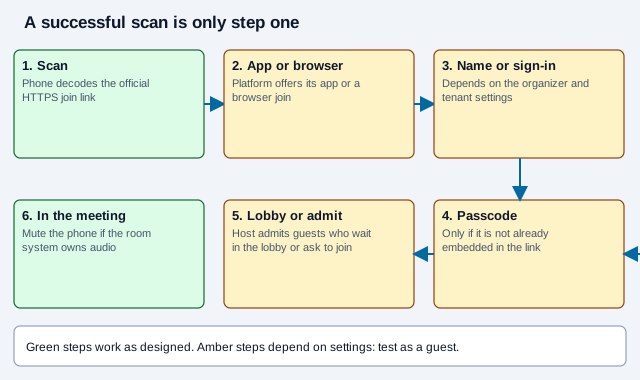
Which meeting link should you encode?
Copy the complete HTTPS join link from the organizer's current invitation instead of constructing a vendor-specific deep link. HTTPS lets the platform and device offer the installed app or a supported browser flow, while custom URI schemes can change across apps and operating systems.
| Platform | What to copy | What a guest may encounter |
|---|---|---|
| Zoom | The complete invitation join link, including organizer-supplied passcode data | App or browser choice, display name, passcode, waiting room, or sign-in |
| Google Meet | The meeting link or joining information from Calendar or Meet | Account restrictions, an "Ask to join" request, and camera or microphone permissions |
| Microsoft Teams | The full join URL shown in the invitation | App or web flow, guest name, email verification, lobby, or required sign-in |
| Cisco Webex | The meeting link supplied by the host | App or browser choice, name or email request, password, registration, or admission |
Some specifics from the platforms' own help pages: Google says a person who is not on the calendar invite must request to join and be admitted, and that who can join without signing in depends on the organizer's account type and Workspace settings. Microsoft says anonymous participants and phone callers wait in the Teams lobby by default until a verified participant joins. A university IT guide notes that a Zoom link with an embedded passcode lets anyone holding the link join, so it advises pairing it with a waiting room or an authenticated-users setting. Zoom's current rules may differ, so check its documentation for your account.
Organizer and administrator settings decide whether an unverified visitor may join. Test with a non-organizer account outside your company tenant. Keep a manual meeting-ID route and dial-in details in the ordinary invitation.
Who skips the lobby in Microsoft Teams?
If your organization uses Teams, the lobby setting called "Who can bypass the lobby" decides whether a scan lands the guest in the meeting or in a waiting area. Microsoft's table shows the effect for each type of participant.
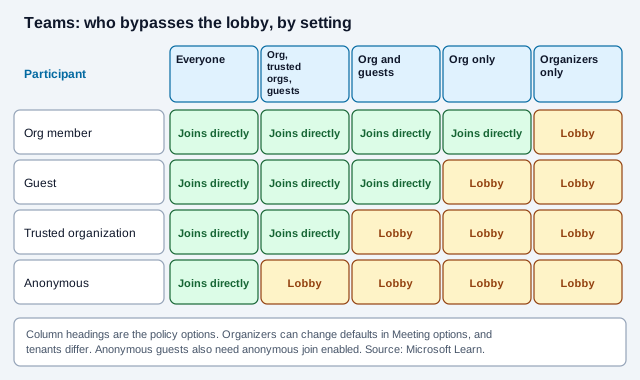
For a room that hosts outside visitors, the safe default is that an anonymous guest waits in the lobby until an organizer, co-organizer or presenter admits them. Microsoft recommends leaving the setting that lets anonymous users and dial-in callers start a meeting turned off, because turning it on lets people with unverified accounts start meetings, including at unscheduled times through the meeting link. The default rules differ by tenant, license and template, so ask your Teams administrator what applies.
Should a meeting room QR code be permanent?
Match the code's lifetime to the destination and the people allowed to use it. A permanent wall sign containing a reusable meeting credential can outlive the organizer, the room policy or the intended audience.
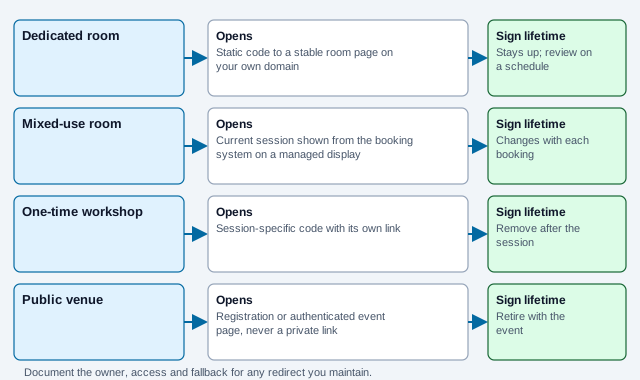
- Dedicated room: point a static code to a stable room page on a domain your organization controls. That page can show current instructions without exposing one meeting credential forever.
- Mixed-use room: show the current session on a managed display fed by the booking system, and make sure the next meeting's details do not appear early.
- One-time workshop: print or display a session-specific code, remove it promptly, and follow the platform's process for retiring the link.
- Public venue: avoid placing private meeting links where passers-by can photograph them. Use an authenticated event or registration page where it fits.
A static code never expires and has no running cost. If a redirect service is involved, document the domain owner, billing owner, access controls and outage fallback. The static versus dynamic guide explains the trade-off, and why QR codes expire covers what happens when a redirect lapses.
How do you generate and test a conference room QR code?
Generate the code from the exact join link, then validate the finished placement as an external guest. Testing only while signed in as the organizer hides the restrictions visitors are most likely to meet.
- Copy the complete HTTPS join link from the current invitation.
- Open the URL QR code generator and paste it without editing or retyping its parameters.
- Use a dark foreground, a plain light background, an intact quiet zone and a short label naming the platform and session.
- Export SVG for a print layout or a suitably sized raster image for a room display.
- Test iOS and Android, app-installed and browser paths, signed-out access, lobby admission, permissions, and scanning from a saved image.
- Confirm the ordinary invitation and support route still work if scanning fails.
If a logo is added, keep it small and repeat every test. Error correction does not guarantee that a particular logo size will decode, as the logo guide explains.
How should meeting room QR signage be placed and laid out?
Place the sign where seated and standing attendees can approach, aim a phone steadily and understand its purpose without blocking a doorway. No single size or mounting height suits every payload, camera, room or viewing distance, so start from the print size guide and test a physical proof from a seat and from standing.
- Avoid glare, glossy sleeves, curved holders, screen reflections, deep shadow, folds and decorative elements inside the quiet zone.
- Keep the code visible long enough on digital displays. Do not rotate it away while someone is aiming a camera.
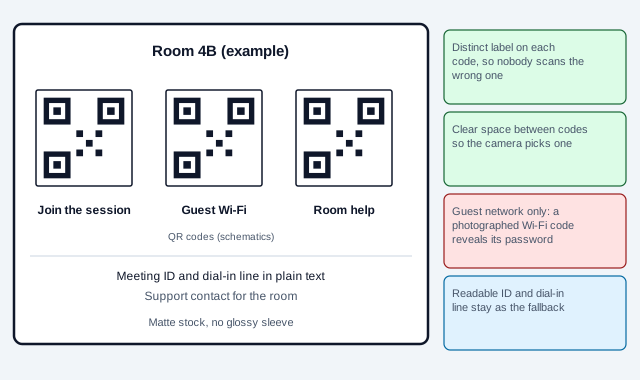
- Pair it with a readable URL or meeting ID when space permits, plus a support contact.
- Do not put competing codes so close together that the camera selects the wrong one.
Should Wi-Fi and calendar codes share the placard?
Separate codes can share one sign if each has a distinct label, adequate spacing and a reason to be there. Combining payloads into one code makes the action unclear and may create a denser symbol.
| Code | Label | Risk to manage |
|---|---|---|
| Meeting join | Join the 10:00 client briefing | Unauthorized reuse, expired session, lobby or account restriction |
| Guest Wi-Fi | Connect to visitor Wi-Fi | A photographed symbol reveals the encoded credentials |
| Calendar | Add this workshop to your calendar | Old time zone, changed room or stale event details |
| Room help | Open display and audio instructions | Inaccessible or outdated internal documentation |
A Wi-Fi code stores the network name and password in the code, in a format of the form WIFI:T:WPA;S:name;P:password;;, and special characters such as semicolons, colons, commas and backslashes must be escaped with a backslash. Anyone who photographs it can read those values, so do not print a private-network password in an accessible room. Use a segmented guest network and create its code with the Wi-Fi QR code generator.
How do you protect meeting access?
A QR code makes a join URL easy to copy, so signage should expose only links approved for that audience and lifetime. Anyone who can see or photograph the placard may keep its payload. The FBI has also warned that criminals tamper with physical QR codes, so a code in a public or shared space is worth checking for stickers placed over it, and the hacking guide explains the risks.
- Prefer a controlled room page over a permanent sign containing a confidential client-meeting link.
- Use waiting rooms, lobbies, registration, authenticated access and host admission when warranted.
- Remove one-time signage after the session and revoke or expire links according to platform policy.
- Do not put unrelated document permissions, reusable tokens or internal network credentials into the join code.
- Assign an owner to review the sign, destination and fallback on a schedule.
How does a room code fail after a reorganisation?
Picture an office that prints a laminated Teams code for its glass-walled boardroom and fixes it to the table. The code was copied from a recurring invitation, so when the organizer recreates the series after a restructure, the old link no longer works. The laminated sleeve is glossy, and the ceiling spotlights flare on it from the seat nearest the door. A visiting client scans it on a personal phone, lands in the Teams lobby and waits, because nobody inside knows to admit anonymous guests. Meanwhile, the client's phone speaker echoes into the room system.
The fix touches several things at once. Point the code at a room page that always shows the current join link, switch to matte stock, move the sign out of the spotlight, tell the host to watch for lobby requests, and add a line that says "Mute your phone if you are in the room."
- Old invitation: replace the payload or update the controlled room page when a recurring series is recreated.
- Wrong account: test tenant restrictions and explain which identity attendees must use.
- App-store detour: confirm whether a browser join option exists and state when an app is required.
- Audio feedback: mute personal-device microphones and speakers when the room system owns audio.
- Unreadable display: remove glare, restore the quiet zone, increase tested size and simplify the destination where appropriate. Why a code stops scanning lists more causes.
What should you check before installing a room code?
- Encode the official HTTPS invitation link, not a guessed deep-link scheme.
- Choose the code's lifetime from the room type and protect reusable credentials.
- Check the lobby, guest and passcode settings for your platform and tenant.
- Keep the ordinary invitation, dial-in and accessibility routes next to the code.
- Print on matte stock and test a proof from a seat, standing and at an angle.
- Test as an external guest on iOS and Android with the finished sign.
- Name an owner and a review date, and remove one-time signs promptly.
Generate the meeting room QR code, label the platform and session, then run a guest test before installing it. For events with many attendees, see event ticketing and QR codes for events.
Which room-booking details depend on your own systems?
Platform behavior changes without notice, and each organization configures its own tenant, so the screens a guest sees may differ from the descriptions here. Zoom details above come from a university IT guide and community pages, not Zoom's own current documentation. Data-protection rules about visitor names, recordings and guest networks depend on your location and contracts. Your security team should decide whether a QR join route is acceptable for sensitive meetings at all.
This guide is general information, not legal or security advice. Check your platform's current documentation and your organization's policies before you publish a join code.
References
- Google Meet Help: Join a video meeting
- Microsoft Support: Join a meeting in Teams
- Microsoft Learn: Manage lobby options in Microsoft Teams
- Webex Help: Join a meeting using the meeting link
- Texas State University IT: Zoom security, passcodes and waiting rooms
- ZXing wiki: Barcode contents, Wi-Fi network config
- FBI IC3: cybercriminals tampering with QR codes to steal victim funds (January 2022)
- DENSO WAVE: How to create a QR Code