A QR code for resumes is worth adding only when it opens something text cannot hold, such as a portfolio, public profile, repository or work sample. It helps most on a printed or PDF resume, so keep the same link typed out in plain text beside it.
This guide covers what applicant tracking software and recruiters do with a code, what to link to and what to avoid, how to size and place it on the page, how to test it, and why a video introduction needs care. It is written for job seekers, career-center staff and anyone preparing a resume for a career fair.
Will an applicant tracking system reject a resume with a QR code?
It is unlikely to reject the file, and just as unlikely to follow the link. Applicant tracking systems (ATS) parse text. Vendor and resume-service guides consistently say the software treats a QR code as an image, so the destination is not evaluated at the screening stage. One resume-advice site warns that an image can occasionally register as a file error. These are practitioner statements, not controlled tests, and no study of how specific ATS products handle QR codes turned up.
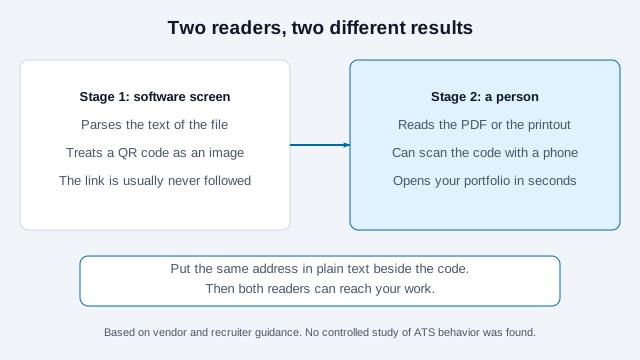
An employer FAQ gives a concrete picture of what parsers dislike. Roche's resume-parsing FAQ says to avoid images, text boxes, headers and footers because parsers can drop their contents, to keep all text in the document body, and to paste a URL directly instead of hyperlinking an important word, since some systems show only the URL. A recruiting-advice article suggests putting a code near your name or in a footer, and the two pieces of advice conflict. The safe reading: keep the address as plain text in the body, treat the code as a bonus for human readers, and do not put anything the screen needs inside the image.
In practice the code matters at the human stage: a printed resume handed over at a career fair, a PDF a recruiter has open on a laptop with a phone nearby, or a reviewer deciding between two similar candidates.
What should a resume QR code open?
Link to one professional destination that supports the application. Think about the person who scans it: they have a few seconds and the resume itself has already told them who you are.
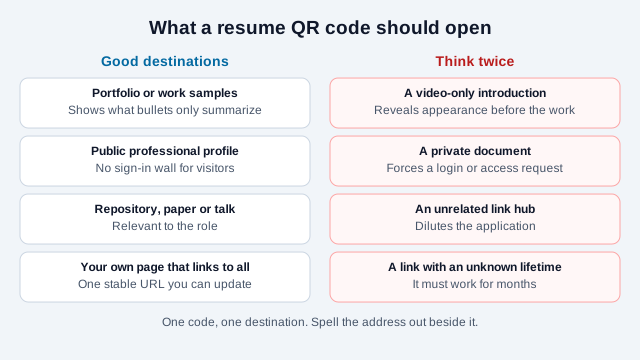
- A portfolio or set of work samples is usually the strongest use. Design, writing, data and build work show what a bullet point can only summarize.
- A public professional profile works if it loads without a sign-in. See QR codes for LinkedIn for what to check.
- A repository, paper or talk fits technical, research and teaching roles when the work is relevant to the job.
- A single page on your own domain that links to all of the above gives you one stable URL you can update between applications.
Prefer an address you control to a link-in-bio service whose paths and availability can change. Whatever you pick, open it on a phone with cellular data, signed out, and ask whether a stranger could tell within ten seconds why you applied. Nothing you type into the generator on this site is sent to a server; the code is built in your browser, so you can make one without sharing your details.
Should you use a vCard or a URL on a resume?
Use a URL. A vCard code saves your contact details to the reader's phone, which suits a business card. A resume already carries your contact block, and a recruiter reviewing applications gains more from your work than from a second copy of your phone number. If you want both, link to a page that offers a vCard download. The business-card guide and the team checklist cover vCards in depth, and you can create one with the vCard generator for a networking card that is separate from your resume. For the resume, the URL generator is the right tool.
Should the code link to a video introduction?
Be cautious. A video shows your appearance, voice and sometimes your age or a disability before anyone has assessed your work, which can introduce bias that a text resume reduces. Roche's FAQ tells US applicants never to include a photo, and other career-advice sources say the same for the same reason, and some jurisdictions regulate how employers use recorded video. For example, Illinois' Artificial Intelligence Video Interview Act requires employers to give notice and obtain consent before using AI to evaluate recorded video interviews. That law concerns interviews, not optional intro clips, but it shows how sensitive the area is.
If you include a video, make it about the work, such as a project walkthrough or a demo, and never make it the only way to understand your candidacy. Check the employer's application instructions first, because some ask applicants not to include extra media.
How big and where on the page?
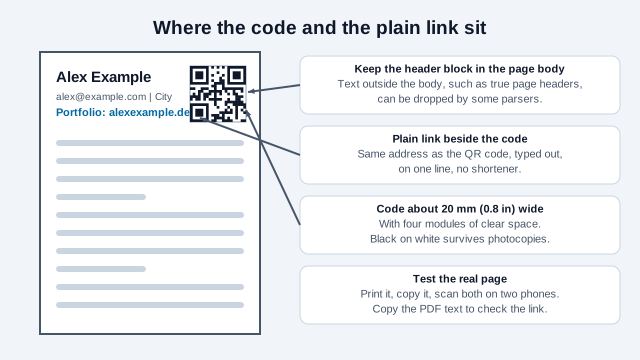
- Size: a recruiting-advice site suggests at least 2 x 2 cm (about 0.8 in). A short URL keeps the symbol coarse, so the modules stay readable at that size. See the print size guide.
- Clear space: keep four modules of blank margin around the code on every side. DENSO WAVE specifies this quiet zone, and text running up against the code is the commonest cause of a failed scan.
- Colors: dark modules on a plain white area. Printed resumes are often photocopied or scanned, and contrast is the first thing to degrade. The contrast checker is useful if you add color.
- Position: near your name, in the body of the page, with the plain URL right next to it. Test it, because a code placed in a true page header or footer may not survive every parser.
- Format: export a vector file for the PDF. Keep the code in the PDF as an image, with the typed link as ordinary text. The SVG guide explains why vector output stays sharp.
Which link format survives each stage?
A resume travels: through a parser, onto a screen, onto paper, and sometimes through a photocopier. Each channel treats the three ways of sharing a link differently.
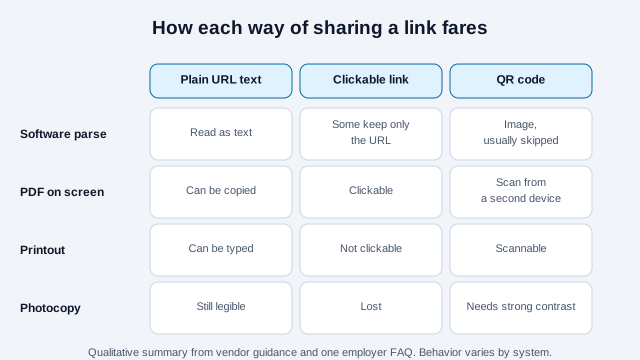
The grid is why the checklist always pairs the code with typed text. A clickable link is useless on paper. A code cannot be clicked on a screen without a second device. Typed text works in all four channels, so it earns the place of honor next to the code.
How do you test it before you send it?
- Export the PDF, then copy all its text into a plain-text editor. The URL should appear intact on one line.
- Print the page at 100% size and scan the code with an iPhone and an Android phone.
- Photocopy or scan the printout once and scan the copy. If the copy fails, increase the code size or contrast.
- Open the destination on a phone without being signed in, on cellular data.
- If you tag the URL with a campaign parameter so you can see visits from a particular application, build it with the UTM builder and keep the visible plain-text link tidy. Some reviewers dislike long tracking strings, and you should assume the employer can see the full address in their phone's preview.
- Scan it with the scannability tester to see how it holds up under blur and low light.
People are warned about unknown QR codes, so a reviewer may hesitate to scan one. Showing the address in text, on a domain that clearly belongs to you, lets them judge it before they point a camera at it. The safety guide explains what careful scanners look for.
What goes wrong with resume QR codes?
Consider a candidate who exports her resume with the QR code in the page footer, pointing at a link-in-bio page that she later updates. The company's ATS never reads the footer. The recruiter who does print the resume finds a code the size of a postage stamp, printed in pale gray on a tinted background, and the scan fails. The linked page also still lists an old employer. The candidate never learns why there was no reply.
Each part of that story has a fix. Move the link into the body as typed text. Print the code in black on white at roughly 20 mm. Point it at a page you control and review the page before every application round. Check the page for stale details, a broken sample or a missing contact line. Beyond that, the common mistakes are a code pointing at a private document, a code that links to a social account full of unrelated personal posts, and a stack of different codes on the same page. If a printed code still fails, the troubleshooting guide works through the causes.
What is the resume checklist?
- One destination, one code, one label such as "Portfolio".
- The same address typed in plain text beside the code, in the body of the page.
- A page you control that loads fast on a phone, signed out.
- Black on white, about 0.8 in (20 mm), four modules of clear space.
- A tested printout and a tested photocopy.
- The resume complete enough to judge without scanning anything.
- A reminder to review the destination before each application round.
Which hiring-process details are out of your hands?
Whether a particular recruiter will scan the code is outside your control; some find codes gimmicky, and a recruiting-advice source says a significant number reject anything they see as too gimmicky. How a given ATS handles an image is something you cannot check without testing against that employer's system, which candidates rarely can. Employers that ask for a plain-text resume or a fixed format may not want a code at all. And the rules on photos, video and screening differ by country and state.
This page is general guidance, not hiring or legal advice. Follow each employer's application instructions, and check the rules that apply where you are applying.
References
- Roche Careers, "Resume parsing FAQ."
- TopResume, "QR codes on resumes: to include or not?" (career-advice site).
- Resume Worded, "How to add a QR code to a resume, according to a recruiter" (resume service).
- Illinois General Assembly, "Public Act 101-0260 (Artificial Intelligence Video Interview Act)."
- DENSO WAVE, "Point for determining the code area," QRcode.com.
- Hireflow, "How to include links in an ATS resume safely" (resume-tool vendor).
- ATS Verification, "Do ATS read hyperlinks in a resume?" (vendor blog).